Guides
Walkthroughs, one per task. Each assumes the extension is installed, Status is on and a position is saved; quick start gets you there.
Decide whether to send a marketing sequence
Stay on Reminder only unless you can say yes to this: I have a lawful way to have collected marketing consent from the people I am about to email. The extension cannot check it for you. The two ways it may email says where the line sits and which decisions put it there.
To switch:
- On the Settings tab, choose Marketing sequence.
- Tick I have a lawful basis to send marketing email to shoppers who did not complete a purchase, and I am responsible for it. Without the tick, Save saves nothing at all.
- If your consent is OpenCart's newsletter box, turn on Only email shoppers who ticked your newsletter box. It skips everyone else, which means every guest, and on most stores guests are most of the abandoned checkouts. The Episodes tab lists everyone it skipped under Not emailed.
- Set the coupon under The recovery coupon: a percentage or a fixed amount, its value, and how many days it stays valid. A percentage above 100 is created as 100.
- Check Second email after and Third email after. They are hours from the abandonment, 24 and 72 by default, not gaps after the email before.
- Press Save.
The switch applies from the next abandoned checkout. Checkouts already open carry on as Reminder only, and their shoppers never get a second email. Going back to Reminder only stops the second and third emails of open checkouts at the next pass.
What the shopper gets: the same first email as Reminder only but without the only email sentence; a second carrying a single-use code; a third restating the same code and the last day it works. Every one says This email is an advertisement. The coupon is a real OpenCart coupon you can see under Marketing → Coupons, and it is made when the second email goes, with the settings as they are at that moment.
Email the checkouts abandoned before you installed
The extension watches only what is abandoned after it was installed. The backfill reaches back up to seven days and sends each shopper it finds the first email and nothing after it, coupon-free, whichever position you are in.
- On the Episodes tab, press Backfill.
- Choose a window: the last 24 hours, 3 days or 7 days. A window longer than your Initial collection reaches back or Give up after days is not offered.
- Press Count them, and read the subtraction.
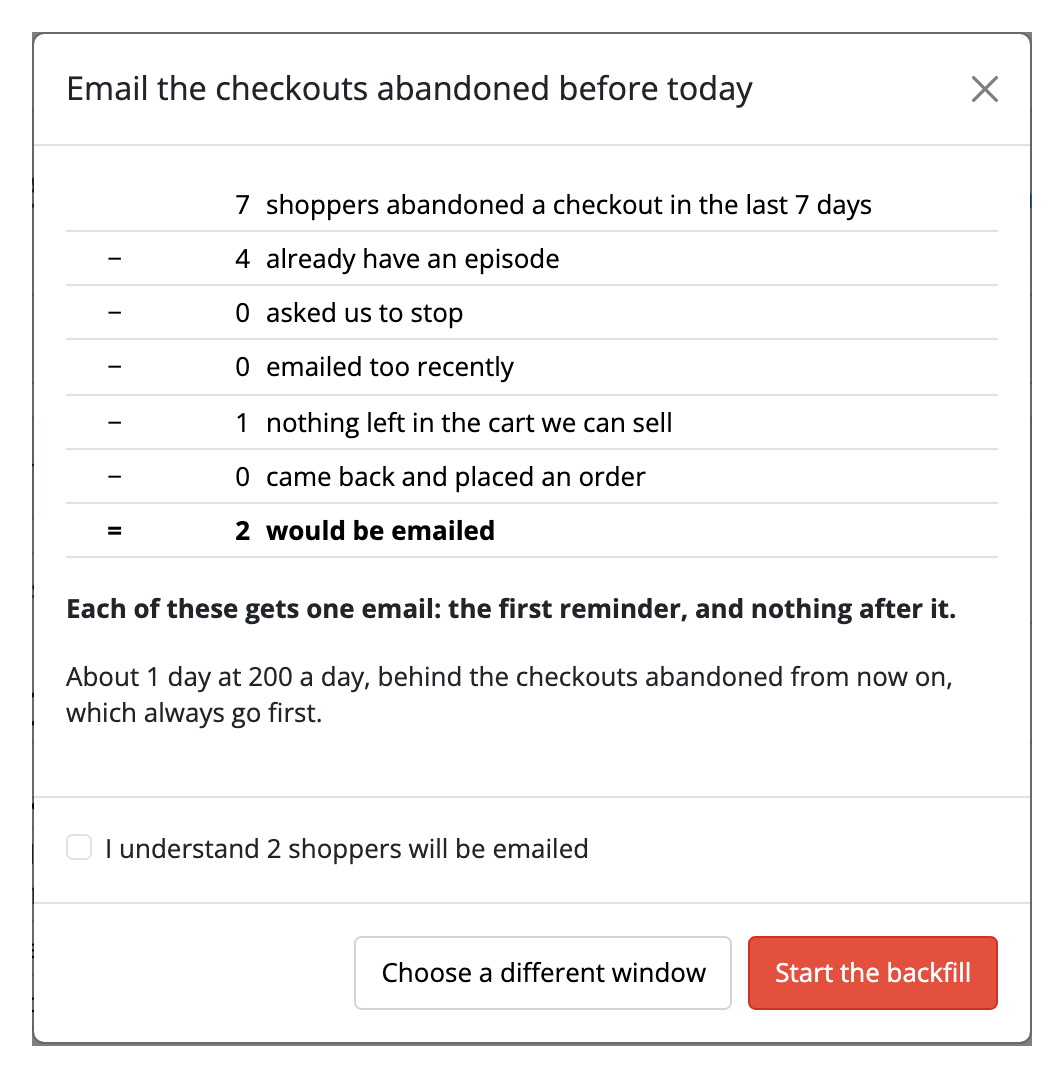
- Tick I understand … will be emailed and press Start the backfill.
It counts shoppers, not orders, and counts on the high side: a few it counted may end up with nothing sent, because the cart is checked again when the email is due. Starting sends nothing itself. The following passes collect the orders and then send, under your daily limit and after anything abandoned since installing. The modal shows the last backfill's result afterwards, and those shoppers are not counted again.
The backfill is for your default store only, and needs a position saved first.
Change what the emails say
The Emails tab has eight boxes per language: the subject and opening of each of the three emails, the button, and the unsubscribe link. Choose the language at the top. A box left empty uses the shipped English, so no email can go out with a blank sentence.
Each box lists the placeholders it understands. {store}, {name} (the
shopper's first name) and {date} work everywhere; {discount} and {coupon}
work in the second and third emails only. The first email has no {coupon}:
a discount there would make it a marketing message, so typing one leaves the
braces as you typed them.
What the email is made of cannot be edited: the list of items with their prices, the subtotal line, the only email sentence under Reminder only, the reason line, the advertisement line under Marketing sequence, and your postal address. Those lines are always in English. On a store in another language you can translate the eight boxes, and the rest of the email, and the pages the link and the unsubscribe open, stay in English.
The words are yours, and so is what they do. Promising a discount, or pressing a deadline, in a Reminder only email makes it a marketing message whatever the setting says. The first email's help text lists the words that read as urgency.
Preview your emails and send yourself a test
The Emails tab ends with Preview and test. Use it after changing the wording, and once before switching the module on, to see what a shopper will get and to find out whether your store can send mail at all.
- Press Save first. Both buttons use the saved settings of your default store, so an unsaved edit is not in them.
- Choose the Email and the Language. Under Reminder only, or with no position saved yet, only the first email is offered.
- Press Preview. The email opens in a new tab, exactly as the next pass would build it, with its plain-text version underneath.
- Press Send me a test to have the same email sent to the address on your admin account. The screen says whether it went.
The preview uses a sample shopper called Alex and two sample products at today's date, never a real shopper's data. Its links open the page that says the link has expired. The second and third emails show a sample coupon code with your saved type, value and conditions; no coupon is made under Marketing → Coupons.
The test differs from the preview only by [Test] before its subject. It goes through your store's own mail settings, so if it does not arrive, look at System → Settings → Mail before anything else; if the mail server refused it, the screen says so and the extension's log has the error. A test counts toward nothing: no daily limit, no abandonment, no record of a send. There is no way to send it to another address; add an email address to your own admin account if yours has none.
Stop emailing somebody
On the Episodes tab, find their row. Two buttons, for two different wishes:
- Stop emailing withholds every email this abandonment still had to send, and leaves it open. If they buy anyway, it still counts as recovered. Their next abandoned checkout is emailed as usual.
- Suppress adds the address to this store's suppression list and closes the abandonment as Stopped. No later checkout from that address is emailed either.
Lift suppression appears only on an address you suppressed. It takes the address off the list, and the next checkout it abandons can be emailed; the one you closed stays closed. An address the shopper unsubscribed themselves, from the link in the email, cannot be lifted by you.
Send a failed email again
Fix the mail setting that made it fail first: the error beside the row is what your mail server said. Then press Resend on each Send failed row you want sent. Nothing goes at once. The next pass sends it, once, under the same daily limit and the same checks as any other email, so a shopper who has bought or unsubscribed meanwhile is not sent it.
There is no Resend on Send interrupted. That email may already have been delivered.
Answer a request to see or erase someone's data
Customers → Personal Data looks up one email address across every Kyvero extension you have installed.
- Download a copy gives you everything held about that address as one JSON file, to send to them.
- Remove it blanks their abandonments here, open ones included, and keeps their place on the suppression list, because a request to stop has to outlive the erasure. An open abandonment that was erased is never emailed again.
Either needs Modify on OpenCart's own customer permission.
Remove everything held about a person, on the Data & privacy tab, does the same for everybody at once. It cannot be undone. What this holds about a person lists every column and what each act does to it.
Connect an integrator to the API
The API is off until you turn on Answer API requests on the Settings tab. It is read-only: two resources, the abandonments and the passes, over HTTPS and with an OpenCart API user from System → Users → API. The credential reads every store's abandonments, addresses included, so give it only to a system you would trust with your customer list. API has the routes and fields.