Guides
Task-shaped walkthroughs. Each one assumes Returns Portal is installed, enabled and permissioned; see requirements and install.
Set the return window so it means what you think it means
Extensions → Extensions → Modules → Returns Portal.
OpenCart records no delivery date anywhere. It keeps the date an order was placed and the date it was last changed, and nothing else, so a return window has to be measured from something you nominate.
Set Window starts at to whichever of your statuses means the customer has it. The window then runs from the first time an order reached that status, and never restarts: moving an order out of that status and back in does not hand the customer a fresh fortnight, and tidying an order's history cannot shorten one either.
Leave it at (the date the order was placed) and the window runs from the order date instead. That is always at or before delivery, so it can only make the window stricter. It also means orders placed before you installed this behave sensibly with no special handling.
Set Return window (days) in whole days. It is counted to the end of that day in your store's own timezone, because a window that expires at 10:03 in the morning turns into a support ticket. There is no value meaning unlimited.
Stop certain things being returned
Same screen, two fields: Products that may never be returned and Categories that may never be returned.
Naming a category excludes everything filed underneath it, all the way down. There is no ordering and no precedence: any match excludes.
Write your reason into What a customer is told about an excluded line, in the Wording panel on the same screen. It is printed on the line, greyed, where the customer will read it. Leave it empty and they get a generic sentence instead, which is less useful but still tells them something. It is written per language, and the panel's picker is where you choose which.
Two things to know before you rely on it:
- Exclusions are matched against your catalogue as it is now, not as it was when the order was placed, because there is no record of the latter. A product you have since deleted matches nothing and is returnable.
- Excluding a component of a bundle does not stop the bundle coming back. Exclusions match the product on the order line, which for a bundle is the bundle itself. Exclude the bundle, or a category above it.
Put a captcha on the guest lookup
Returns Portal draws no captcha of its own. It uses whichever captcha extension your store already has installed and enabled, and there are two ways to ask for it:
- On this extension's settings screen, pick one in Captcha on the lookup.
- Or tick Returns lookup in the Captcha Page list on the Option tab of your store's settings, beside OpenCart's own pages. Returns Portal adds that entry to the list; OpenCart has no way for an extension to appear there on its own.
Leave both alone and the lookup still shows your store's captcha once one IP address has had too many lookups refused (Lookups per IP before the captcha is forced, five an hour by default). With no captcha extension enabled at all, that caller goes straight to the refusal instead. A captcha that is missing or switched off never breaks the form.
Decide whether the customer sees the estimate
Show the customer the refund estimate is on by default, and on most stores that is right: on an order with no order-level discount the arithmetic is exact, and showing it is most of the reason this category of extension exists.
Turn it off if your orders are full of coupons restricted to particular products or categories. OpenCart records only the total that came off an order, never which lines it came off, so the estimate spreads it evenly. That is right in aggregate and wrong per line by up to the discount. The customer would then see a figure you may have to argue them down from.
You always see the estimate regardless. The setting hides it from the customer only, because a wrong figure needs to be visible to the person who can find out.
The breakdown matters here. A line reading share of order discount tells you at a glance that the allocation does not match the coupon you actually ran.
Approve returns without looking at them
Approve requests without looking at them, off by default.
When it is on, a request is still created as submitted and then approved through the same code path a click uses. The history therefore shows arrival and then approval, rather than a request that was born approved with no record of when it came in.
It is off by default because approving a return is agreeing to receive a parcel, and an extension should not make that promise on your behalf until you say so.
Pay a return in store credit
There are two ways, and the manual one is always available.
By hand. On an approved request, Issue store credit carries the accepted total already worked out. One click writes it to the customer's balance and emails them. It replaces six clicks and a hand-typed figure in Customers → edit → Transactions, which is why automatic issuance can reasonably stay off.
Automatically. Issue store credit automatically offers When the return is approved or When the return is closed, and applies only to requests whose customer asked for store credit in the first place. With Approve requests without looking at them also off, an unattended payout takes two deliberate decisions rather than one.
Whichever you use:
- It happens once. A verdict that moves afterwards does not move the credit; you are shown what was issued and when, against the new figure.
- A guest gets no button at all. There is no balance to credit, and matching a guest order to an account by email would let anybody who passed the order lookup move money into a stranger's account.
- Issuing needs Modify on
customer/customer(OpenCart's own permission for touching a balance) as well as the returns queue. That is how you give somebody the queue without giving them the money.
Put returned stock back when you close a request
Off until you switch it on: Put returned stock back on close, on the default store's settings screen under Deciding, and paying. It is one setting for the whole installation, because OpenCart's stock counters belong to no store.
With it on, an approved request's close control lists every accepted line with a Put back in stock box, ticked, and whether the customer said it was opened. Untick anything that is not fit to sell again, then Close.
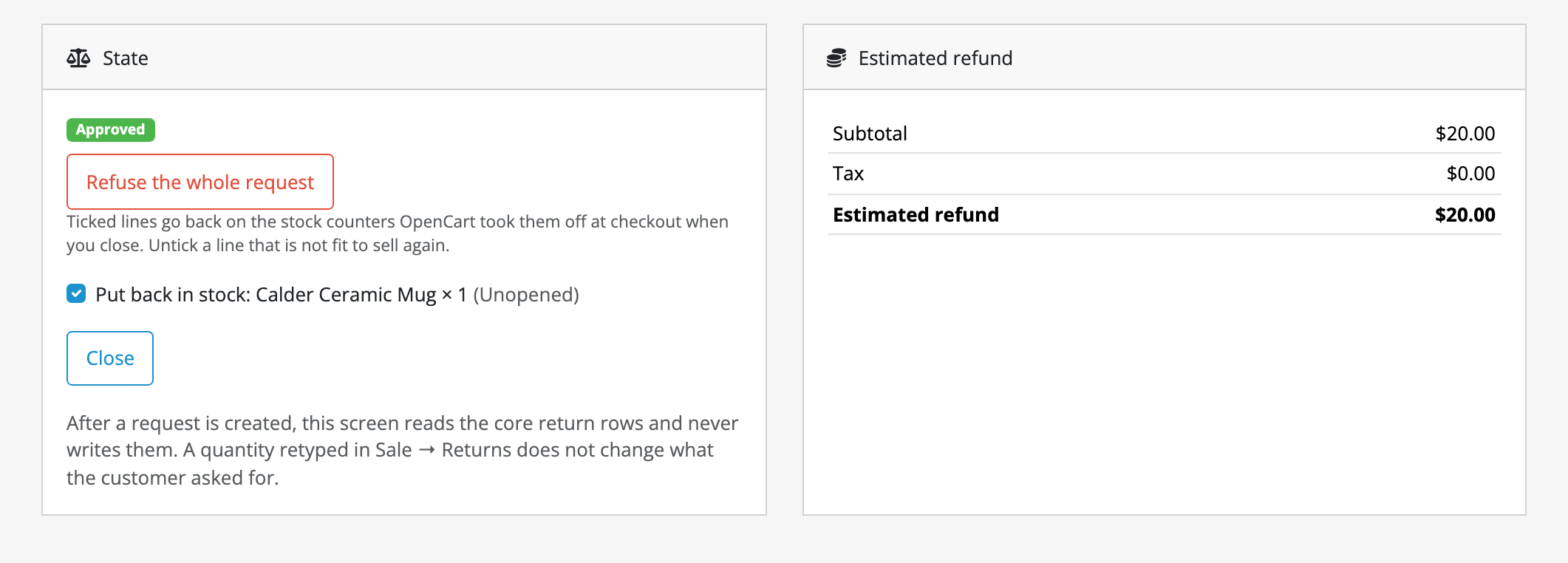
- Ticked lines go back where checkout took them from: the product, its master where it is a variant, and each option value, wherever that counter subtracts stock.
- A line whose stock is not tracked says so (Stock not tracked) and has no box. A Product Bundles bundle is one of those; its components are never restocked by a return.
- Afterwards the request screen says what happened to each line: Put back in stock with the quantity and the day, or Held back when the order's status had already put it back.
- Nothing else to do when you then mark the order Refunded. OpenCart puts the whole order back by itself at that moment, and Returns Portal takes the returned units off again so they are not counted twice. Moving the order back puts them back. Why, and the few cases where it cannot keep up, are under Putting stock back.
Only a close restocks. Approving never does, and a request closed while the switch was off is never restocked later.
Record a refund you paid
Returns Portal does not refund anybody. What it can hold is your record of a refund you made, so the request carries what was paid as well as what was estimated.
On an approved or closed request, the Recorded refunds panel takes the amount (in the request's own currency), the day you paid it (today by default, never later) and, if you like, how (bank transfer, PayPal). Record refund adds the row; the panel shows every row, who recorded it, and their sum against the estimated refund.
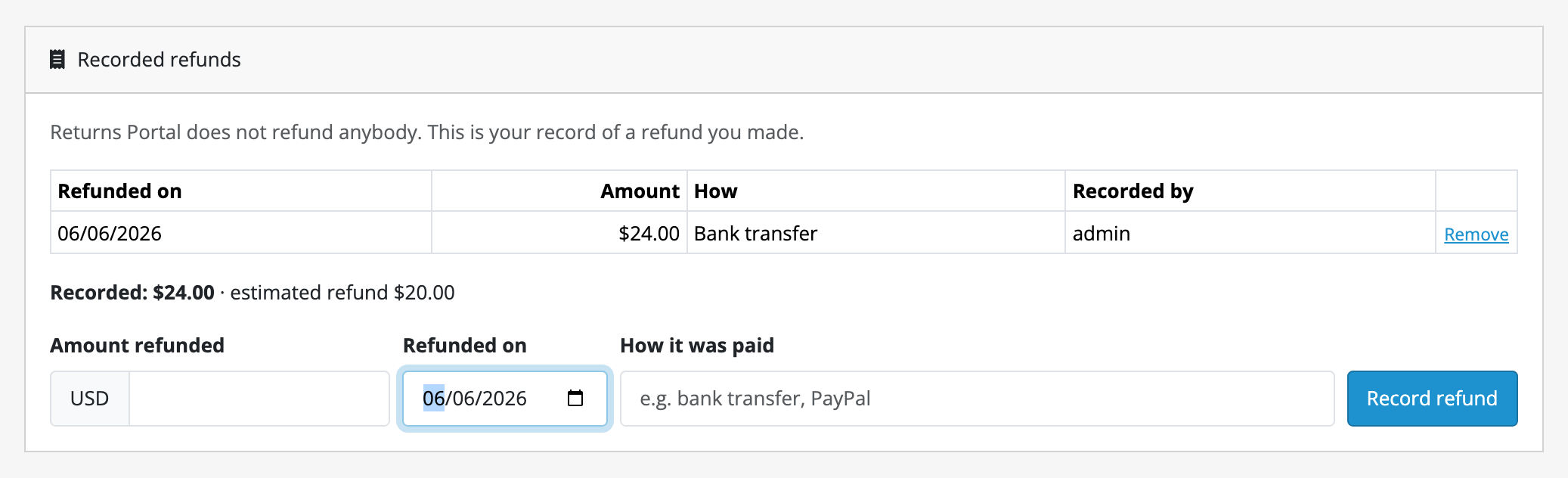
- As many as there were. A partial refund and the rest a week later are two rows.
- No cap at the estimate. The estimate never contains shipping, and you may refund that too.
- Remove takes a mistyped row away. Only the record goes; no money moves either way.
- The customer is sent nothing, and nothing is written to the request's history or to Sale → Returns.
- A request still approved with a refund recorded against it shows Refunded before the parcel arrived on the queue, which is the one to look at if the goods never come.
Work the queue
Sales → Return Requests. Three tabs: Needs a decision, Approved, awaiting parcel, Settled, each with a count.
An empty Needs a decision tab is the normal state of a store that is keeping up. The count on Approved, awaiting parcel is what tells you something has been approved for longer than Call a return overdue after (days), fourteen by default, and never arrived.
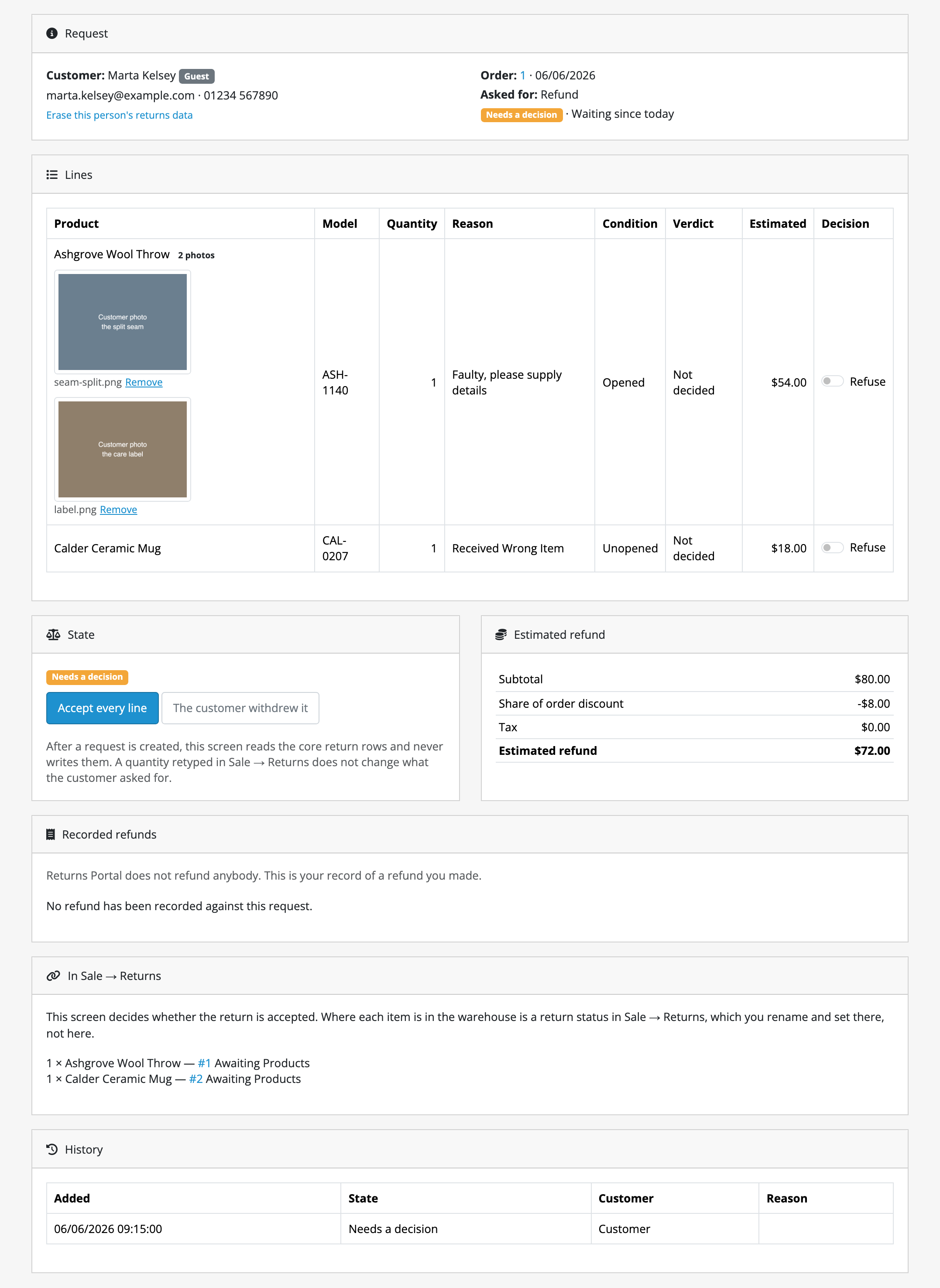
Open a request and you get the lines, the reasons, the photos inline and the estimate. Tick Refuse against any line and two figures appear: what you are accepting now, and the request total demoted underneath it. Save with a comment. On a rejection the comment is required, because why is what the customer is about to be emailed.
A request is decided in one action, line by line. There is no half-decided state.
A photo that should not be on the record can be taken off it with Remove beside it. The file is deleted and the request's history records that it was removed, so a missing photo never reads as one that was never sent.
A customer can withdraw their own request with Cancel this request on the confirmation screen, but only while nobody has decided it. Once you have, the button is gone. If they ask you instead, The customer withdrew it on an undecided request does the same from your side.
Export the queue to a spreadsheet
Export CSV, at the top of the queue, downloads what you are looking at: the tab you are on, the store you picked and any filters, every page of it rather than the one on screen. It is one row per request line, so a request with three lines is three rows.
The columns, in order: request_id, rma, store_id, order_id,
date_added, status, resolution, firstname, lastname, email,
product, model, quantity, opened, reason, verdict, estimate_total
(in the currency the order was placed in, as on the request's page),
currency_code and restocked (the quantity put back, where it is in effect,
otherwise 0).
- Left out on purpose: telephone numbers, history comments, rejection reasons and photos. Recorded refunds too, because a request's total repeated on each of its lines would double when you add the column up.
- A name or email a customer typed that starts with
=,+,-or@comes out with a'in front, so your spreadsheet reads it as text rather than running it as a formula. - An erased request exports with its contact fields empty, as it is.
- It needs only the queue's own view permission, the same one that shows the queue. The file holds customers' names and email addresses, so it is yours to look after once it is on your computer.
See the returns the portal did not create
The queue carries a count of them, with a read-only list behind it.
These are returns filed through OpenCart's own form before you installed this, and returns you typed into Sales → Returns yourself. They have no RMA, no verdict and no estimate, because an OpenCart return row has none of those things. They are counted against what is still returnable on their order, so nothing can be sent back twice through two doors.
The only action on that list is OpenCart's own edit pencil.
If you have already refused one of them by hand, note that OpenCart has no idea of a rejected return: its statuses are names you can rename and delete, so the row still blocks the customer from asking again. Delete the row in Sales → Returns and the quantity is released; the portal notices as it happens.
Answer a customer who wants their data erased
Customers → Erase Returns Data. Type the address. The entry is in the
menu only for a group with Modify on customer/customer as well as the
screen's own permission; see requirements and install.
You are shown the whole plan before anything happens: how many requests, how many photos and how many OpenCart return rows match, what will be anonymised, what will be deleted, and (in the same list rather than in a footnote) what is deliberately left alone.
Run it. Requests are anonymised in place and never deleted, because a returns record is an accounting record. The photos are deleted, file first and then the record of it.
If a photo's file will not delete, the act reports itself as Not fully erased rather than done, and the record stays. Run it again.
If what they asked for is a copy rather than an erasure, Customers → Personal Data has a Download a copy button beside what it lists. It hands you one JSON file holding everything the list above shows, for every Kyvero extension you have installed. The file is structured and machine-readable, so you can send it rather than retype it. It holds that list: what is held about them, why, and what removes each item. It does not hold the values, which stay in your database, so it answers somebody asking what you hold about them and is not a portability export. Send them the file; nothing here sends it anywhere for you.
Two things to know before you tell the customer it is finished:
- The order itself is untouched, and their name, address and telephone are on it. No erasure path in OpenCart touches an order either.
- OpenCart's own erasure is deeper than it looks, and still misses this. It clears the account and everything attached to it (addresses, transactions, wishlists, rewards), but it never touches the order, it has never heard of a return request or a photograph, and for a guest it deletes nothing at all while still emailing them that it is done. That is why this screen exists separately rather than hooking onto OpenCart's deletion, which for a guest never fires.
Turn the whole thing off
Switch Status off, on the Default store's tab of the settings screen.
The portal stops being reachable and OpenCart's own return form starts working again immediately, exactly as it did before: the footer link, the per-item buttons and the form itself. No core file was changed, so there is nothing to restore.
This cuts both ways. The reason to leave the module on is that OpenCart's own form accepts a return against any order number without checking that the order exists or belongs to whoever is filing it. Switching Returns Portal off puts that form back in your footer.
Nothing is deleted by switching off, and nothing is deleted by uninstalling either.