Quick start
Fifteen minutes, on one product, end to end: mark it, buy it, land the stock, ask for the money. Do it on a product nobody is buying yet. A pre-order is a promise to a customer, and this walkthrough places a real order.
1. Switch it on
Extensions → Extensions → Modules → Pre-Order, then Edit. On the Settings tab switch Status on and press Save.
Nothing on your storefront changes yet. Until a product is marked, Pre-Order does nothing at all.
While you are here, check Days to pay, the one setting that needs a
decision now. It is how long a customer has to pay once you have asked them to. They are reminded halfway
through, and the order is marked expired at the end. 14 days is the default; 0
means the link never expires and nothing is ever chased or cancelled for you.
2. Mark a product as a pre-order
Open a product in Catalog → Products, and go to its new Pre-Order tab.
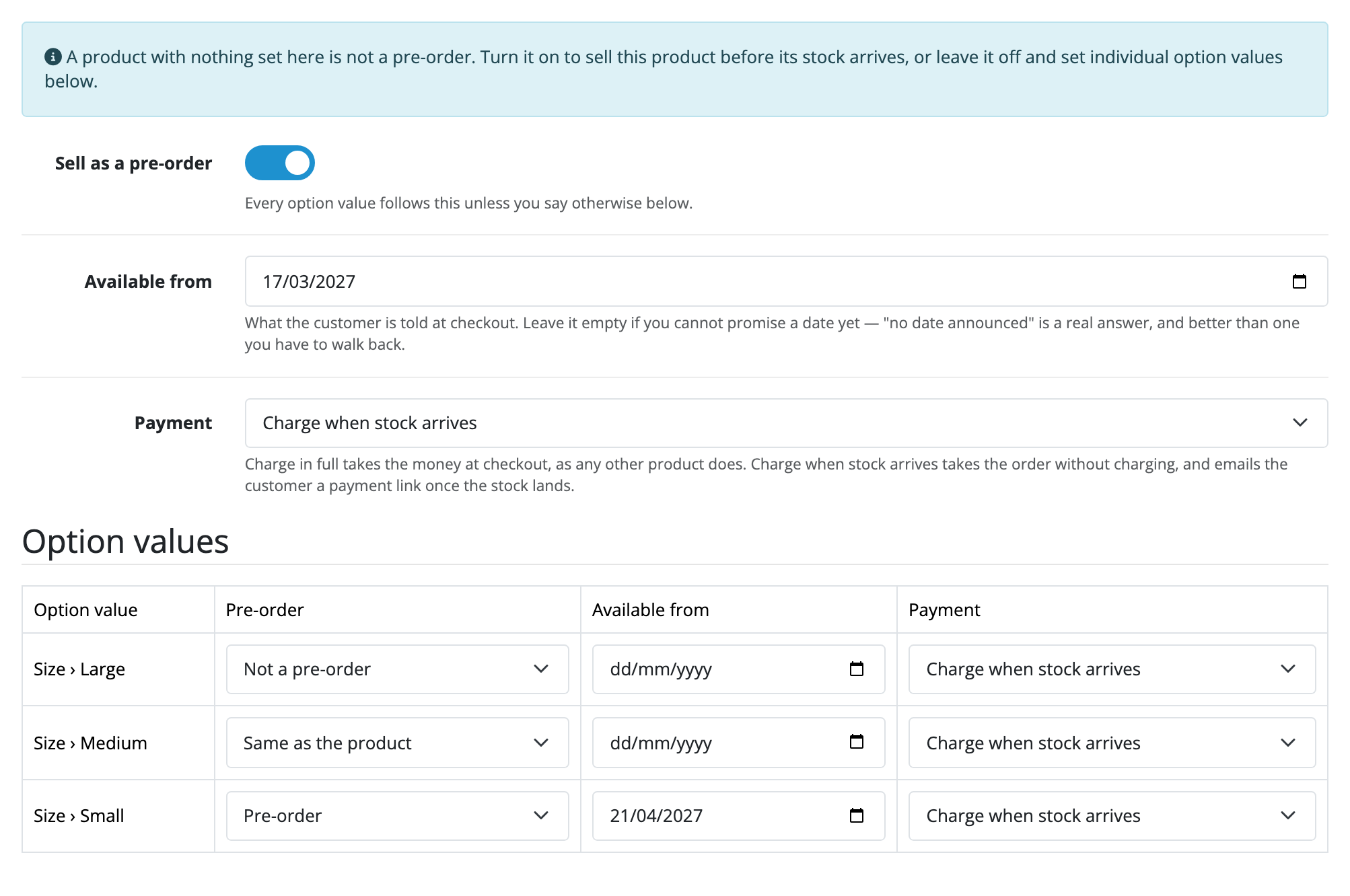
Turn Sell as a pre-order on. Then:
- Available from is the date the customer is told. Leave it empty if you cannot promise one. No date announced is a real answer, and better than a date you have to walk back.
- Payment is the choice that decides everything else. Charge when stock arrives takes the order without charging and emails a payment link later. Charge in full at checkout takes the money now, through your own payment methods, like any other product.
Save. If the product has option values, each is listed underneath and can say something different from the product. Leave them on Same as the product for now.
3. Buy it
Open the product on your storefront. The panel above the button says what a pre-order means here, and the button says Pre-Order rather than Add to Cart.

Add it and check out. If you chose charge when stock arrives, the checkout offers one payment method, Pre-Order, and charges nothing; the order lands on Pre-Order Received.
A deferred pre-order has to be bought on its own. Put an in-stock item in the same basket and the basket page says so, and will not let you check out.
4. Find it on the Pre-Orders screen
Back to Extensions → Extensions → Modules → Pre-Order → Edit, which opens on the Pre-orders tab.
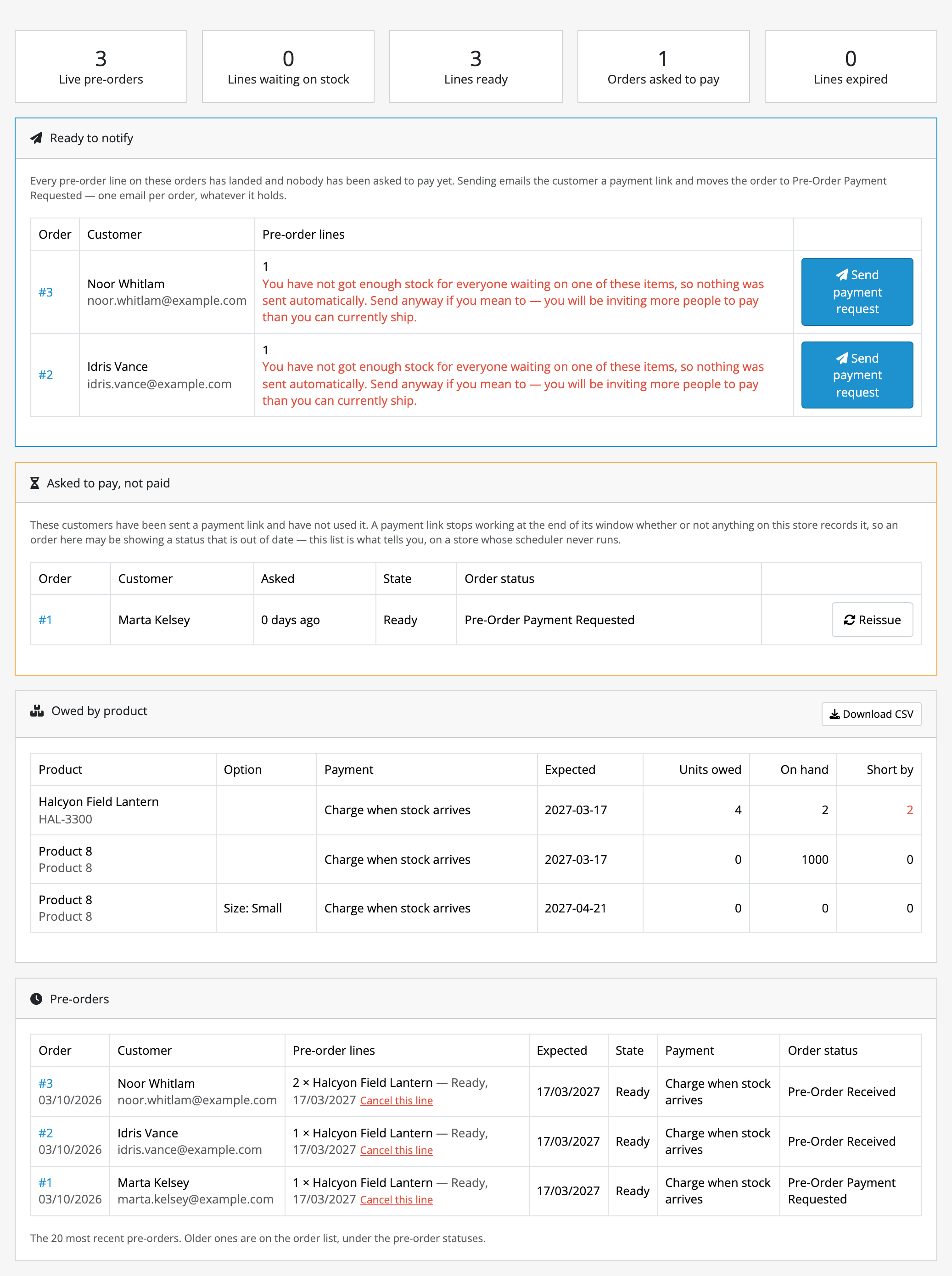
Your order is there, waiting on stock. This screen is the record of what is owed: the order statuses are labels on top of it.
5. Land the stock
Go back to the product, put a quantity on its Data tab, and save.
That save is the trigger. Every line waiting on that quantity is marked ready, and any order whose lines have all landed appears under Ready to notify.
If you have not got enough for everybody waiting, nothing is sent automatically and the callout says so. Sending anyway is a button, and yours to press.
6. Ask for the money
Press Send payment request. The customer is emailed a link, and the order moves to Pre-Order Payment Requested.
The link opens the order at the price it was placed at, and offers your real payment methods.
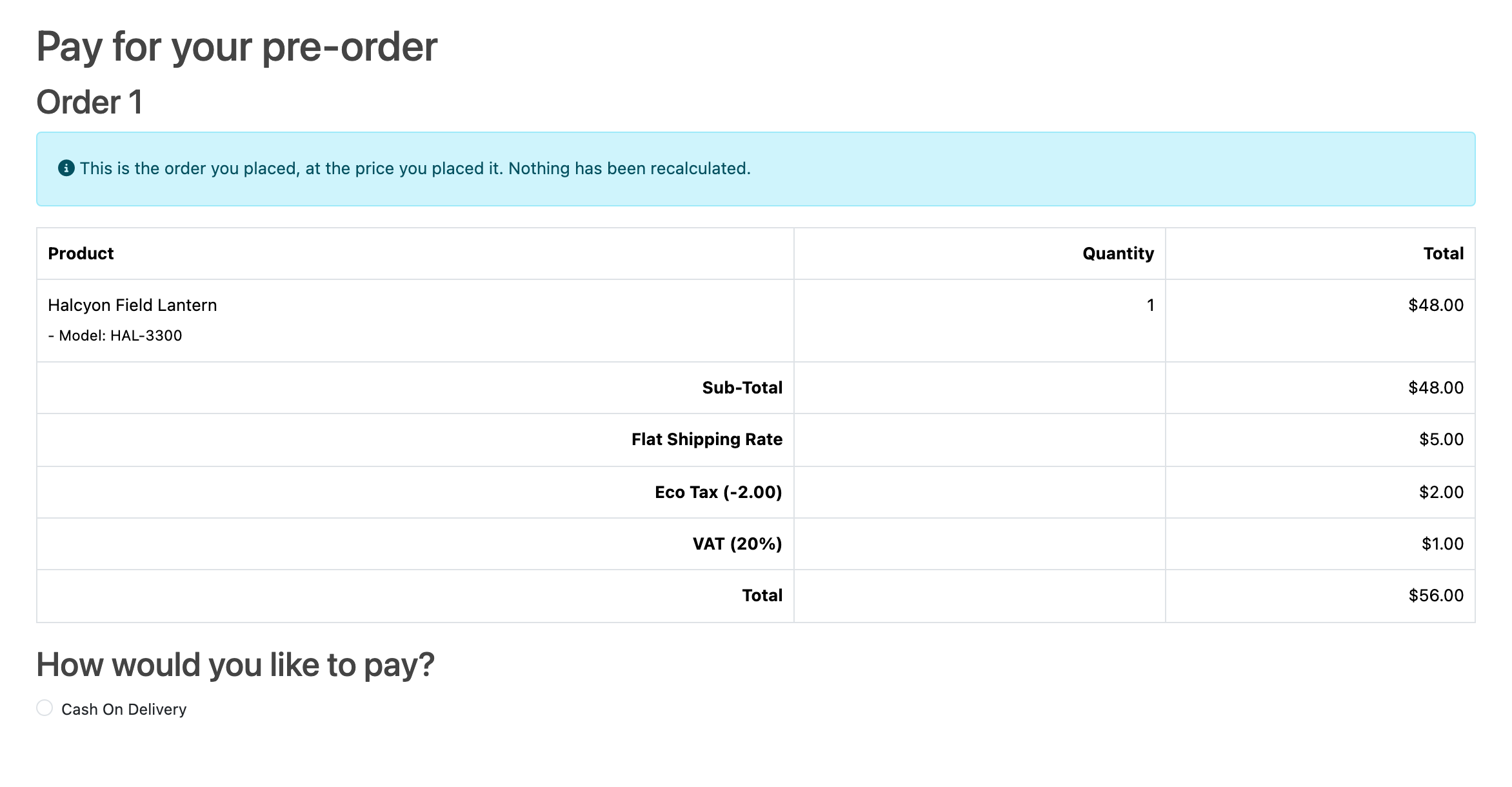
Pay it, and the line becomes paid. The order goes to whatever your store's normal post-payment status is, and Pre-Order stops having anything to say about it.
What next
- Guides: option-level pre-orders, releasing a line early, cancelling one, and the wording shoppers see.
- Limits and guarantees: read this before you sell anything you cannot ship.