Guides
Task-shaped walkthroughs. Each assumes Pre-Order is installed and switched on. If it is not, see the quick start.
Pre-order one size, and sell the rest normally
A product where the black is in stock and the red arrives in March is one product with two answers, and the answer lives on the option value rather than on the product.
On the product's Pre-Order tab, leave Sell as a pre-order off, and set the option values that are not here yet to Pre-order, each with its own date and payment mode. Everything left on Same as the product stays an ordinary purchase.
The other way round works too: mark the product, and set the one option value you can ship to Not a pre-order.
Two rules decide what a shopper's choice means. Read them before you build something complicated:
- An option value that says something overrides the product completely. If any option value the shopper selected has a row of its own, the product-level setting is ignored for that line. An option value on Same as the product contributes nothing, and does not count as a vote for the product's answer.
- A line takes the latest date and the most cautious payment mode of the option values it selected. No date announced counts as later than any date, and one deferred value defers the whole line.
Option values only appear on the tab if OpenCart gives them a stock quantity of their own: select, radio, checkbox and image options. A text or date option has no quantity to wait for.
Sell a pre-order you have no date for
Leave Available from empty. The product page says No delivery date has been announced yet, the card in a listing says ship date to be announced, and the Pre-Orders screen says No date announced.
No date is a fully supported answer, on purpose. A date you announce and then move is worse for the customer than no date, and the payment window does not start until you ask for money, so an undated pre-order costs you nothing to run.
Charge in full instead of later
Set Payment to Charge in full at checkout, on the product or on the option value.
The shopper pays now, through your own payment methods, and the order carries whatever status your store's payment method writes rather than Pre-Order Received. The line is recorded, and it is paid from checkout on, so it does not wait for stock, never moves to ready, and nobody is emailed a payment link: there is nothing left to pay. For the same reason it is not on the live pre-orders list or in the stat row's live counts.
OpenCart subtracts its units at checkout, as it does for any paid order, so what the order still needs from your supplier shows on Owed by product as on-hand below zero.
A charge-in-full pre-order can also share a basket with in-stock items, which a deferred one cannot.
See what you owe, by product
Owed by product, on the Pre-Orders screen, lists every product and option value you have marked as a pre-order, one row each:
- Units owed: pre-order units customers have not paid for yet and whose payment window has not run out. These are the units still to come off the shelf when you ask for the money.
- On hand: the quantity OpenCart holds. It can be below zero, because a charge-in-full order has its units taken off at checkout. An item with stock subtraction switched off shows not counted.
- Short by: how many units you need beyond what you hold to cover everyone,
or
0when you hold enough. It is empty for an item that is not counted.
The items furthest short come first. Download CSV gives you the same table as a spreadsheet, with the product and option value ids beside the names, for sending to a supplier.
A line placed before you switched a product's pre-order off is not in the table. It is still on the live pre-orders list below it.
End a pre-order automatically when the stock arrives
Switch on End when the stock arrives on the module's Settings tab.
From then on, saving a product ends its pre-order once the stock is there: every item it covers holds at least one unit beyond what is owed on it, and no line is still waiting. What happens on that save, in order:
- Every waiting line the stock covers moves to ready, and its order is asked to pay, exactly as it would with the setting off.
- The product's pre-order settings are removed, as if you had switched Sell as a pre-order off on its Pre-Order tab. From then on it sells as an ordinary product.
Lines already placed keep the date and payment mode the customer was told, and a payment request already sent is untouched.
With exactly enough stock for everyone waiting, the pre-order stays on: there is no spare unit to sell as an ordinary product, so it goes on taking orders for the next batch. An option value that is still short keeps the whole product a pre-order, and an item with stock subtraction switched off never ends one. Only a product save does this: an import that changes the quantity does not.
While the setting is on, the Pre-Order tab says so. Marking a product that already has spare stock ends its pre-order on the same save, so while the setting is on you cannot take pre-orders on an item you hold more of than is owed. The same goes for a copy: a copied product keeps its pre-order settings, and loses them again on the save that creates it if its stock is spare.
Release a line before its stock arrives
Release this line, on the line, on the Pre-Orders screen.
Use it when you are holding stock the quantity does not know about, or when a line is never going to arrive at a counter. An option value with stock subtraction switched off has a quantity OpenCart never moves, so a pre-order on it would otherwise wait forever. The product tab says so where you set one.
Releasing a line emails nobody while another line on the order is still waiting. The payment request goes out once every line on the order is ready, because there is one link and one payment per order, so releasing the last waiting line sends it, unless the stock check holds it under Ready to notify.
Cancel a line
Cancel this line. It stops being owed to the customer, and stops counting against the stock everybody else is waiting on.
Nothing is emailed and nothing is refunded. Tell the customer yourself, and refund them where you normally would. Use this rather than editing the order status: the statuses are labels, and moving one does not change what Pre-Order thinks is owed.
Send a payment request yourself
Orders under Ready to notify have had every line land and nobody asked for money yet. Send payment request does it.
It is also the only way an order held by the stock check is ever asked. When the quantity that landed does not cover everybody waiting on that item, Pre-Order marks the lines ready and sends nothing, and the callout says how short you are. Pressing the button anyway invites more people to pay than you can currently ship. Sometimes that is what you want, and you have the number in front of you to decide.
Reissue a link for a customer who never got the email
Reissue, on the order. It mints a fresh link, emails it, and starts the payment window again from today.
Use it for the customer who says nothing arrived, and for the link that is about to lapse on somebody who has been on holiday. The old link stops working.
Change what shoppers are told
On the module's Settings tab:
- Pre-order button: what the add-to-cart button says. Empty means Pre-Order.
- Charge-on-arrival wording and Charge-in-full wording: the paragraph in the panel above the button.
- Reminder email subject: the subject line of the one reminder a customer
gets halfway through their payment window. Write
{order_id}where you want their order number.
Leave a field empty for the wording that ships, which is shown in the box in grey so you can tell inherited from written. The shipped charge-on-arrival wording says both of the things that cause arguments later: nothing is charged today, and pre-order items cannot share a basket with in-stock ones. If you replace it, keep both.
If your store sells in more than one language, a Language select sits above these four boxes. Each language is written and saved on its own, so writing Dutch cannot blank your English. A language you have not opened keeps using our wording, so a later improvement to ours still reaches it. See Limits and guarantees.
Tell a shopper before they open the product
There is nothing to do. A product card carries the line already, on every listing in the store at once: a category page, a search result, a brand page, the related strip under another product.
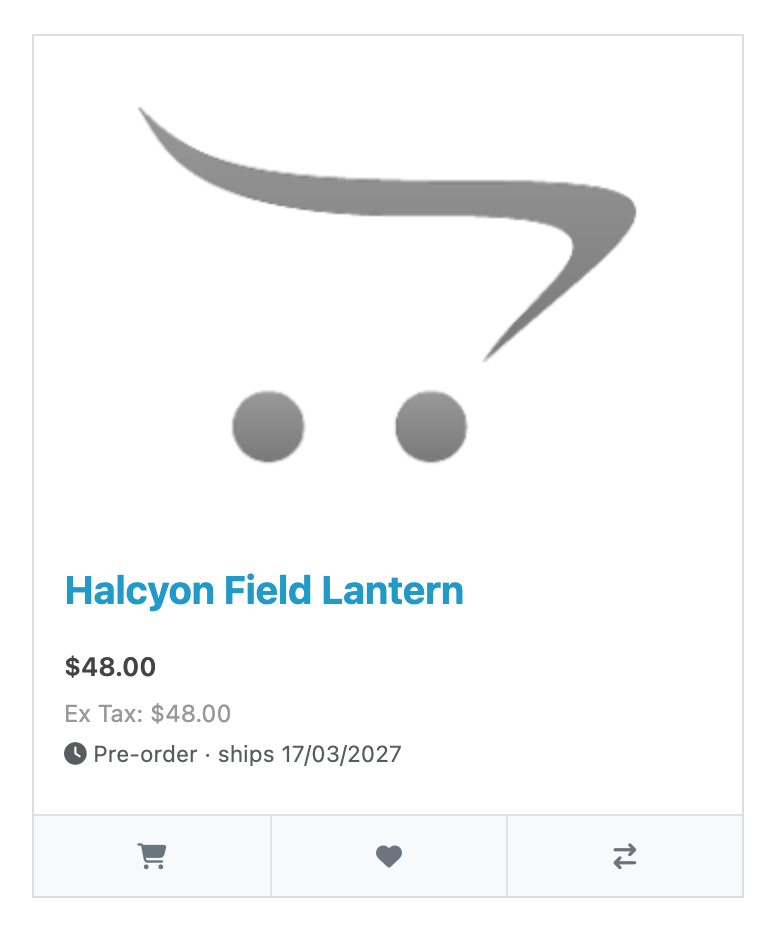
A product where only some option values are pre-orders says Some options are pre-order and names no date, because the shopper has not chosen a size yet and there is no date to promise them.
Edit an order that is a pre-order
Edit it. OpenCart's order editor deletes and re-inserts every line, and Pre-Order rebuilds its own rows against the new ones: a line whose product and options are unchanged keeps its date, its mode and the state it had reached, and a line you removed loses its row. The payment link is untouched, because the customer may be holding it.
You can also add a pre-order to an order from the editor, with two limits: it is product-level only on the OpenCart 4.1 releases, and the resulting order carries your store's default status rather than Pre-Order Received. Both are written out under creating a pre-order from the admin order editor.
Stop selling pre-orders
Switch Status off on the module's Settings tab.
The storefront goes back to normal immediately: no panel, no card lines, no pre-order button, and the stock gate stops letting anything past. The automation stops too: no releases, payment requests, reminders or expiries. Saving a restocked product while it is off releases nothing; save it again once the module is back on and the waiting orders it covers are released then.
Outstanding payment links stop working while the module is off: a customer opening one is told it is no longer valid. Nothing about the link is lost, and it works again the moment you switch the module back on. If you have asked anybody for money and not been paid, switch it off after they have paid, or tell them the link will work again when you do. A payment that reaches an order while the module is off, such as a late gateway callback or a bank transfer you mark Processing, is still recorded against its pre-order lines and its link is closed, so nobody is reminded to pay, or charged twice, once you switch it back on.