Quick start
The shortest useful loop: set a period, sell a card, watch it get a date, and look it up the way your customer will. It takes fifteen minutes on a test store and covers every part of the extension.
Gift Cards has to be installed, enabled and permitted first.
1. Set a validity period
Extensions → Extensions → Modules → Gift Cards → Edit
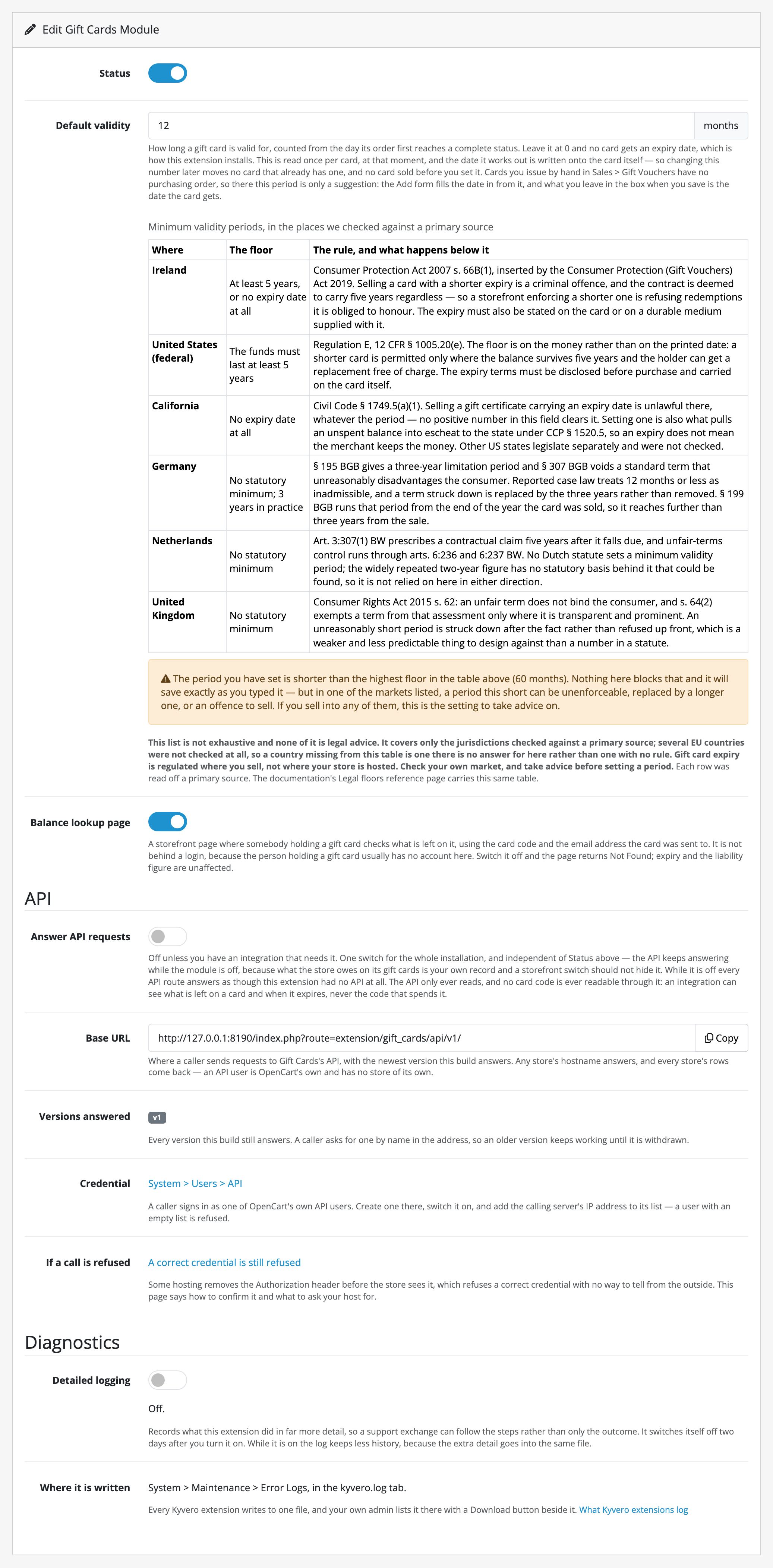
Set Default validity to the number of whole months a card should be good
for. 12 is the common answer. 0, where it starts, means no expiry at all.
If you type something below five years you may see a warning underneath, with a table of the countries that set a legal floor. It is a warning only: the field saves whatever you type. The legal floor on a gift card's expiry is that table, with the reasoning.
Save.
2. Sell a card
On the storefront, buy a gift voucher the way a customer would: Gift
Certificates in the footer, or index.php?route=checkout/voucher.
Before you pay, look at the form. Where a validity period is set, there is a line saying how long the card will be good for. The buyer is told before the money changes hands, and this is the only place this extension speaks to them.
Check out and pay.
3. Complete the order
Sales → Orders → the order you just placed → View
Add a history line with a status your store counts as complete: Complete itself, unless you have changed Settings → Option → Checkout → Complete Order Status.
That moment is when the card gets its date: when the order first reaches a completed status, not when the card was bought or paid for. The period is read once, right there, and the date it produces is written onto that card and never recalculated.
While you are on this screen, look for the Gift Cards panel. It lists each card the order sold, with its face value, what has been spent and what is left.
4. Check the expiry date
Sales → Gift Vouchers → your card → Edit
The expiry date is in the Expires on field, which Gift Cards adds to the form. You can change it here for this one card. The store-wide period generates a date but does not enforce it, so a card's own date always wins.
The recipient's email ends its redeem line with the same date. If your test store sends mail, open it; the Send button (the envelope) at the top of this form sends it again.
5. Look it up as the holder would
Open the balance page in a private window, signed out:
index.php?route=extension/gift_cards/account/balance
Enter the card code and the address the card was sent to, not the buyer's. You will get the balance, the expiry date and the movements so far.
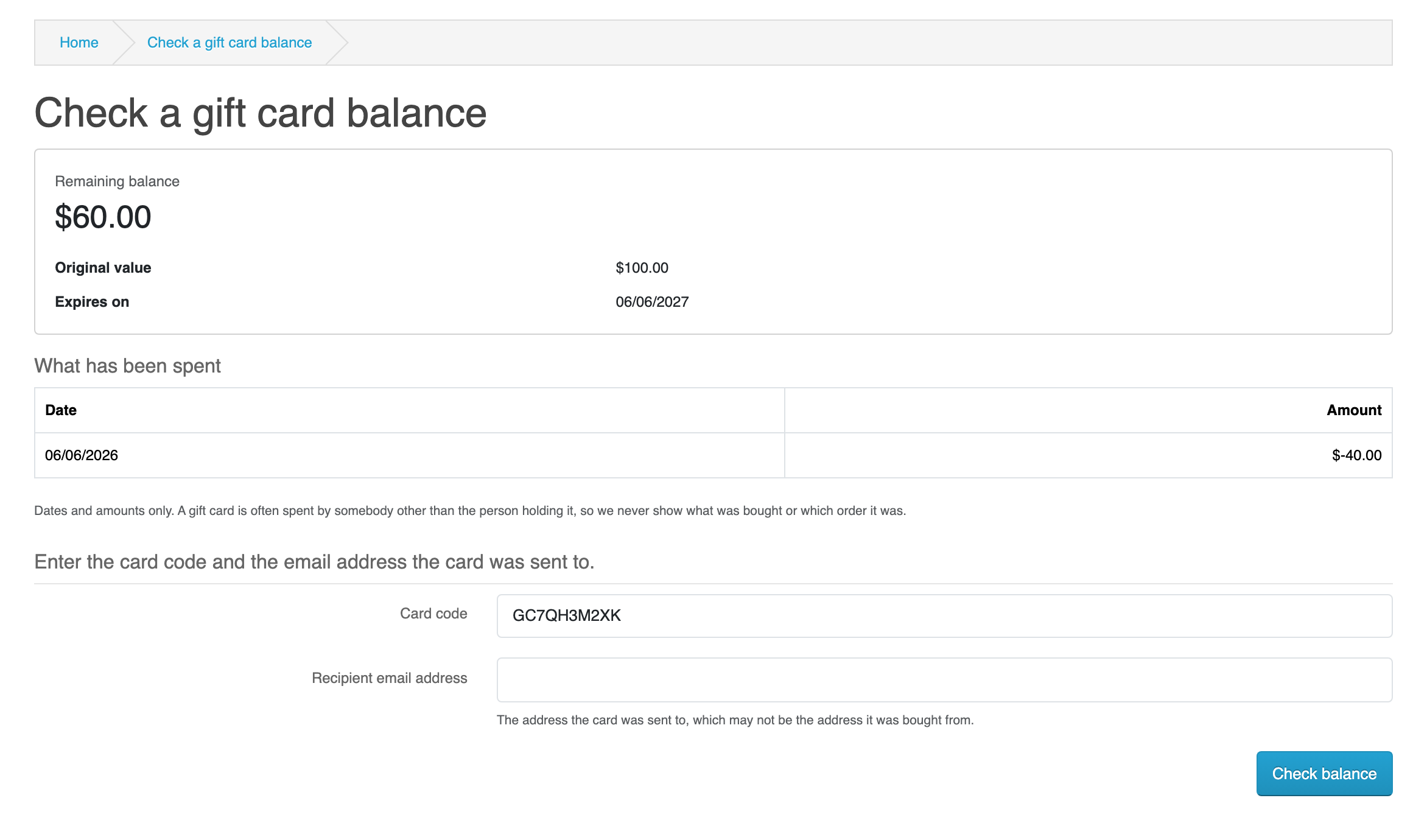
The page exists because the person holding a gift card is usually not the person who bought it and usually has no account with you. If you would rather not offer it at all, there is a switch on the settings screen.
6. Look at what you owe
Reports → Reports → Outstanding gift card liability
One figure: the money you took for cards nobody has spent yet. Expired and switched-off cards are counted inside it and broken out beside it, because neither of those gives you the money back. Cards you issued by hand and cards whose orders have not completed are shown separately and never added in, because no money was taken for either.
Under the figures, the list of outstanding cards has filters and a Download CSV button. Type your test card's code into Code or recipient and press Filter: the list narrows to that card, and the figures above it stay as they were.
What to read next
- Guides: the jobs you will do.
- Limits & guarantees: including two things that will surprise you if you meet them unprepared.