Guides
Task-shaped walkthroughs: each is written for the thing you are trying to do rather than for the screen you are looking at.
Keep the alerts running
Both of Wishlist's scheduled jobs, the hourly alert sweep and the nightly guest purge, have three doors and need exactly one of them. The simplest is OpenCart's own scheduler, which only runs when the server calls it; the other two are Wishlist's own and are in install.
- Check the two rows exist. Extensions → Cron Jobs should list Sends wishlist price-drop and back-in-stock alerts (hourly) and Purges expired guest wishlists and rows whose owner has gone (daily), both enabled. They are created when the module is enabled; if they are missing, disable and re-enable the module under Extensions → Extensions → Modules.
- Check something calls OpenCart's scheduler. OpenCart's own instructions
are on that same screen: one crontab line on the server, calling the store's
cron.php, usually every few minutes. Whether it is running shows in the Date Modified column: if a row's date never moves, nothing is calling the scheduler. - If your host has no crontab, any service that can fetch a URL on a schedule will do, pointed at the address OpenCart's screen gives you. That address is OpenCart's, not ours, and it runs every scheduled job on the store.
On OpenCart 4.1.0.4 none of the three steps above works, for a reason
outside Wishlist: the release ships a cron.php that fails inside OpenCart itself,
so every scheduled task on the store dies before an extension is reached. The
repair for OpenCart's scheduler is upstream's.
Use one of Wishlist's own two doors there instead, neither of which goes near
cron.php: the Sweep address and Purge address on Wishlist's settings
screen, fetched hourly and daily by a cron panel or a cron service, or
php extension/wishlist/wishlist.php sweep and … purge from your store's
directory. Both run exactly what the scheduled jobs ran; see
install. Wishlist's
settings screen names your release, says what it has broken, and prints both
doors filled in.
Read the Most Wishlisted report
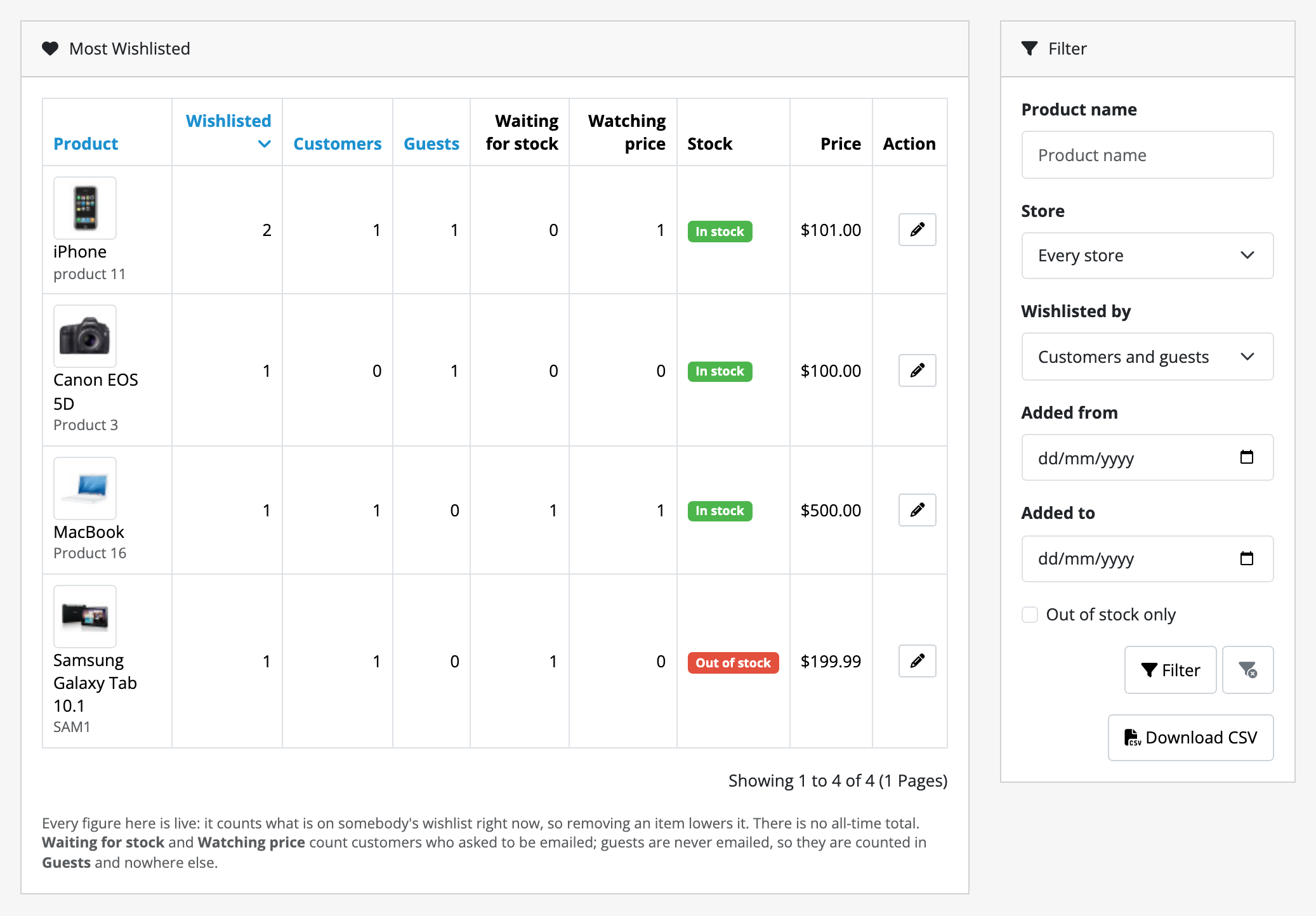
Reports → Reports → Most Wishlisted. Nine columns, one row per product.
- Wishlisted is the total, and the default sort. It counts what is on somebody's wishlist right now: remove the item and the number drops. There is no all-time figure.
- Customers and Guests split that total. Guests are counted here and appear nowhere else in the admin, because there is no record to click through to.
- Waiting for stock and Watching price count the customers who asked to be emailed. Guests are never emailed, so they are never in these two.
- Stock and Price are what the product holds and costs now, so a row can be read without opening the product.
- Edit product on each row opens that product, so you can act on the row.
Five filters, in the panel beside it: product name, store, whether you want customers, guests or both, an added-between window, and Out of stock only.
The reorder list is two of those together: tick Out of stock only and sort by Wishlisted. That lists demand you currently cannot meet, largest first.
To see who is waiting, go the other way round: open a customer and read their Wishlist tab. The report deliberately names nobody.
Download Most Wishlisted as a spreadsheet
Reports → Reports → Most Wishlisted, set the filters you want in the panel beside the table, and press Download CSV at the bottom of that panel.
- The file is every row that matches, not the page you are on, in the order the table is sorted. Sort by Guests on screen and the file is sorted by guests too.
- It reads the filters as the panel holds them, so set them before you press
the button. The file name carries the store and the dates, for example
most-wishlisted-all-all-all.csvfor every store and all time. - One row per product: id, name, model, status, stock, price, special, then
the total, customers, guests, and the two alert counts. Prices are unformatted
numbers, so a spreadsheet can sum them. A product deleted from the catalogue
says
deletedand has no name, model, stock or price. - It names nobody. Guests and customers are counts, as they are on screen. Anyone who can open the report can download it; there is no separate permission.
Show shoppers their wishlist in a column
The Your wishlist box shows each shopper their own most recent saves on the pages you choose, with a link to their whole list.
- Pick how many it shows. Extensions → Extensions → Modules → Wishlist → Saved Products Shown, under Layout module: 4 unless you change it, from 1 to 12. One number for every layout the box is on.
- Place it. Design → Layouts, edit a layout (Product, Category, Home and so on), and in Column Left, Column Right, Content Top or Content Bottom press +, choose Wishlist, and save. Repeat for each layout you want it on.
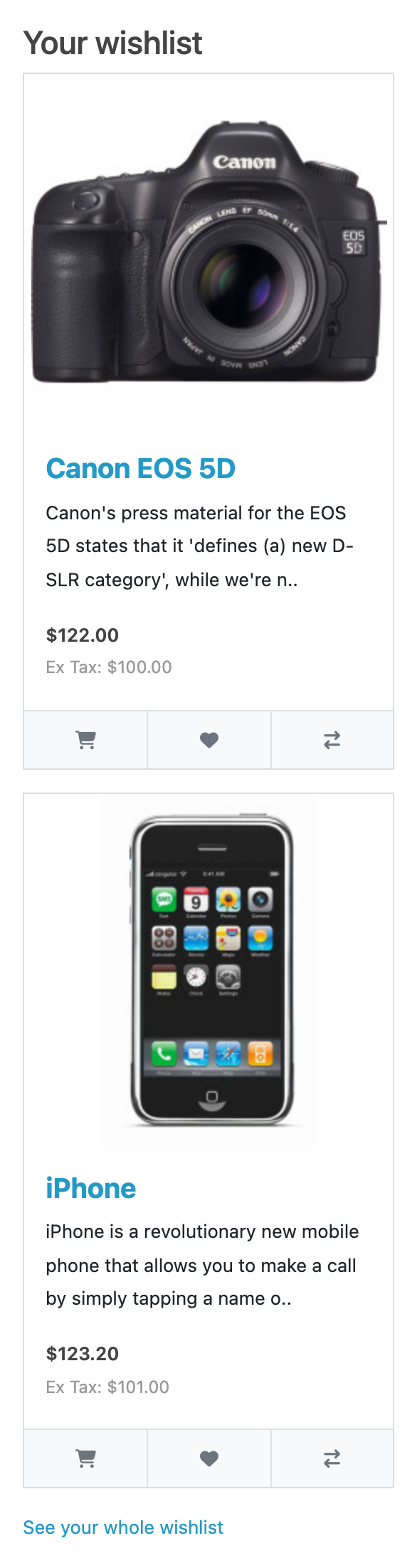
A shopper who has saved nothing sees nothing: no heading, no empty box. On a product page the box leaves out the product being viewed, and on the wishlist page itself it does not appear at all.
What it costs once placed: nothing for a guest who has never saved a product; otherwise one query for the list, plus up to one product lookup and one thumbnail per card shown (12 at most), plus, for a signed-in customer, the check for a guest list to merge that the header's counter already makes. The measured page costs on what it costs are for a store with no box placed, because a placement is yours to choose.
Place it again after every update. Removing the old version, the first step of an update, makes OpenCart take the box off every layout. Your Saved Products Shown setting is kept. See limits and guarantees for what the box does and does not do, including with a full-page cache.
Look at one customer's wishlist
Customers → Customers → edit a customer → Wishlist.
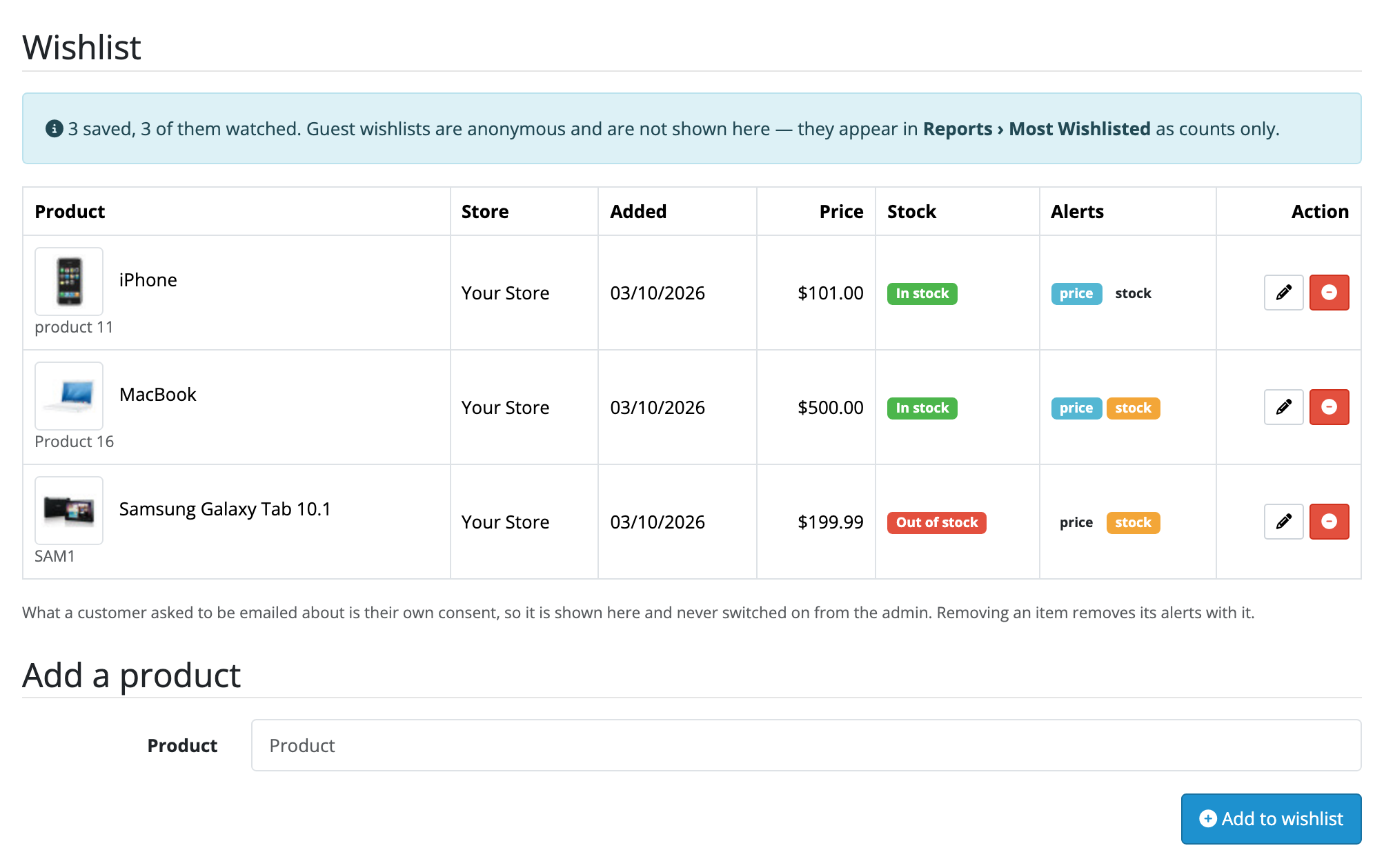
- The summary line says how many products they have saved and how many of those they asked to be emailed about.
- Add a product takes a product (and a store, on a multi-store install) for the case where a customer asks you to save something for them over the phone.
- Remove takes a product off their list, and its alerts with it.
- The alert badges are read-only. What a customer asked to be emailed about is their own consent, so it is shown here and never switched on from the admin. If a customer wants alerts on, they tick them on their own wishlist page. A product you add here arrives with both alerts off, where one the shopper saves themselves arrives with both on. The difference is who chose.
Guest wishlists are not here. They are anonymous by construction, so there is no record to open; they appear in Most Wishlisted as counts.
Help a customer who unsubscribed and wants alerts back
One click on the link in an alert email stops every wishlist email for that customer on that store. It stays stopped: saving something new does not turn it back on.
The way back on is theirs, not yours. Ask them to sign in, open their wishlist, and tick what they want to hear about under Email me about these. That first tick clears the block for them.
By design, nothing in the admin can do this for them; see the read-only badges above.
Change how long guest wishlists are kept
Extensions → Extensions → Modules → Wishlist → Guest Wishlist Retention. Days, measured from the last time the shopper looked at or added to their list rather than from when each item was saved.
The default is 180 days. Between 1 and 3650 is accepted; anything outside that is saved as the nearest value inside it. There is deliberately no forever.
Lowering it takes effect on the next daily run, and what it removes it removes for good: the guest, their saved products and their share link. Raising it cannot bring back what a previous window already removed.
Turn one kind of alert off for the whole store
Extensions → Extensions → Modules → Wishlist, and clear Price-Drop Alerts or Back-In-Stock Alerts.
- The switch is read per store when the sweep runs, so a multi-store install can have price alerts on one storefront and not on another. Pick the storefront under Shopfront at the top of the screen before you change it.
- What customers ticked is kept. Switching the type back on resumes exactly the alerts they had asked for, rather than starting from nobody.
- The tick-boxes stay on the storefront either way. Hiding them would throw away preferences the moment you changed your mind, and the shopper is not the person who can act on your setting.
- This is the setting to use rather than disabling the cron job, because an update re-creates both scheduled rows enabled, and this one is remembered.
Send alerts less often
Three settings on Extensions → Extensions → Modules → Wishlist decide how much mail the sweep produces:
- Sweep Runs is how often the sweep acts: Every time the cron runs (hourly), the default, or Hourly, Daily, Weekly or Monthly. The scheduled job stays hourly whatever you pick; the sweep checks this before it does anything. A store whose prices change on a nightly import would pick daily. One answer for the whole installation, set on the default storefront.
- Cooldown Per Product is how long one saved product waits before the same customer is mailed about it again on the same subject. It is in seconds: 86400, which is 24 hours, unless you change it, and anything from 3600 (one hour) to 1209600 (fourteen days). It never holds back a restock, which can only fire once. Each storefront sets its own.
- Customers Per Sweep caps how many customers one sweep emails, 200 unless you change it. The rest keep their place for the next sweep.
Each is in the settings reference.
Give somebody the demand figures without the customer records
The report and the customer tab are separately permitted. Under System → Users → User Groups, grant the group:
extension/wishlist/report/wishlist
and leave extension/wishlist/customer/wishlist unticked. They get Most
Wishlisted, which names products and counts and no people; the Wishlist tab
does not appear on a customer record for them.
Explain a share link to a shopper
What the shopper needs to know is on the card itself:
- Anyone with the link can see it. There is no password and no login. What they see is the saved products; what they cannot see is anything about the owner.
- It is live. Prices and availability are today's, not the day it was shared.
- Switch link off stops it working and keeps it. Replace with a new link issues a new one and stops the old one immediately. Use it if a list went somewhere it should not have.
Move a store to Wishlist, and back off it again
Installing changes nothing about what customers have already saved. Logged-in customers' wishlists stay in OpenCart's own table, which this extension never touches. The first time each of them opens their wishlist they get a page with more on it.
Uninstalling hands it straight back. The events that put Wishlist in front of the wishlist routes go with the uninstall, so the next request gets OpenCart's own page, with every saved product where core keeps it. What guests saved, what was shared and what was subscribed stays in Wishlist's own tables, untouched, so reinstalling picks it all up. See limits and guarantees for what removing it for good takes.