Guides
Walkthroughs written for the thing you are trying to do rather than for the screen you are looking at. Quick start is the one to do first.
Start expiring the cards you sell
Extensions → Extensions → Modules → Gift Cards → Edit
Set Default validity to a number of whole months and save. That is the whole change.
From then on, every card whose order reaches a completed status gets a date that many months out from that day. A period landing on a day the target month has not got is pulled back to the last day of that month, never pushed into the next one, so one month after 31 January is 28 or 29 February.
It applies to nothing that already exists. Cards you have already sold keep having no expiry date. There is deliberately no way to date them in bulk; see never retroactive.
If you want your existing cards dated, do it one at a time in Sales → Gift Vouchers, and only where you are confident the buyer was told.
Issue a card by hand
Sales → Gift Vouchers → Add
When a validity period is set, the expiry date is already filled in: today plus that period, with "Suggested from your 12-month period. Change or clear it." underneath (with your own number). Keep it, change it, or clear it for a card that never expires. What is in the box when you save is the card's date. Nothing fills it in later.
With the period at 0 the box starts empty, as it does on every edit of an
existing card.
Change or remove one card's expiry date
Sales → Gift Vouchers → the card → Edit
Gift Cards adds an Expires on field to OpenCart's own voucher form, above Status. Change it, or clear it to make the card never expire, and save. The card stays spendable for the whole of the day you type. Bringing a date forward asks you to confirm first, and every change is written to the log with the old and the new date.
The field is there only while the module is switched on.
A card's own date always wins. Nothing recalculates it from the store-wide period. This is how you honour a card you have decided to extend, and how you undo a date that should not have been set.
Tell your buyers how long a card lasts
Two places, and both happen without you doing anything once a period is set.
The purchase form carries the period. The buyer reads it before they pay.
The delivered email carries the card's own date, after OpenCart's line telling the recipient how to redeem the code: "This gift card can be used until the end of" that day. That is the email sent when the order completes and the one the Send button (the envelope) on a card's form in Sales → Gift Vouchers sends. A card with no date, or one already past it, gets no sentence.
If you use a theme that replaced OpenCart's gift card email template, send yourself a card and read the email: a template that no longer prints the redeem line loses the date with it. The other two cases where it is left out are on limits and guarantees.
If an older voucher theme of yours says how long a card lasts in its own wording, check that it still agrees with the setting, or take it out.
Help a customer who cannot spend their card
Ask them for the code and the email address the card was sent to, then check it yourself the way they would: Sales → Gift Vouchers, find the card, and look at three things in this order.
- Status. A switched-off card does not redeem. This is OpenCart's own switch, not this extension's.
- The expiry date. Past today means Gift Cards is refusing it. The balance is still there and still yours to honour; extend the date if you decide to.
- The purchasing order's status. OpenCart itself refuses a card whose order is not at a completed status. Nothing in this extension is involved, and a refunded or reopened order is the usual cause.
If all three look right, the code itself is probably being mistyped. The balance page gives the same refusal for a wrong code as for everything else, on purpose, so it will not tell them which.
Offer, or withhold, the balance page
The page lives at index.php?route=extension/gift_cards/account/balance. It is on
by default and it is public.
It is already linked. Gift Cards puts a Check a gift card balance entry in your footer, in the Extras column and directly under OpenCart's own Gift Certificates link, the one place a stock footer already mentions gift cards. You do not have to edit a theme for it, and the link disappears again the moment you switch the lookup off.
If your theme rewrote the footer and dropped OpenCart's own Gift Certificates link, ours goes with it: it is placed by finding that link rather than by guessing at your markup. Add the route above to your own footer or your gift-card information page in that case.
To switch it off: Extensions → Extensions → Modules → Gift Cards → Edit, switch off Balance lookup page, save. The page returns Not Found from then on. Expiry is still enforced at redemption and the liability figure is still reported; neither goes through that page.
Before you switch it off, consider that a holder who wants to know their balance then has only one option: taking the card to your checkout and trying it, which tells them nothing when it fails.
Read what you owe
Reports → Reports → Outstanding gift card liability
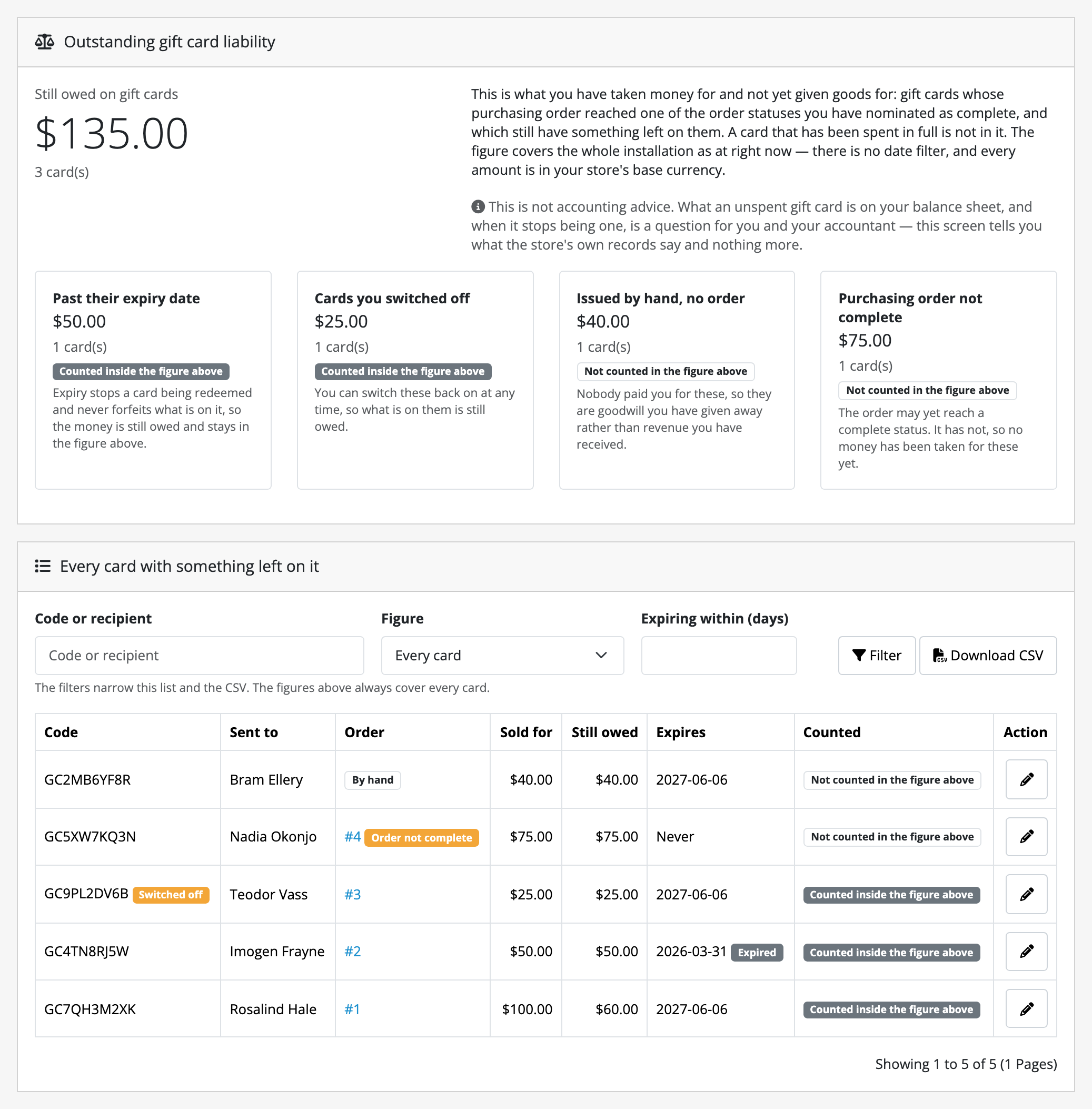
The headline is money you took for cards that have not been spent. Read the breakdown before you quote the number at anybody:
- Expired and switched off are inside the headline. Neither gives you the money back, so neither reduces what you owe. A figure that dropped when a card expired would understate what you owe.
- Hand-issued and order not complete are outside it, always. No money was taken for either: the first is goodwill you gave away, the second has not been paid for yet.
A fully spent card appears nowhere at all.
The table under the figures lists every card that still has something on it, newest first, and each row says which of those figures it is counted in. That is where you go when a customer says their card will not work: find the code, and the row tells you whether it is past its date, switched off, issued by hand or sold on an order that never reached a completed status. Each of those four calls for a different conversation with the customer.
The filters above the table narrow the list, never the figures. Type part
of a code or a recipient's name, pick which figure the card is counted in, or
give a number of days to see the cards that expire within that many days from
today, and press Filter. Download CSV saves exactly the cards the
filters show, across every page, as a spreadsheet with one row per card: its
voucher ID, the order that sold it (0 for a hand-issued card), face value,
remaining balance and currency, expiry date, whether it is counted in the
headline or beside it, and a 1 or 0 for each of the four companion figures.
The file names no code and no recipient: a code is all anybody needs to spend a
card. The voucher ID is the one in the Edit link on Sales → Gift
Vouchers.
There is no date filter on the figures and no per-storefront split; both are deliberate.
Decide a refund on an order that sold cards
Sales → Orders → the order → View, and read the Gift Cards panel.
It shows each card the order sold, its face value, what has been spent and what is left. Gift Cards does nothing else here: it voids nothing and reverses nothing, on purpose.
What you are deciding is who absorbs the spent portion. The buyer is getting their money back; a third party may already be walking around having spent part of the card. The panel is the number that decision needs.
Note that moving the order out of a completed status stops the card redeeming on its own. That is OpenCart's behaviour, not a setting here, and it is reversible by putting the status back.
Before you edit that order for any other reason, read editing a completed order can quietly restore a spent card.