Quick start
This builds one working Google feed from one end to the other: create it, map the seven fields Google insists on, place your categories, generate the file and read what came out. It takes about twenty minutes on a real catalogue, and nothing it does touches your products: a feed is read from your catalogue and never written back to it.
Open Extensions → Extensions → Modules, find Product Feed and press Edit. Everything below happens on that one screen.
1. Create the feed
Press the + button above the feed list.
Product Feed asks three things before anything else: the channel, the store and the language. They come first because the channel decides which fields the rest of the form is about and cannot be changed afterwards, and the store and language decide which category mapping this feed reads.
Choose Google Shopping, your store, and the language your products are described in, then press Continue.
On the form that follows, give the feed a name you will recognise on the list (Google, main store) and leave Currency at your store's own. Leave Status off for now, so that no schedule picks up an unfinished feed.
2. Map the fields Google insists on
Open the Fields tab. The red badge on it counts the required fields with nothing to send; when it reaches zero the feed is valid.
The list on the left is Google's own field set, in its own tiers. Click a field and the right-hand pane shows what it would produce for your own first three products, resolved by exactly the code that writes the feed.
Work down the Required group:
id: Product ID. Model works only if every product, variants included, has a model of its own.title: Product name.description: Description.link: Product page address.image_link: Main image address.availability: Availability (from quantity and date available).price: Price.
Product Feed proposes most of these itself, with its reasoning beside them. Press Use it to take a proposal or No to dismiss it. Nothing is applied until you do.
Watch the pane as you go. A product whose value is empty is called out there rather than three days later inside Merchant Center, and a title longer than Google's 150 characters is marked as cut. If a field has no value for some of your products, type a Fallback: a literal value, sent for the products where the field is empty.
Two of Google's recommended fields are worth doing now: brand from
Manufacturer, and condition with no source at all and a fallback of new.
OpenCart has no condition column, so a fallback is the only source.
3. Place your categories
Open the Categories tab. This is where google_product_category comes from.
It is the one field the Fields tab will not let you map, so that only one screen
answers the question.
Press Suggest. Product Feed reads your category names, proposes a Google category for each one nothing is placed on, and applies none of them. Then either work the table or press Review proposals for a one-at-a-time queue where A accepts and R rejects.
You do not have to place every category. A category with nothing on it inherits the nearest one above it that has something, and the table says so. Placing your top level therefore produces a valid feed straight away and refining it is optional.
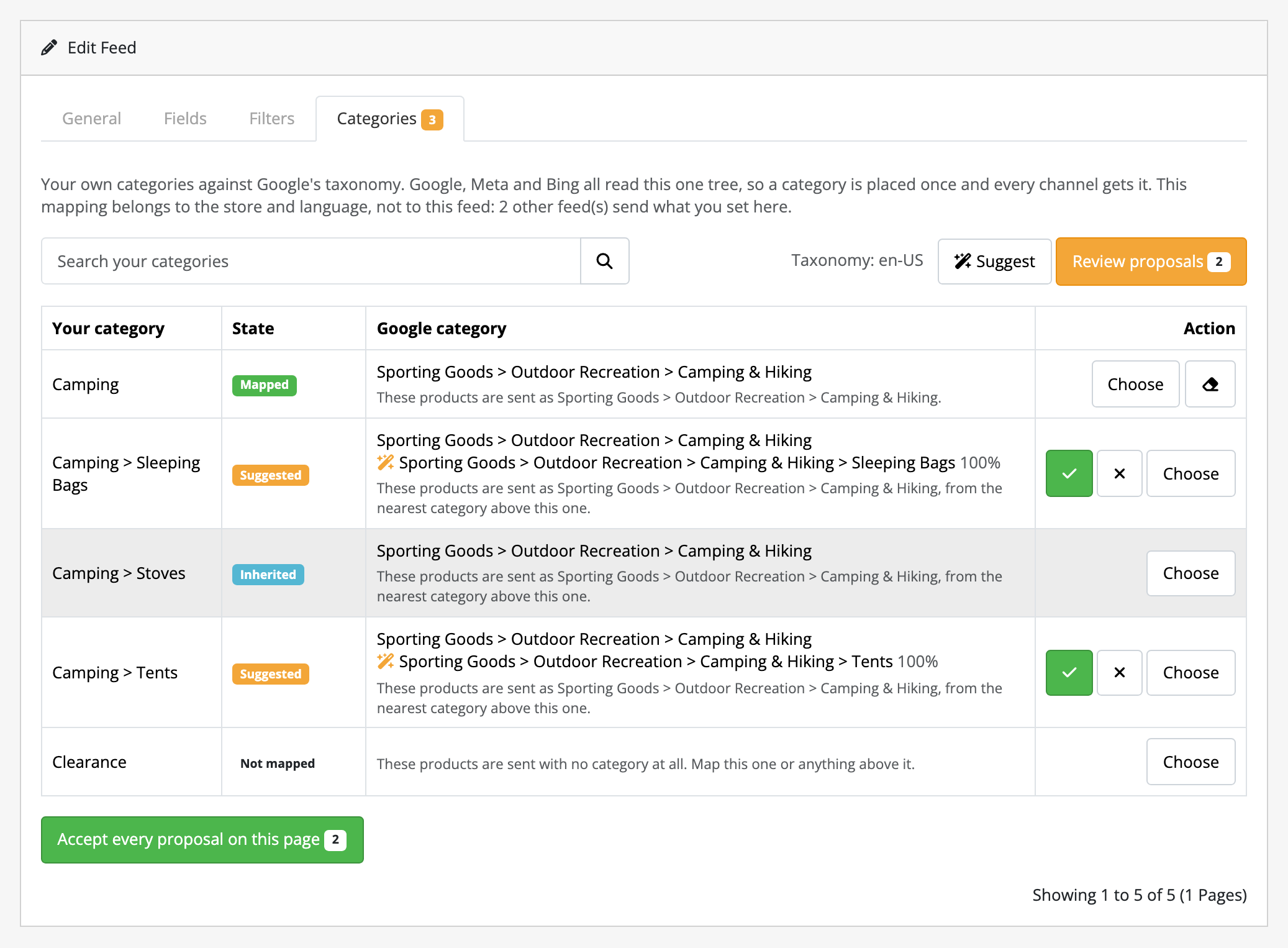
Every row says what its products are sent as if you do nothing, which is the line to read before accepting or rejecting a proposal.
What you set here belongs to the store and language rather than to this feed, so the Meta feed you add later starts with all of it done.
Press Save.
4. Preview it
Back on the feed list, press the eye button on the row.
Preview shows the first 25 products as Google's own fields, over two numbers: how many products reach this feed against how many the store has, and how many of the rows shown Google would refuse for a required field that came out empty. The refused rows are marked rather than hidden. Nothing is written (no run, no file), so this is the cheap look before the real one. See checking a feed before you generate it.
5. Generate it
Press Regenerate now on the row.
The button builds the feed a slice at a time and tells you what happened: how many products went in, and how many were left out. A product is left out when a required field resolved to nothing. For the count over your whole catalogue this message is what you get; Preview and the Fields tab are where you find out which field is doing it.
6. Read the file, then hand it to Google
Switch the feed's Status on first: a feed that is off answers its URL with
Not found. Its schedule stays off until step 7, so nothing regenerates it yet.
Then press the copy button on the row, paste the URL into a browser tab, and read
what comes back. This is what Google will read. Check a
product you know: the title, the price with its currency code, the link, the
category.
A Microsoft Advertising feed has no URL, because that channel does not fetch: its row carries a Download button instead, and the file it gives you is the one you upload.
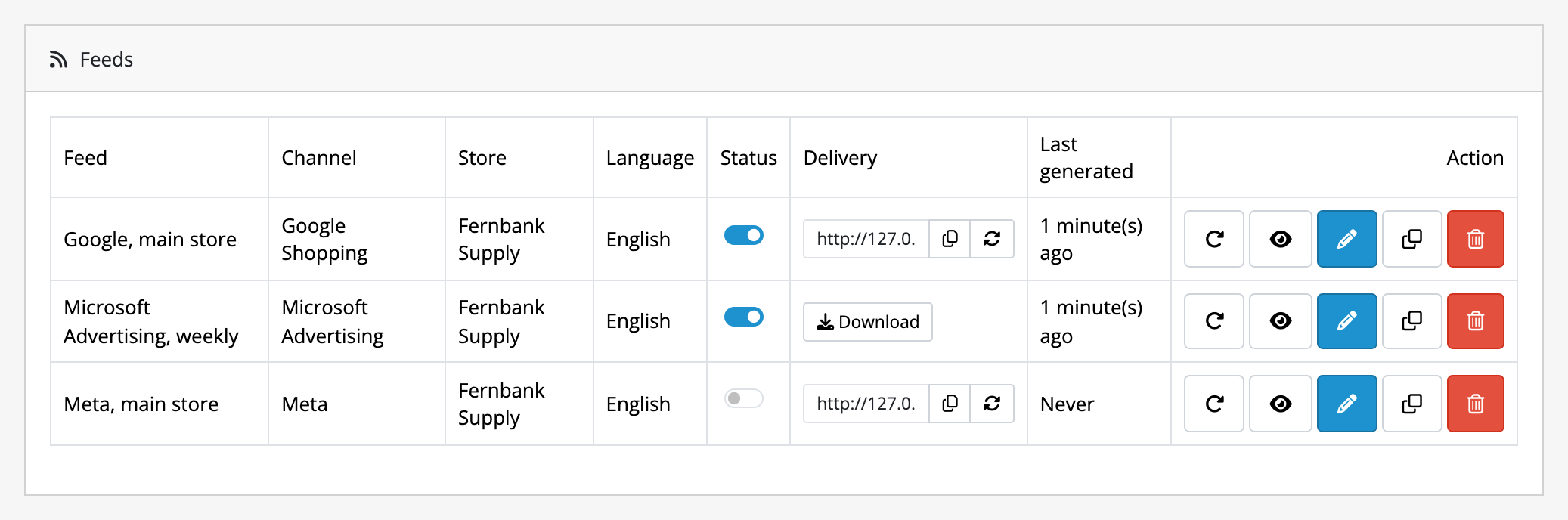
When it looks right:
- With the feed's Status on, set Regenerate to Daily and switch
Regenerate on schedule on. A schedule only runs a feed whose Status is
on.
This uses the cron your store already runs; if your host is not calling
OpenCart's
cron.php, see regenerating from the command line. - Paste the URL you copied into Google Merchant Center as a scheduled fetch.
Google pulls on its own timetable from then on, and the feed list shows when the file was last written. A feed that has gone its own cycle and a further day without generating is called out as overdue there, which is the first sign that your store's cron has stopped.
What next
- Guides: adding the same catalogue to Meta, filtering what reaches a channel, and the command line.
- Limits and guarantees: what the price in the file is and is not, what a failed run leaves serving, and what an update keeps.