Guides
Each of these is written for something you are trying to do, rather than for a screen you are looking at. All of them happen on Extensions → Extensions → Modules → Review Requests.
Choose the status that means delivered
This is the one field with no default, and it is the decision the rest of the extension hangs off.
Choose a status every fulfilled order reaches. Picking one that only some customers reach — a status you set by hand, or one that depends on how the sale went — is selective invitation, and every review platform treats it as prohibited. Complete is the safe choice on a default OpenCart store.
The trap is a status that looks like a workflow step and is really a filter: a Happy customer status somebody sets after a good phone call invites exactly the people who will leave five stars, whether or not that was the intention.
Changing your mind later is safe. Only status changes made from that point on are picked up, so switching the status does not reach back and email a year of orders that once passed through the new one.
Beside it, Wait before asking (days) is how long after that status the email
goes out. 14 days is the default and is what comparable tools use. 0 sends on
the next pass, which is right for a store whose chosen status already means the
parcel is in their hands.
Ask the customers who bought before you installed this
Installing records where your order history had reached, so nothing older is ever emailed by accident. The Settings tab says how many orders sit behind that mark. Reaching them is a deliberate act with its own confirmation:
- Press Start an initial collection. Choose how far back to go; the window defaults to what you set on the settings screen, and Everything is one of the choices.
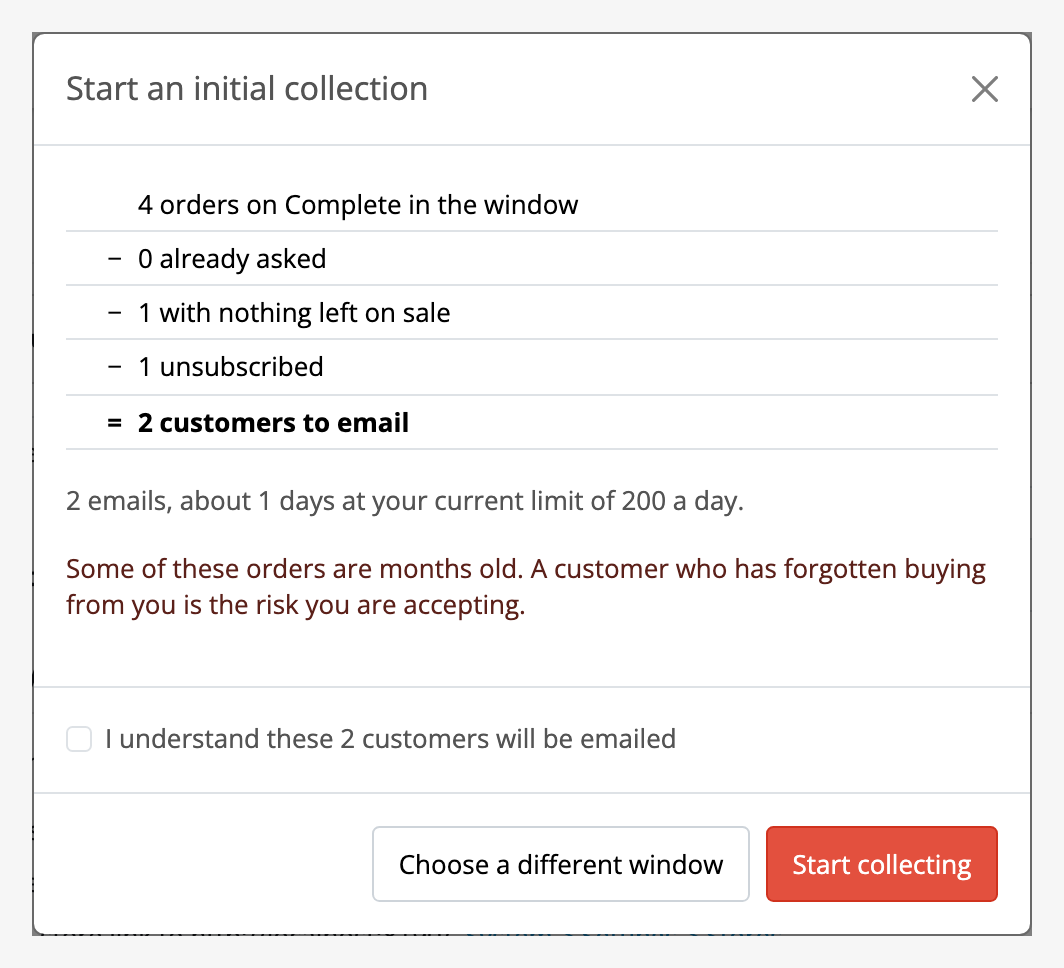
- Read the arithmetic. It shows the orders in the window, then subtracts the ones already asked, the ones with nothing left on sale and the addresses that have unsubscribed, and gives you the number of customers who would be emailed. Under it is how long that takes at your current daily limit, in days rather than just a count, because that is what you are deciding.
- Tick the confirmation and press Start collecting. Nothing is sent before that tick.
Then leave it. The collection goes out under the same daily limit as everything else, a pass at a time, and running it again later does not count the same orders twice.
Two things to do first, both from limits and guarantees: make sure your sending domain is set up (SPF and DKIM), and check what your host caps outbound mail at. And if you have ticked Review under System → Settings → Mail → Alert Mail, expect one email to yourself for every review that comes back.
Some of those orders are months old. A customer who has forgotten buying from you is the risk you are accepting, and the modal says so.
Leave products out of requests
Gift cards, samples, services, a delivery charge sold as a product: things a customer bought and nobody reviews. Leave them out on the Settings tab, under When a customer is asked:
- In Never ask about these products, start typing a product's name and pick it from the list. Repeat for each one. The cross beside a product takes it off again.
- In Never ask about these categories, do the same for whole categories. A category takes every subcategory beneath it with it.
- Press Save.
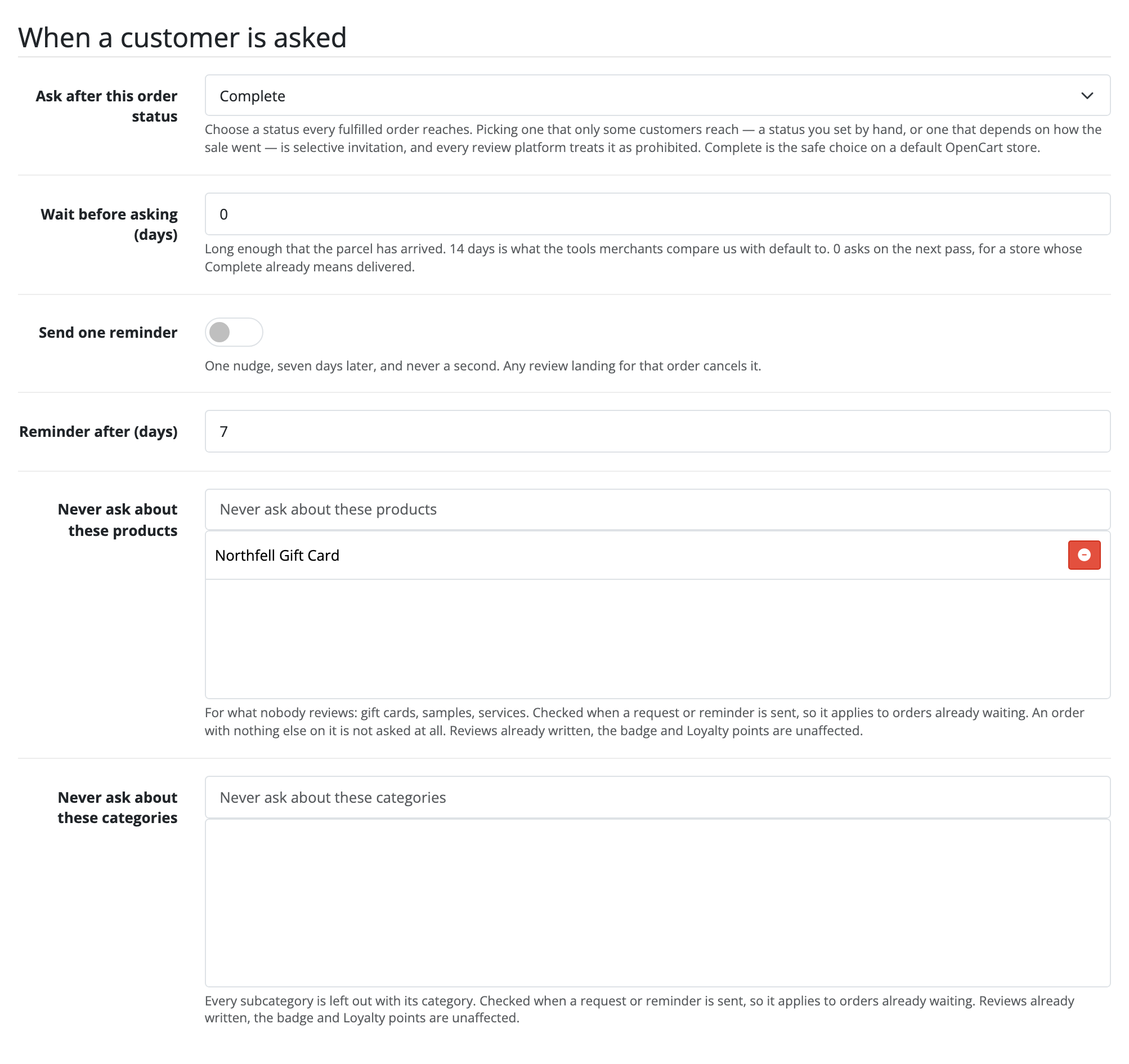
The lists are checked each time a request or a reminder is about to go out, so they apply to orders that are already waiting as well as to new ones. An order with nothing else on it is not asked at all, and says Not asked on the Requests tab; an order with other products on it is asked about those, and the product left out says Not asked beside it, with the reason that you left it out of requests.
Neither list shows ratings or review counts, on purpose: this is for products nobody reviews, not for the ones reviewed badly. Leaving a product out never touches a review already written, its badge, or the Loyalty points paid for it.
If you start an initial collection afterwards, its count of customers to email is an upper bound: it counts orders, and an order made up only of products you left out is counted and then not asked when its turn comes. What else the lists do and do not do is on the limits page.
Set sending hours
Requests go out whenever a pass runs, which on most stores is every hour of the day and night. To keep them to waking hours, set Send from (hour) and Send until (hour) under How much is sent on the Settings tab, on a 24-hour clock:
- 9 and 21 sends from 9:00 until 21:00.
- 22 and 6 wraps past midnight and sends overnight only.
- 0 and 24, the default, sends at any hour. So does setting both to the same hour.
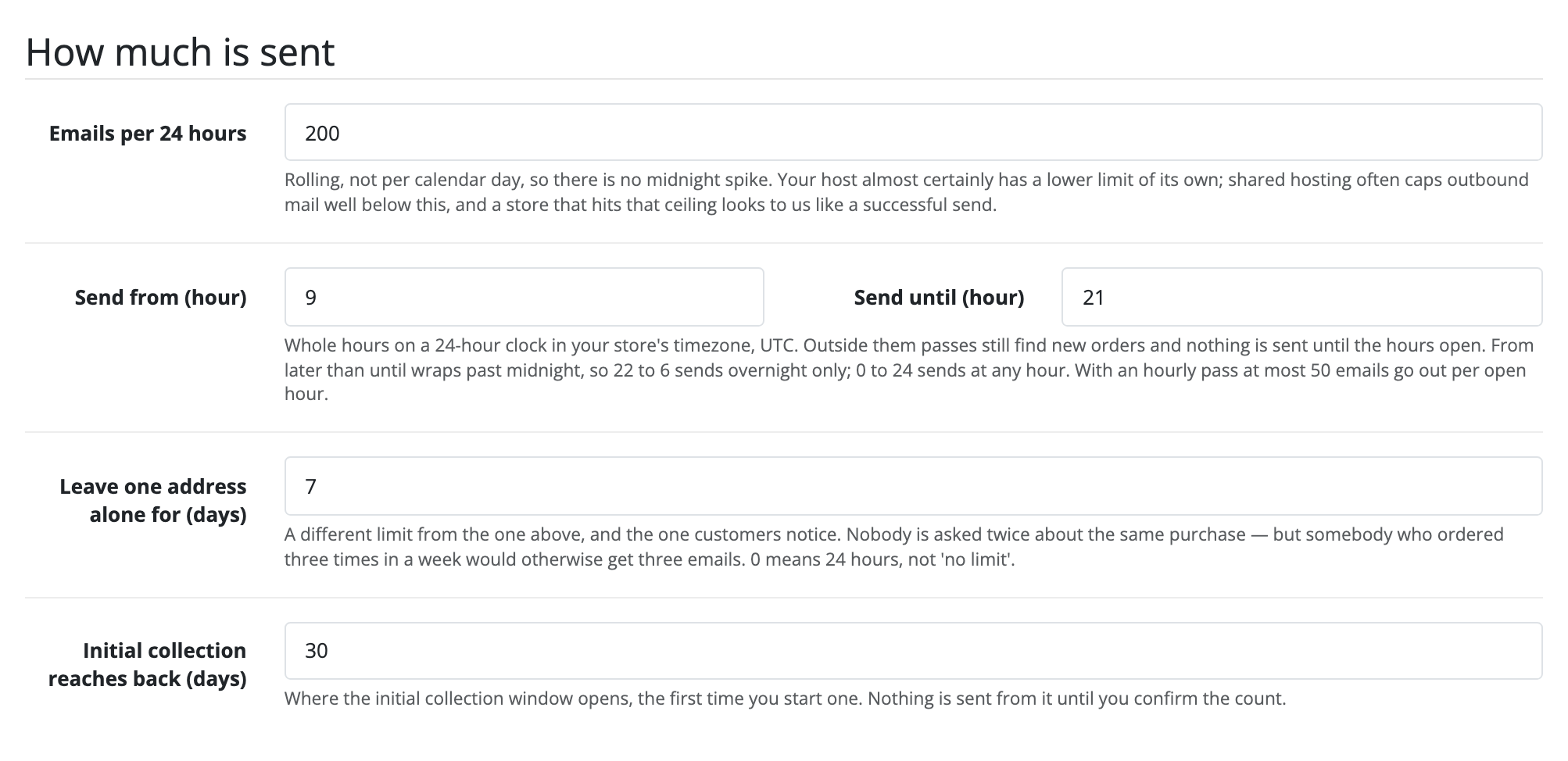
The hours are in your store's timezone, which the help line under the fields names. It is the one on the default store's settings and it is shared by every storefront in the installation, so a second storefront selling abroad sets its hours shifted into that zone.
Outside the hours, passes keep running and keep finding new orders; they just send nothing, and what waited goes out in the first pass after the hours open. Recent passes on the Settings tab carries a line saying whether sending is open now, or closed and until when, and Run a pass now says so too rather than sending.
One sum to do before you narrow the hours: a pass sends at most 50 emails, so with an hourly pass you send at most 50 for each open hour. Twelve open hours reach 600 a day; a daily limit above that is never reached.
Put the emails in your own words
The Settings tab's Wording section holds ten fields, per language: the subject, the greeting, the ask, the moderation sentence, the unsubscribe sentence, the introduction on the review page, the badge label, the review disclosure line, an optional link to a fuller explanation, and the heading over your replies to reviews. Pick the language at the top of the section; each one is saved on its own, so putting English in your own voice cannot break German.
A box left empty shows the wording Review Requests ships, in grey behind it, and that grey wording is what the store says. Clearing a box you had filled in puts it back rather than leaving the sentence out, so there is no field here you can get wrong by emptying, and nothing this screen refuses to save.
That includes the review disclosure line. It is what tells a shopper what Verified purchase means, how reviews are checked and that critical ones are published too, and consumer law makes it material. What ships is therefore complete rather than a placeholder, and it is the sentence a store that never opens this screen prints.
Languages here are the ones your store is set up with, listed by name, and that is not the same list as the languages Review Requests has been translated into. A store running a language we ship nothing in still gets all ten of these sentences in your own words; what it reads in English is the interface around them: the buttons, the star row, the labels. Which of those you get in which language is under Language on the limits page.
Stop emailing somebody
Anybody can take themselves off the list from the footer of any request email. When somebody asks you instead, in a support ticket or on the phone, add them yourself on the Suppression tab. The list is per store and holds addresses, not customers, because guest orders are first-class here.
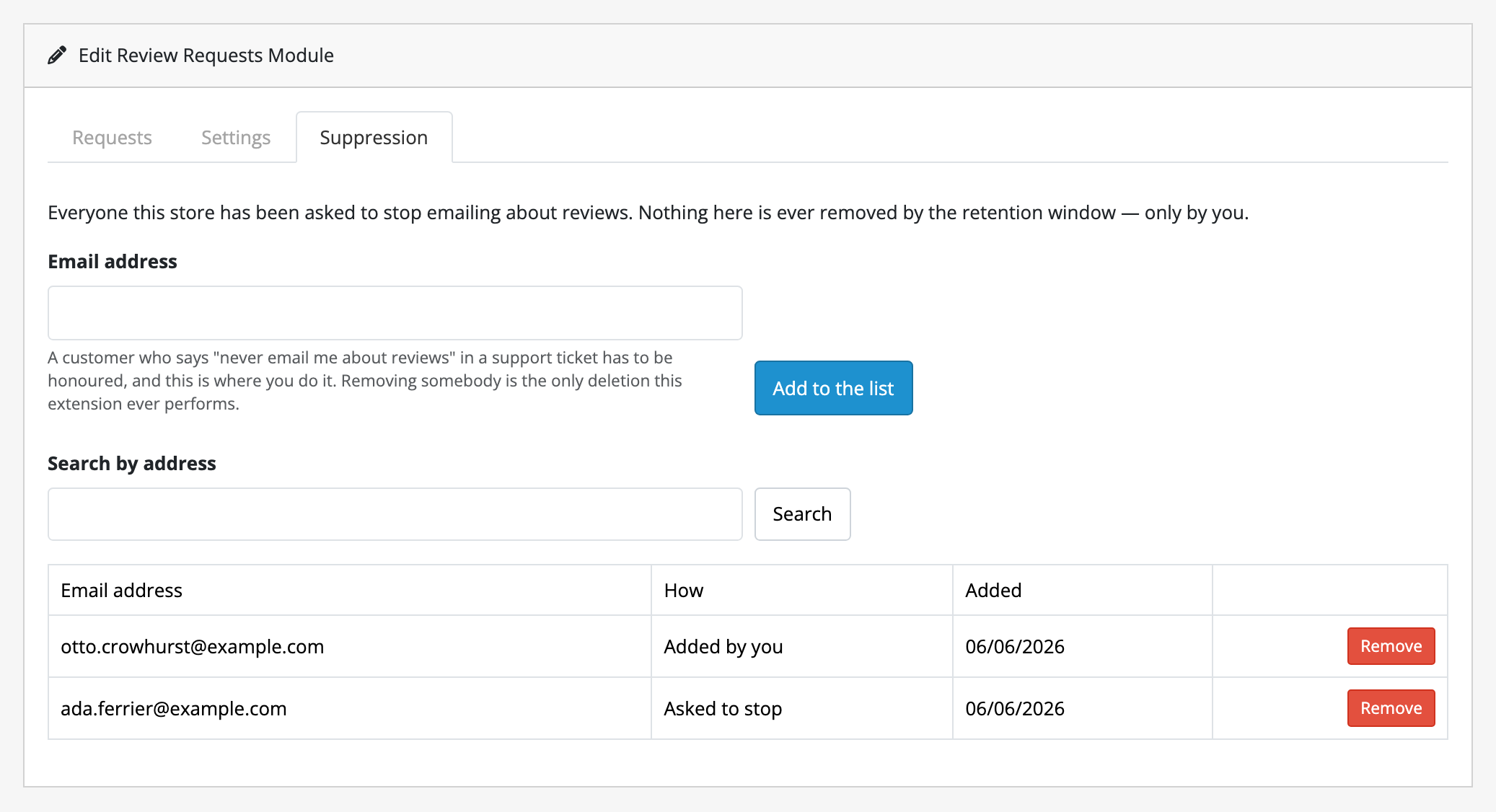
Removing an address from that list is a deletion, and the confirmation names the day and how the row got there, so reversing somebody else's decision reads differently from undoing your own. The person themselves can also take their address off again, with Send me review requests again on the page their unsubscribe link opens. The retention window and both erasure screens under Customers never touch this list.
Work the Requests tab
One row per order, in one of nine states; see what a request can say. The tab opens on Asked rather than on the exception view, and Needs a look is a view across all nine holding the requests carrying a flag you have not acknowledged.
Three actions live on rows:
- Resend, on a request whose send failed, once you have fixed whatever your mail engine was complaining about. It goes back in the queue under the same daily limit as everything else.
- Noted, on a flagged request. It leaves the flag and takes the row out of the count: the flag is a fact, not a task.
- Moderate in Catalog → Reviews, which is where reviews are approved. This extension never approves anything on your behalf.
Decide what the storefront claims
Show the verified-purchase badge is one switch for both the badge and the disclosure line beneath the review list. Turning it off retracts the claim, and a disclosure explaining a verification nobody can see is worse than neither.
Before you rely on it, check the badge line on the Before anything is sent checklist. It answers for the review template your store actually renders, theme override included, and a template with nowhere to put the badge is left exactly as core drew it, silently and on purpose. Requests still go out and reviews are still collected; they simply carry no marking.
What the badge does and does not say is on the limits page. Read it before you turn it on.
Reply to a review
A reply is written on OpenCart's own review form, not on this extension's screen, and it works on any review, including ones customers left on the product page themselves.
- Open Catalog → Reviews and edit the review.
- Type your answer in the Reply box under the review's text. It is plain text, up to 1,000 characters, and line breaks are kept.
- Press Save.
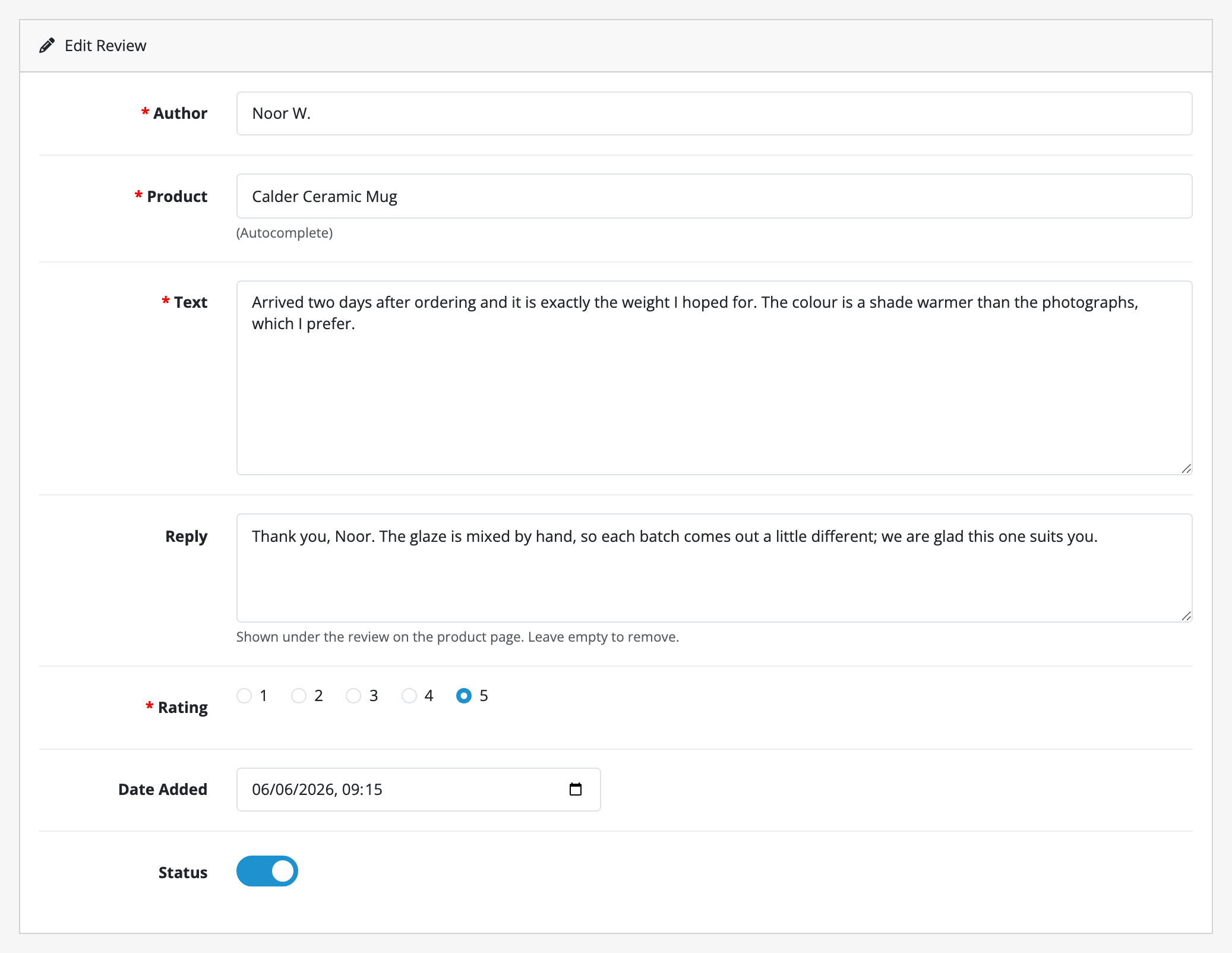
The reply prints under the review on the product page, headed Response from the store, once the review is approved. To reword that heading, or give it in another language, use Reply heading in the Wording section. To remove a reply, empty the box and save; deleting the review removes its reply too.
Nobody is emailed when you reply: the reviewer sees it on the product page. Show the verified-purchase badge does not hide replies, because a reply is the store speaking rather than a claim about the reviewer.
Once you have written one, the Before anything is sent checklist has a line saying whether your store's review template has a place for replies. A theme that prints the review's text its own way can leave them saved and unseen; see the limits page.