Guides
Each of these is one thing you might be trying to do, start to finish. They assume you have been round the quick start once and know what a plan is.
Everything happens on Import/export's own screen: Extensions → Extensions → Modules → Import/export → Edit.
Import a supplier's price and stock file
Import/export matches each row of the file to a product you already have, and changes only the fields you mapped.
- Under Plan an import, either choose the File or paste a link into
Or a URL or server path. An
http/httpslink is fetched by your server, Dropbox, Google Drive and Google Sheets share links included. A path only works if you have nominated an import directory. - Kind of record: Products. Match existing records on:
model,sku,upc,ean,jan,isbnormpn, whichever your supplier's file identifies products by. Rows with that column empty are rejected rather than guessed at, and on the last five so is a value more than one of your products carries, which on OpenCart 4.1 is every product with variants. - Press Upload. Import/export reads the header row and guesses a binding for
every column whose name it recognises:
qtyandstocktoquantity,brandtomanufacturer, and so on. Check each guess and correct it where it is wrong. - On the Columns tab, set Writes to for each column you want imported and leave the rest on Do not import. A field you leave unmapped is never touched.
- Press Plan, read the preview, press Apply.
On a repeat feed:
- A blank cell is not a value. The field it was mapped to is left alone rather than emptied, so a gap in your supplier's spreadsheet cannot wipe out a description you wrote.
- Fill in the job name. It is what you will be looking for in Past jobs in a fortnight's time, and a profile cannot be saved without one.
If your file identifies products by something that is none of those seven, they cannot be matched. See supported fields for what each kind of record can be matched on.
Give a URL that changes every day
Or a URL or server path understands a date placeholder, so a feed named after the day it was made needs no editing:
https://supplier.example/feeds/stock-{date:Y-m-d}.csv
https://supplier.example/feeds/stock-{date:Y-m-d|-1 day}.csv
The second form is yesterday's file, which is what an overnight feed usually
wants. A protected feed takes its credentials in the URL, as in
https://user:password@host/feed.csv, and Import/export cuts them out of every
error message, out of what the command line prints and out of an exported
profile file, so they do not end up in a log, in a terminal or in a repository.
A profile file moved to another store therefore arrives without the password:
type it in there once, and that store can fetch.
Clean up a column on the way in
A supplier's 1.234,56 is not a price, SKU-0042 is not a number, and
Blue is not a colour. Clean up first, beside each column on the
Columns tab, fixes that.
- Pick a transformation from the dropdown and fill in its arguments.
- Add more below it. They run top to bottom, so strip the unit before you read the number, not after.
- Press Sample rows. The first few rows of your file appear under the form, run through the mapping exactly as it stands. Those are the literal values applying the plan would write.
Every transformation, what it takes and what it gives back, is in the transformations reference. Two things to keep in mind:
- A value a transformation cannot make sense of is passed through unchanged rather than replaced with a guess, so the field's own check reports it against what your file actually said.
- Reach for
defaultwhere a supplier leaves gaps, andlookupwhere they use their own codes for something your store spells out.
Leave rows out of an import
Rows to leave out, on the Constants and rules tab: pick a column of your file, a test, and a value. A row matching any rule you add is left out: it is neither written nor rejected, only counted as Skipped.
The tests are equals, not_equals, greater, less, contains,
not_contains, in and not_in; the last two take a comma-separated list.
The test reads the column as it arrives in the file, before any
transformation.
Rows you skip are never treated as missing from the source either, so a skip rule cannot cause a mirroring job to delete anything.
Write a value your file does not carry
Constant values, on the same tab: pick a field, type a value, and every row this job writes gets it. It is how a feed with no status column arrives enabled, or how a whole delivery is filed under one manufacturer.
Beside each is Add, which matters for a field holding a list. A category's filters, or a product's categories, are replaced by what your file says unless you tick Add, in which case what your file names is added to whatever the record already has. The merge happens while the plan is made, so the preview shows the list apply will write, and rollback puts back the one that was there.
Import into a field another extension added
Import/export reads your store's actual columns, so a column another extension added to your product table is already in the Writes to dropdown, grouped under Added by other extensions. There is nothing to configure.
If the extension keeps its data in a table of its own rather than as a column
on oc_product, add it under Extra tables on the Constants and rules
tab: the table's name, and the column holding the product identifier. Its
columns join the Writes to list, and are written, conflict-checked and
rolled back like any other field. A table of OpenCart's own (oc_user_group,
oc_setting and every other table core installs) is refused: extra tables are
for other extensions' data.
Bring in the pictures
The Pictures tab. An image column can hold a URL, or a reference to a file already on your server.
- A URL is fetched while the plan is made, into staging, and installed only when you apply, so the preview shows the pictures that are coming, and your store's image folder is untouched until then.
- Anything else is looked for on this server: as a path under the image folder, or by name in the folder you name under Look for images already here.
Put images in takes {date:Y-m} and any mapped field, so
catalog/preflight/{manufacturer} files each supplier's pictures separately.
Extra images per record caps the gallery. If an image cannot be fetched
decides between importing the record without that picture and skipping the
whole record.
Image references that fetched nothing are counted as an anomaly, so a supplier who moved their image server is something you read in the preview rather than discover on the storefront.
Import into a store with more than one language
The Languages and stores tab, and the field list itself.
Every piece of text a record owns is stored once per installed language, so a
store with two languages offers each text field twice: name for the default
language and name:de-de for the other. Map as many or as few as your file
carries.
Languages you did not map decides what happens to the rest: leave them exactly as they are, or fill them from the default language. Inherited text appears in the plan as the literal text apply will write.
Assign records to is the store assignment, made once for the whole job rather than as a column in the file. Leave every box unticked on a single-store install; there is nothing to choose.
Delete or disable records the file no longer carries
This destroys data
This is mirroring. It is off until you turn it on, and it is the one thing here that destroys data, so read the limits on mirroring before you use it on a live catalogue.
On the Missing records tab, Records not in this file offers:
- Leave them alone: the default, and what every other import does.
- Delete them: planned deletions, counted in the headline, listed, conflict-checked and journalled for rollback like anything else.
- Disable them: the gentler option, and the one to start with.
Then set the guards:
- Refuse the file below a number of rows. A supplier export that failed halfway is a file of perfectly valid rows and far too few of them, and on a first run this is the only check that catches it. The job stops before a plan exists.
- Only records labelled: a sweep restricted to records carrying a given import label, which is how two feeds share one catalogue without deleting each other's products. Set the label itself in Import label, at the top of the mapping screen.
- Only records where: a field of the record, a test and a value, so a sweep can be confined to one part of the catalogue.
By default, the first deletion a job plans has to be acknowledged before Apply is offered.
Have Import/export write the descriptions
A feed of names and specifications and nothing else still makes a shop you can sell from. This needs your own Anthropic or OpenAI account, set up once under Settings for this store; until then nothing is generated, whatever a job asks for.
Text leaves your server
Read this before you switch it on. Generation is the one part of Import/export that
sends anything off your server, and where it sends it is fixed in Import/export
rather than chosen by you: api.anthropic.com or api.openai.com, both
operated in the United States. What goes in one request is the instruction you
wrote with that row's mapped values substituted into it, plus the model name,
and not the whole record. Because of that, orders, customers, reviews and coupons
cannot be generated for at all: a job that asks is refused when you save it,
with the reason on the screen. That is a refusal rather than a default, and
there is no setting to change it. The
limits on generated content say what
else it is bound by.
On the Text written for you tab:
- Write an instruction for a field, such as a description or a meta title. Name any
mapped field in it and each record gets its own:
Write two short HTML paragraphs selling {name} by {manufacturer}. - Never make more than is a hard cap on the calls this job may make, whatever the file turns out to hold. It cannot be turned off, and it is what stops a mistyped mapping from running up an invoice.
- Fill in Input price and Output price from your provider's own pricing page if you want the estimate in money rather than in calls.
- Press Sample rows. Each row it samples shows the resolved instruction under its mapped values: the exact text that would be posted to your provider, with that row's values already in it. Nothing is sent to write it.
- Press Estimate cost. It reads the whole file and tells you what the run would cost before a single call is made. Nothing is planned, and no call is made to the provider.
- Press Plan. The text is written while the plan is made, once per record, so every generated sentence is in the preview as the literal text apply will write, and rollback puts back what was there before.
By default it fills gaps only: a field your file or the record already filled is left alone unless Fields that already have text says otherwise. The limits on generated content state the rest.
Decide when Import/export should warn you
The When to warn me tab, seven numbers, and one rule: zero turns a check off.
| Check | What it counts |
|---|---|
| Price moves by more than (%) | A supplier's decimal separator repricing your catalogue. Defaults to 30. |
| Records losing every category | Products about to become unreachable. |
| Records dropping to zero stock | A stock file that arrived empty. |
| References naming nothing this store has | A category, manufacturer or group the file names and you do not have. |
| Image references that fetched nothing | A supplier who moved their image server. |
| File smaller than last run by more than (%) | An export that failed halfway. Defaults to 20. |
| Records the file no longer carries | What a mirroring job would remove. Defaults to 1. |
The two percentages are how far a value may move; the rest are how many records it takes before the check is worth mentioning. They are set per job, because what is alarming depends on the feed: a quarterly price list moves every price, and a daily stock file moves none of them.
A plan that trips a check lists it under Worth a look before you apply, and Apply stays unavailable until you press Acknowledge.
Find one record in a plan too big to read
Find a record in this plan, under the change listing. It takes a model, an SKU or a product identifier, and searches the whole plan rather than the page in front of you. If the plan does nothing to that record it says so, which is often the answer you were after.
Stop a long job, and pick it up again
A job runs in slices and moves itself along while the page is open. The screen says which phase it is in and how far it has got.
- You can leave the page. The job keeps its place. Come back, press Continue, and it carries on where it stopped.
- Stop cancels it. Anything an apply had already written is journalled and can still be rolled back; a cancelled plan has written nothing at all.
- A job waiting on another import of the same kind of record says so, rather than interleaving with it.
Save a mapping and finish it tomorrow
Working out what a supplier's columns mean is a job you should only do once. Press Save mapping on the mapping screen and it goes under Saved mappings, in the Profiles and history card. Click its name to reopen it exactly as you left it: the bindings, the transformations, the skip rules, the thresholds, all of it.
What it keeps about the file is where the file was, not a second copy of its contents. So reopening a saved mapping and pressing Plan reads whatever is at that address now, which is the whole answer when the source is a URL or a server path, and especially a dated URL. A mapping saved against an upload reopens against that same upload, for as long as Import/export still has it. The staged copy is discarded when you abandon the plan, and with everything else when the retention window comes round.
When the next delivery arrives somewhere else (a fresh download, a different name, a file somebody emailed you), use Map another file the same way, at the foot of the mapping card. Upload the file there, or give a new URL or server path, and it is read under the mapping you already built: every column keeps the field it writes, the clean-up steps on it and the rules about which rows take part, and so do the thresholds, pictures, languages and everything else on the tabs above. Nothing is guessed. The Plan an import card lower down the page is different: it always starts fresh, which is what you want for a supplier you have not mapped before.
Save the mapping first
It reads the mapping as it was last saved, not the one currently on your screen. If you have just changed something, press Save mapping before you upload.
A supplier who renames or drops a column has changed your mapping whether they meant to or not, and Import/export cannot bind a field to a column that is not there. So it names the missing columns at the top of the mapping screen and leaves those fields unmapped rather than filling them with something else. An unmapped field is never written, so the worst case is an import that leaves them exactly as they are. Read the warning before you plan, though, because "the price column stopped importing" is not something to find out from your storefront. Rebind what is left and save the mapping again. Columns your saved mapping never mentioned are left alone too: a new one the supplier has started sending is yours to map, or to ignore.
A saved mapping is a working draft. Once the mapping is right, save it as a profile instead, which is what is built for running again.
Save a configuration and run it again
A profile is a finished configuration kept by name: source, mapping, transformations, thresholds and all.
- Fill in Job name. A profile needs one to be found by.
- Press Save as profile.
An export is saved the same way, from the export form: fill in its Job name and press Save as profile beside Export. It keeps the fields, format, filters, sort and languages, and is listed as an export.
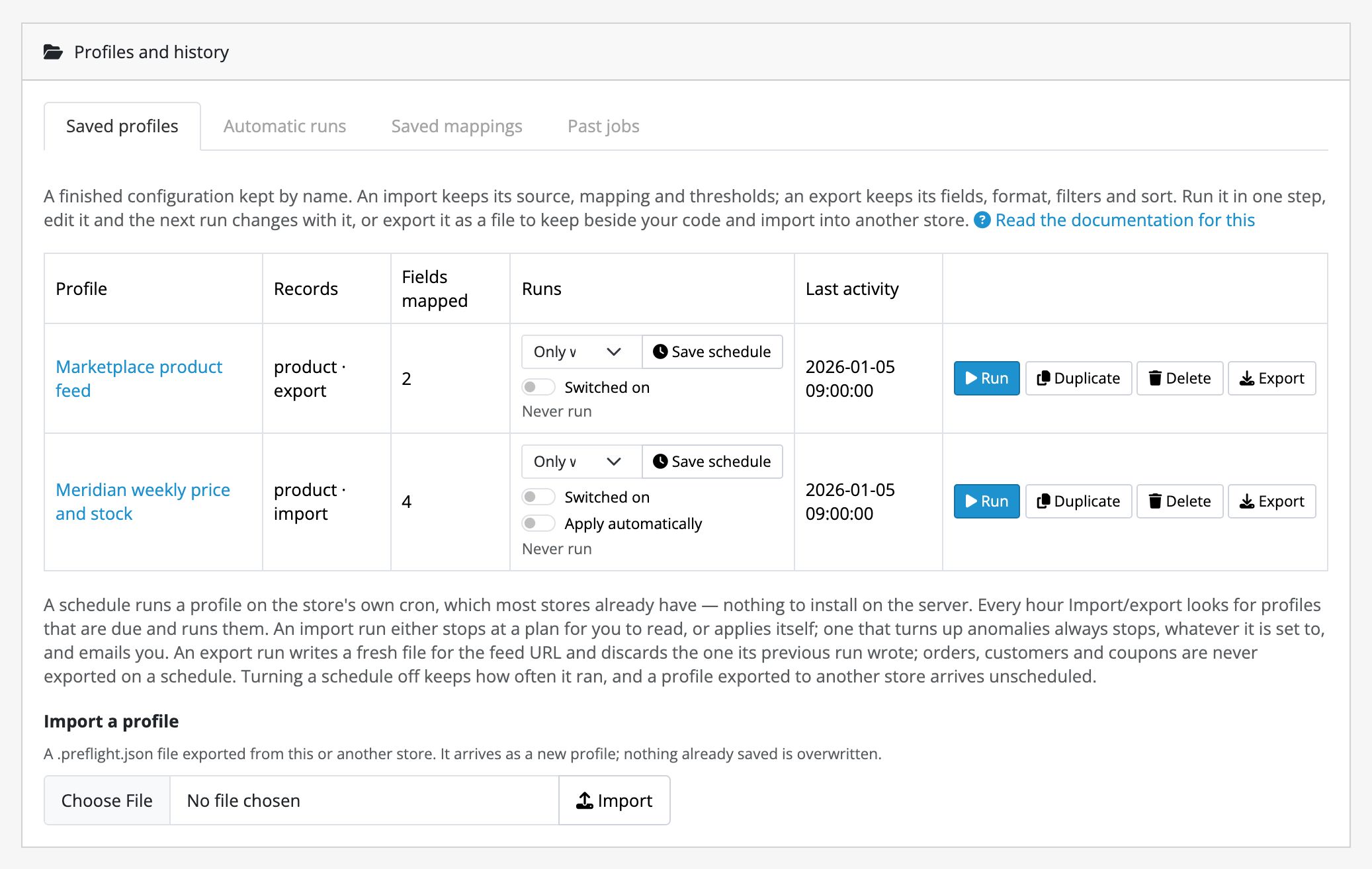
Under Saved profiles each one offers:
- Run plans it in one step, and from there it is a job like any other, with the same preview, Apply and rollback. On an export profile it runs the export, as pressing Export would.
- Duplicate is for the supplier whose second feed is nearly the first.
- Delete leaves the jobs it ran untouched and still reversible.
- Export downloads it as
<name>.preflight.json.
To change one, click its name: the mapping reopens with everything the profile holds (for an export, the export form does), and pressing Save as profile again saves over it rather than making a copy. What is stored is what the next run will do.
Deleting a profile does not delete its history, and a purge never deletes a profile: it throws away plans, journals and the files that go with them, and leaves profiles and the history of each job where they are.
Move a configuration to another store
Export the profile from one store and use Import a profile on the other. It always arrives as a new profile: nothing already saved is overwritten, and it arrives unscheduled.
Two things deliberately do not travel in the file: your provider API key, which belongs to the store rather than to a job, and the schedule. What does travel is everything about the import itself, which is what lets a mapping be worked out on a staging store and moved to production.
Run a profile on a schedule
On the profile's row under Saved profiles:
- Pick a cycle: Every hour, day, week or month.
- Tick Switched on.
- Leave Apply automatically off to begin with. The run then plans the import and stops, and the plan waits in the admin exactly as if you had pressed Plan yourself. Turn it on for a feed you have watched behave.
- Press Save schedule.
This uses the cron your store already runs; there is nothing to install on the server. If your store's cron is not running, neither is your schedule, and that is the first thing to check when a feed did not happen. A schedule is only as exact as that cron: an hourly profile on a store whose cron fires twice a day runs twice a day.
Switching a schedule off keeps the cycle and the apply setting, so pausing a feed for a fortnight is one tickbox rather than a reconfiguration.
An export profile is scheduled the same way, without step 3: it writes a file and never the store, so Apply automatically is not offered. Each run replaces the file its previous run wrote, which is what the feed URL below then serves. Orders, customers and coupons are refused a schedule, and stay exports you make by hand.
A run that turns up anomalies always stops, whatever you set, and emails your store's own address. The limits on unattended runs state the rest.
Read what ran while nobody was watching
The Automatic runs tab. Every run nobody was watching, most recent first: which profile, what started it, what it did, its counts, how long the whole thing took including fetching the file, and the error if it failed. A run that never got as far as opening a job, such as when a supplier's server did not answer, is listed too, with the reason.
A run held on anomalies has a plan waiting for you above, on the same screen.
Run a profile from the command line
For a schedule OpenCart's four cycles cannot express, or for a deploy pipeline:
cd /path/to/store
php extension/preflight/preflight.php list
php extension/preflight/preflight.php run "Supplier feed" --apply
php extension/preflight/preflight.php due
php extension/preflight/preflight.php runs
Profiles are named rather than numbered, so the same command works against
staging and production. --apply and --plan-only override what the profile
itself is set to do. The exit status is 0 when the run did what it was
asked, 1 when it failed and 2 when it planned an import and stopped on
anomalies, so a pipeline cannot go green on an import nobody applied.
A command-line run is recorded and reported exactly like a scheduled one, so somebody who was not at the terminal can still see what happened.
Export the catalogue
Under Export the catalog: pick the Kind of record, the Format, and tick the Fields to export. Each field is written under its own name, which is what makes the file import straight back through the mapping above.
The useful round trip is: export it, change what you meant to change in a spreadsheet, import it again, and read a preview that shows only your own edit. An unmodified export, re-imported, plans no changes at all.
Narrow it down takes named categories in and out, a manufacturer, a store,
part of a model, a stock range, and the dates a record was added or last
changed. Name a category by its full path, such as Home > Widgets > Blue, and a
manufacturer or store by the name you see in the admin, which is the same
spelling the exported file carries. #12 names any of them by identifier
instead.
Only these languages narrows the columns rather than the records: ticking
German gives you name:de-de and not a file with two names per product. The
default language is always written.
Order by sorts on one column, in one direction. The record's own identifier breaks ties, so the file comes out in the same order however many slices it takes.
When the job finishes, press Download. Exports also appear against their job in Past jobs, and are deleted when the retention window comes round.
Hand an export to an outside system
A marketplace uploader or a warehouse can fetch the most recent finished export over a URL, with no admin login.
- Under Settings for this store, set Feed secret to a long random string, and press Save.
- The URL appears beneath the field, ready to copy:
index.php?route=extension/preflight/feed/preflight&entity=product&secret=…
What that URL does and does not do:
- It hands out the newest finished export of that kind of record,
whatever its fields and format were, whether you made it or a scheduled
export profile did. It never runs a job. Its
Last-Modifiedheader says when that export finished. - An empty secret refuses everything. A wrong secret, an unknown kind of record and a kind nobody has exported yet are all answered with the same plain 404.
- Order, customer and coupon exports are never served this way, whatever secret is presented. The kind of record is part of the URL, so one secret reaches every kind that URL can name, and a partner given your product feed was not given your customer list. Download those three from the job history instead. Import/export's own screen says so in place of the URL when you have one of them selected.
- Treat the secret as a password: anyone holding it can read every catalog export. Serve it over HTTPS, and change the setting to revoke it.
- A purge takes exports with it, so a feed nobody fetched for longer than your retention window is serving nothing.
Clear the undo before handing a store over
Past jobs → Clear stored plans and journals → Clear now. It throws away the plan and journal of every finished job immediately, whatever the retention window says. The history keeps what each job did; what goes is the ability to undo it. Jobs still running are left alone.
This cannot be undone
It is not reversible: the staged images a rollback would have put back go with it. See the retention window.