Quick start
The whole loop in about fifteen minutes: save something with no account, hand the list to somebody, move it into the cart, sign in and watch it merge, then narrow what the store will email you about, and read what all of it did to the report.
You need the extension installed and enabled, and your user group given the three permissions. Requirements and install covers both.
Do it on a product nobody is buying today. Step 6 changes a price.
1. Check the store can send email at all
System → Settings → edit your store → Mail must have a mail engine set. Without one, everything else on this page works and no alert is ever sent. Nothing is lost either: a store with no mail engine is skipped by the sweep, and the waiting alerts go out on the first sweep after you configure one.
2. Save something as a shopper with no account
Open your storefront in a private window, so you are certainly not logged in. Find a product and press the heart (OpenCart's own wishlist button, in whatever form your theme draws it). The counter in the header goes to 1.
Now close the window and open a new private one. This is the part stock OpenCart cannot do: go back to the wishlist and the product is still there. What survives is a cookie holding a random token; nothing about the shopper is stored.
3. Hand the list to somebody else
On that same wishlist page there is a card headed Share this wishlist. Press Create share link and copy the URL.
Paste it into a different browser, or send it to your own phone. It shows the saved products and nothing at all about who saved them. Press Replace with a new link back on the wishlist page and reload the old URL: the old link has been revoked.
4. Move the whole list into the cart
Add another two products to the list, ideally including one that needs a size or colour chosen and one that is out of stock. Then press Add all to cart.
What can go in goes in, and the rest is one sentence each: needs its options chosen before it can go in the cart, is out of stock, is no longer available. Nothing is removed from the wishlist by pressing it.
5. Sign in and watch the list merge
Still in that window, log in as a customer, or register. The guest list becomes that customer's list: nothing is dropped, and a product they had already saved is not doubled.
From here the page has one more card, Email me about these, with a Price drops and a Back in stock tick-box for every saved product. Both are already ticked, because saving a product is what signs a customer up. Clear Back in stock on one of them and press Save alerts: that card is how a customer narrows what they hear about, and the only place it can be done.
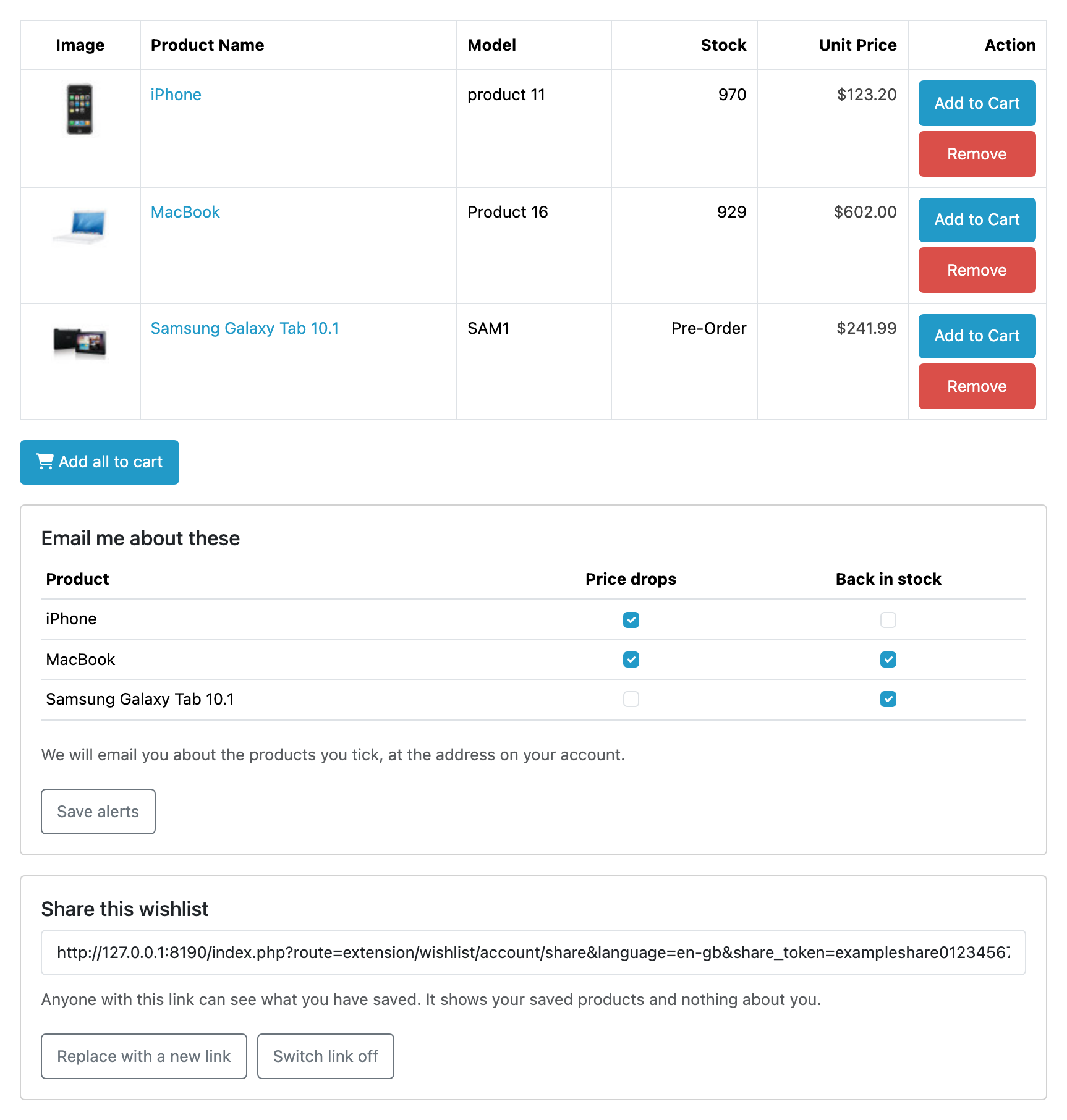
Only logged-in customers see that card. A guest sees one line inviting them to sign in, because there is no address to email a guest at.
6. Drop the price and wait for the sweep
In the admin, open that product and set a Special (the Discount tab on OpenCart 4.1), or lower the price, to something below what the page showed a moment ago. Save. Pick a product whose Price drops box is still ticked.
The alerts go out on the next hourly sweep. If you are using OpenCart's own
scheduler, check Extensions → Cron Jobs: Sends wishlist price-drop and
back-in-stock alerts should be there, enabled, with a run recorded after your
store's cron entry next fires. If you are using one of Wishlist's own two doors,
fetch the Sweep address from the settings screen or run
php extension/wishlist/wishlist.php sweep. There is no button here that sends
them now. That is deliberate, because alerts that depend on someone pressing a
button every hour would not go out reliably. See
keep the alerts running if nothing arrives.
The email that arrives names the product, what it was and what it is now, the moment the store looked, a link to the product page and two links at the bottom: one that stops every wishlist email for that customer on that store in one click, and one back to their wishlist to change what they hear about product by product.
7. Read what your shoppers want
Reports → Reports → Most Wishlisted. One row per product: how many people have it saved, split into customers and guests, how many are waiting for stock, how many are watching the price, and what the product costs and holds right now.
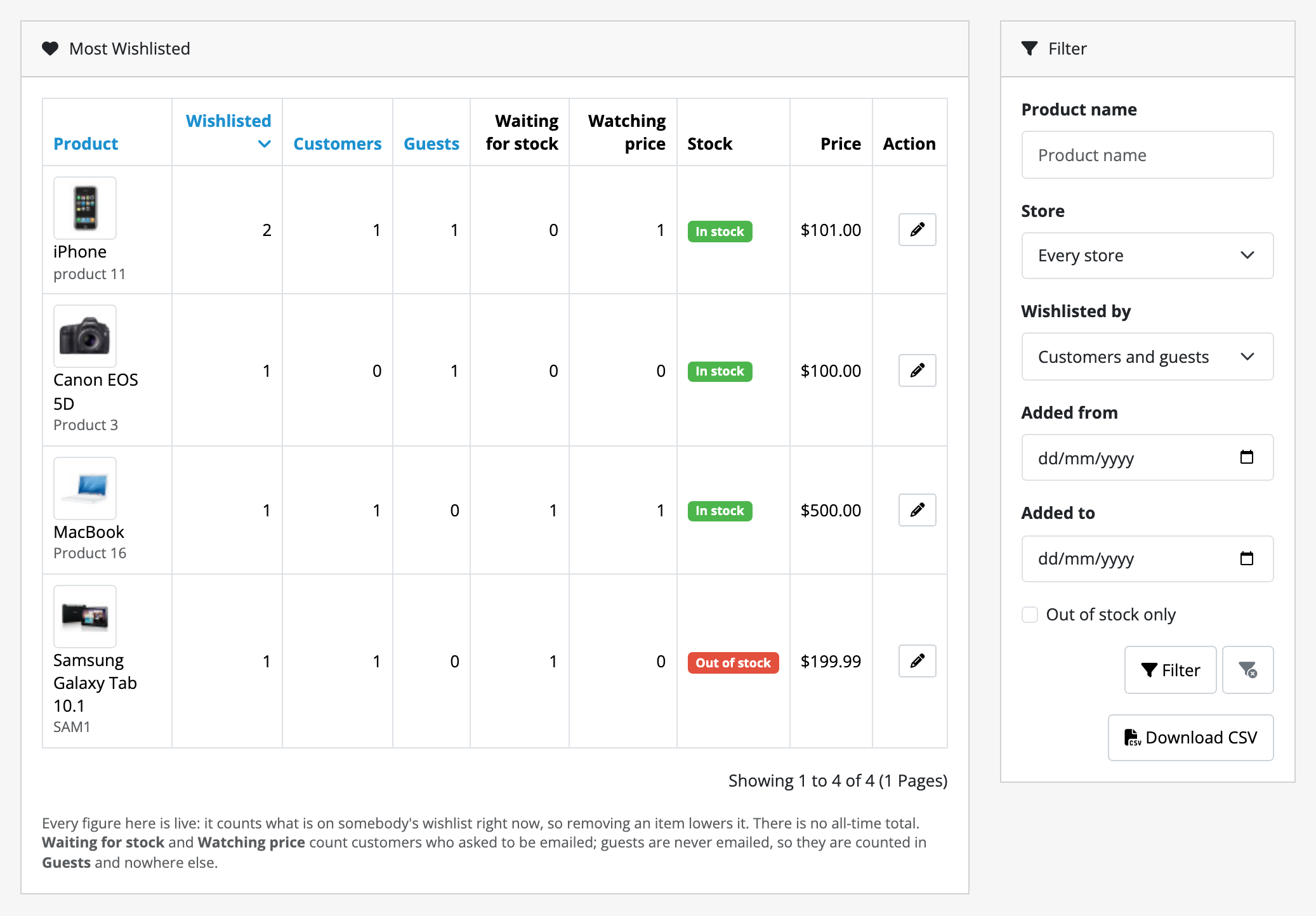
Sort by Wishlisted to see demand, or tick Out of stock only to see the demand you are not currently able to meet. That is the reorder list.
For one named customer, open their record under Customers → Customers and choose the Wishlist tab.
Before you leave it running
Make sure something is running the two scheduled jobs (OpenCart's own cron entry, or one of Wishlist's own two doors), or no alert is ever sent and no guest wishlist is ever tidied up. Then read limits and guarantees, so that you find each boundary before a customer does. Start with the two narrowings at the top of it.