Quick start
One price list, one customer on it, and a storefront that charges what you meant. About ten minutes, and nothing in it is undone by anything else.
Before you start, B2B Pricing has to be installed, enabled and permitted. All three are covered in Requirements & install.
1. Make the list
Catalog → B2B Pricing → Price Lists → Add. Give it the name you would use on the telephone, such as Trade 2026 or Hensley & Co, because a buyer reads this name on their own product page.
Leave Status as it is. A list is a draft until you enable it, and a draft prices nothing for anybody, whatever is on it and whatever dates it carries. So you can do the next two steps on a live store, in the middle of the afternoon.
Save. The Rows and Assignments tabs take entries once the list has been saved.
2. Put prices in it
On the Rows tab, press Add price and fill three things: the product, the quantity the price applies from, and the price.
| Product | Qty from | Price |
|---|---|---|
| Acme Widget | 1 | 9.40 |
| Acme Widget | 12 | 8.60 |
| Acme Widget | 48 | 7.90 |
That is a ladder: a buyer taking 30 pays 8.60, because 12 is the highest rung at or below 30. A product with a single row at quantity 1 is the simple case.
Rows save as you leave each field. There is no Save button on this tab. Beside every row the screen prints Public price today and Off, so you can see what you have just agreed to against what the product sells for now.
The price is a plain figure in your store's own currency, before tax, and it is absolute, never a percentage of anything. If you want everything from this brand at 15% off, that is Bulk set, which writes the arithmetic out into ordinary rows; see guides.
3. Say who is on it
On the Assignments tab, press Add assignment and choose either a Customer group or a Customer.
- A group is the ordinary wholesale arrangement: everybody in your Trade group gets these prices.
- A customer is the arrangement with one company. It beats the group's list every time, whatever the prices are, because naming somebody is a more specific statement than naming the group they happen to be in.
Priority settles two lists of the same kind: lower wins. From and To are optional and both days count: a list running to the 31st still applies on the 31st.
Assignments are written here and only here. Nothing on a customer's own form changes which list they are on.
4. Enable it
Back on the General tab, set Status to Enabled and save. That is the moment anything changes for anybody. It is one edit, and undoing it is one edit too if something is not right.
5. Check it before your customer does
Catalog → B2B Pricing → Price check. Type the customer, the product and a quantity, and press Check.
It answers with the price, the list that set it, and underneath, everything it beat: the other lists this buyer is on, rung by rung, with the reason each one lost, such as beaten by a list assigned to this customer by name, lower priority, not live today or the list is a draft. OpenCart's own discounts are on that table too, marked not consulted, which tells you a list is deciding the price rather than core.
Nothing on that screen is saved and nothing on it changes a price. It asks the same question a shopper's browser asks, of the same code.
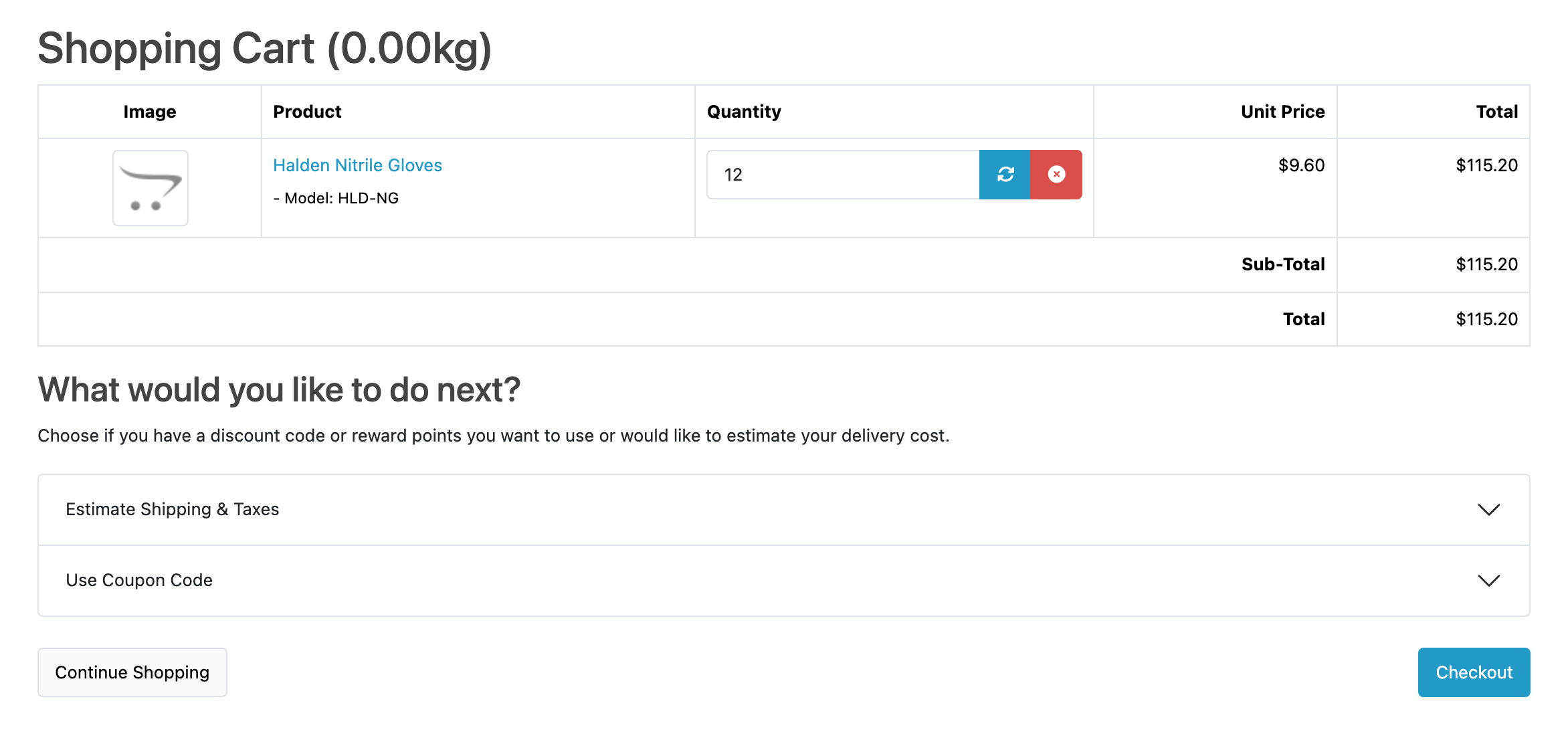
Then sign in to the storefront as that customer and look at the product page. The price is theirs, the ladder shows the price per unit and the line total at each break, and on OpenCart 4.1.0.3 and newer the row of product codes names the list it came from.
What to do next
- Sell something by the case: set a minimum and a multiple for a customer group at Catalog → B2B Pricing → Case Quantities. Every add-to-cart button in the store then posts the first quantity that group may legally order.
- Import a supplier's price file: one upload, into a new list you check before anybody buys on it.
- Read the limits. In short: guests are priced as your default customer group, a hand-set price on an order wins over every list, and this extension holds no VAT number.