Guides
Walkthroughs, one per task. Each one starts from the OpenCart admin and says what you should see when it worked.
Keep the sweep running
Back In Stock never sends an alert while somebody is looking at a page. Saving a product in the admin, or an order change that puts stock back, sends the first batch for those products in the same request. Every batch after that is sent by a sweep, and the sweep has to be woken by something outside the store. Three things can wake it, any one of them is enough, and none is preferred over the others. All three are listed on Extensions → Extensions → Modules → Back In Stock, with your own store's paths already filled in. Copy the line from the screen rather than from here, because the screen knows where your store lives.
OpenCart's own scheduler. A job called Back In Stock is registered under Extensions → Cron Jobs when you enable the module. It runs when OpenCart's scheduler runs, which needs one crontab line on the server:
*/5 * * * * php /path/to/store/cron.php
You can pause that job, or change how often it runs, from OpenCart's own screen. Pausing survives an update; deleting the row does not, because the row comes back on the next install. Pause rather than delete.
A web address. The settings screen shows one address carrying a secret. Give it to anything that fetches a URL on a schedule, such as a cron service, an uptime checker or a crontab line:
*/15 * * * * curl -s 'https://example.com/index.php?route=extension/back_in_stock/cron/back_in_stock&secret=…' > /dev/null
Use this one on OpenCart 4.1.0.4, where the scheduler above is broken inside OpenCart itself.
The command line, if the store has a shell. It exits 0 when the sweep ran
and 1 when it could not, so a deploy step or a monitoring check can tell:
*/10 * * * * php /path/to/store/extension/back_in_stock/back_in_stock.php
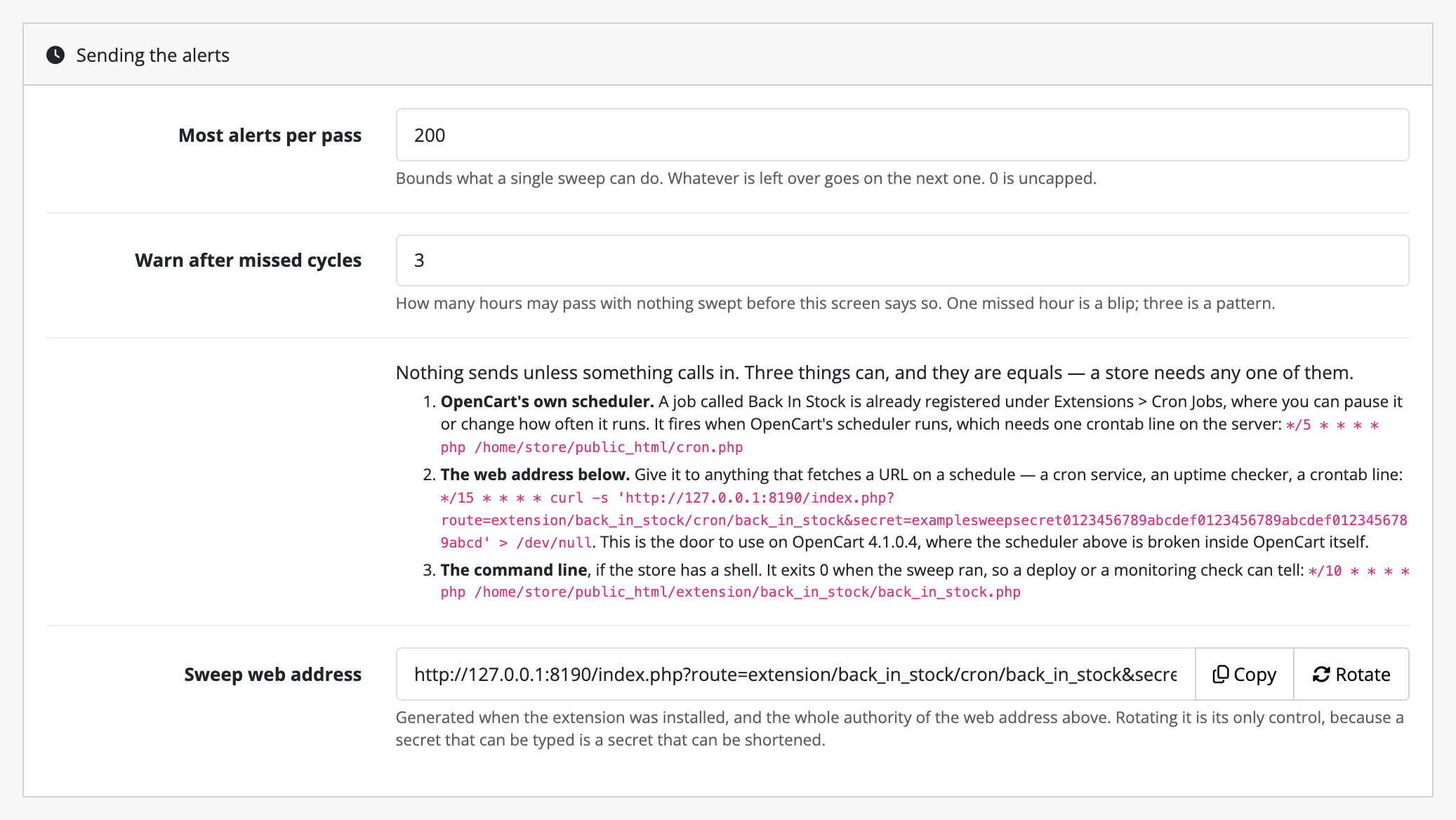
How to tell it is working. The settings screen carries a last swept time and starts complaining when three cycles have gone by with nothing swept. A store that has never swept says so outright. Catalog → Back In Stock carries the same figure at the top. A product save that sent a batch moves that time too, so on a store where products are saved often, check that one of the three ways above is actually in place rather than relying on the warning.
Rotating the secret is the only control the web address has. Press Rotate, confirm, and paste the new address wherever the old one was. The old address stops working immediately.
Change what the emails say
There are two emails: the confirmation, sent when somebody signs up, and the alert, sent when the thing they asked about is buyable again. Each has three boxes (the subject, the plain-text part and the HTML part), and all three are sent.
They are in the Wording section of the settings screen, along with the consent notice and the heading above the capture form. Pick a language, write what you want, save. Each language is saved on its own, so writing one leaves the others exactly as they were.
Leave a box empty and Back In Stock's own wording is used, shown in the box in grey so you can tell inherited from written. Clearing a box puts our wording back rather than leaving the email without any.
The placeholders are a closed set: {product}, {option}, {store},
{product_url}, {unsubscribe_url}, {confirm_url}, {store_email},
{store_address} and {expiry}. Anything else inside braces is left exactly as
you typed it, so prose containing a brace survives.
Three things to know before you write:
- Keep the unsubscribe link. Every alert has to carry one, in both parts: the plain-text part is what a mail client that strips HTML shows.
- Keep the confirmation email free of anything commercial. No price, no product image, no offer. That is what makes it a confirmation rather than a marketing message, in the places that draw the distinction.
- What you write survives an update. It is a setting, not a file.
These used to be files
Earlier releases kept the wording in seven files under
extension/back_in_stock/data/, and every update deleted them. Updating
from one of those releases reads whatever you had edited there and puts it
in the boxes above; the files are still shipped, are no longer read, and
come out of the package in a later release. The changelog
says which releases. If you kept a copy of an edit that never made it
across, paste it into the box.
Preview your emails and send yourself a test
The Wording section of the settings screen ends with Preview and test. Use it after changing either email, and once before switching the module on, to see what a shopper will get and to find out whether your store can send mail at all. The HTML part is written as HTML, so this is where a broken link shows up before a shopper finds it.
- Press Save first. Both buttons use the saved wording, so an unsaved edit is not in them.
- Choose the Email, Confirmation or Alert, and the Language. The language starts on your storefront's own.
- Press Preview. The email opens in a new tab as the sweep would build it: the subject as the heading, the HTML part, and the plain-text part underneath.
- Press Send me a test to have the same email sent to the address on your own admin account. The screen says whether it went.
The preview is built around a sample product called Sample product, in size Medium, never a real product or a real shopper. Its links, the confirmation link and the unsubscribe link alike, open the page that says the link has been used or has expired, so clicking them changes nothing.
The test differs from the preview only by [Test] before its subject. It goes through your store's own mail settings, so if it does not arrive, look at System → Settings → Mail before anything else; with no mail engine set, nothing is sent and the screen says so, and if the mail server refused it, the screen says that and the extension's log has the error. A test counts toward nothing: no sign-up, no consent record, no alert, no share of the per-pass cap or of a batch, and it never reads the suppression list. There is no way to send it to another address; add an email address to your own admin account if yours has none. See the limit.
Tag the alert link for your analytics
To see restock alerts as their own source in your analytics, add campaign tags
to the product link in the alert. There is no setting for it, and none is
needed: the link {product_url} stands for always ends in &product_id= and the
product's number (…/index.php?route=product/product&product_id=42), never in a
search-engine-friendly address, because a sweep running from a scheduler cannot
build one. So anything you type straight after the placeholder is added to that
query string.
In the Wording section, pick the language and edit the alert:
- Alert: plain-text part. Change
{product_url}to{product_url}&utm_source=back_in_stock&utm_medium=email&utm_campaign=restock. - Alert: HTML part. Change
href="{product_url}"tohref="{product_url}&utm_source=back_in_stock&utm_medium=email&utm_campaign=restock". In HTML an&inside an attribute is written&, which is also how Back In Stock writes the&already inside the link.
Save, then preview the alert and follow its product link to check the tags are there. Do this for each language you have written wording in. A language whose boxes are empty uses our wording, which carries no tags.
Keep the tags the same for everybody. Use fixed words, like the ones above. A value that differs per person, such as an address, a customer number or a code of your own, turns the link into a tracker for that person, and the consent notice they agreed to says nothing about one.
Add a language to your store
Add it the way you add any language, under System › Localisation › Languages, and Back In Stock follows it without being told. There is nothing to copy, and no directory of ours to create.
What a shopper reading that language gets depends on whether we ship it:
- A language we ship is served in that language, string by string, as far as a named native speaker has read it. Which languages those are, and how far each one has been read, is on the language promise page. We ship whole directories or we ship none: there is no half a language you can install.
- A language we do not ship is served in English. The form still works, the emails still send and the consent notice still appears, in English, under your own theme in your own language.
Your store's language code does not have to match ours exactly. Where the
language part of the code matches exactly one language we ship, that one is
served: a store registered as en or en-us gets our British English. Where a
code could mean two things we ship, it is served in English rather than guessed
at. The settings screen's Language section shows which one each of your
languages gets, and why.
Everything Back In Stock says to a shopper is yours, per language. Open the settings screen, pick the language in the Wording section and write it: the heading above the capture form, the consent notice beside it, and both emails. Each language is saved on its own, a box left empty uses our wording (shown in it in grey), and an update does not touch what you wrote.
That is also how you translate it into a language we do not ship. It is your translation rather than ours, so the language promise page does not claim it: nobody here has read it.
One thing to know before you rewrite the consent notice in any language: it mints a new consent version. The wording is hashed and stored, and every sign-up taken from then on points at the new version. Everybody already waiting keeps a pointer to the exact text they read, so nothing already agreed to changes underneath anybody. But what you write is what the next person is recorded as having agreed to, so it has to stay true of what the extension does.
An earlier version of this guide said otherwise: do not copy
extension/back_in_stock/data/mail/en-gb/ to a new code. That directory is no
longer read at all, and it comes out of the package in a later release.
Each subscription remembers the language the shopper signed up in, and its mails are rendered in that language rather than in whatever language your store happened to be in when the sweep ran. A language we do not ship falls back to English, then to a plain body built in code, so a missing translation never swallows a sign-up and never sends an empty message.
Read the demand report
Reports → Reports → Back In Stock Demand is one row per counter (a product, or one of its option values), with how many people are waiting now, the longest anybody has been waiting, how many were alerted in the last 60 days, and whether an alert could be sent for it right now.
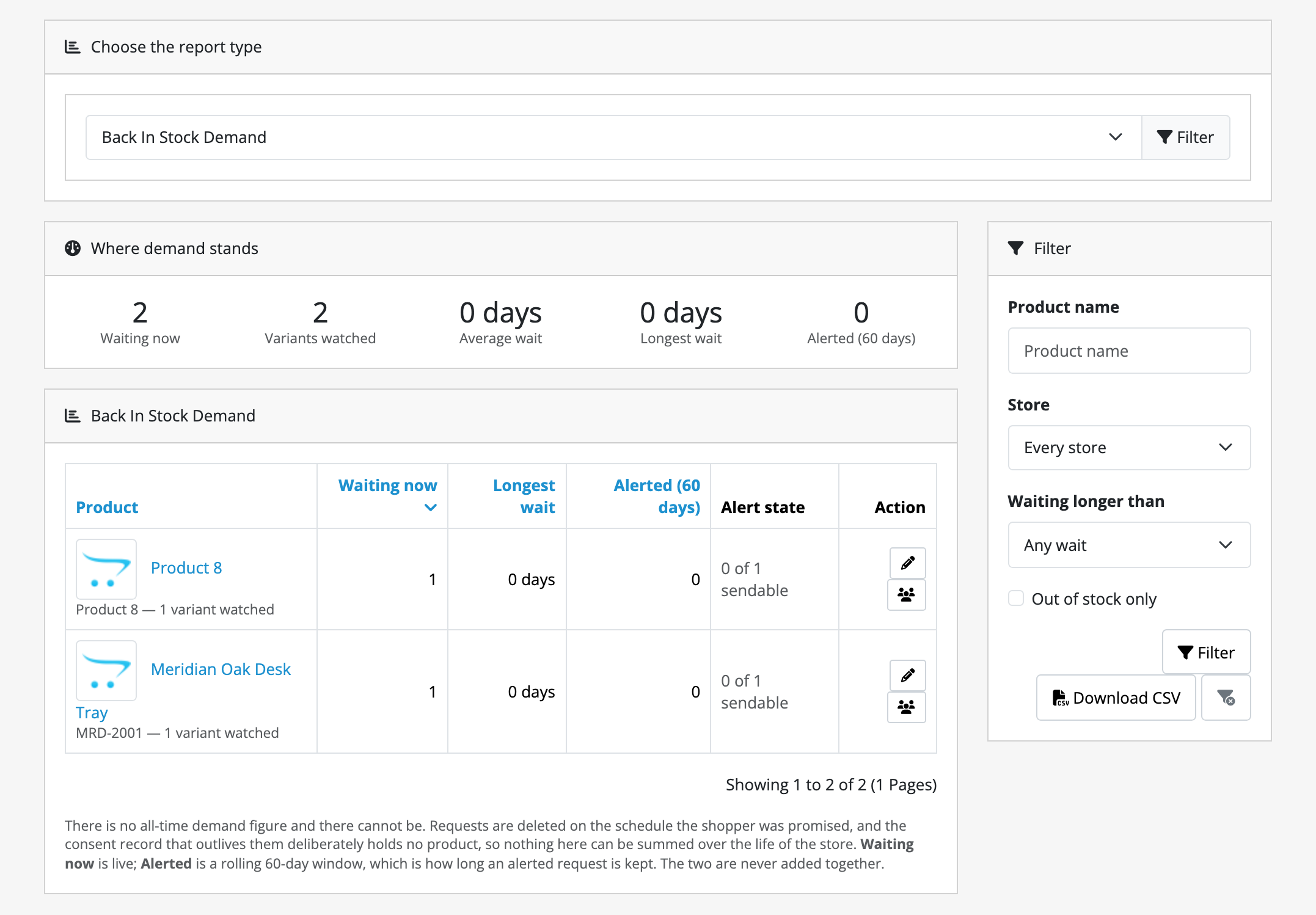
Filter by product name, by store, by how long people have been waiting, or to out-of-stock counters only. Edit product goes straight to the product form; Who is waiting goes to the addresses, if your group has permission for them.
Download CSV, beside Filter, saves the report as you are looking at it, with your filters and sort, across every page, one line per variant. It holds counts and catalogue names only; the addresses stay on the screens that show them. What is in it.
The Alert state column is the reason the sweep would give if it looked at that counter this second: Product quantity is zero, Below the minimum quantity, Product is disabled, Not in this store, and so on. It answers "why has nobody been mailed about this" on the screen you were already on.
There is no all-time figure here, and there cannot be: requests are deleted on the schedule the shopper was promised. Waiting now is live and Alerted is a rolling 60-day window; the two are never added together.
Answer "what do you hold about me?"
Catalog → Back In Stock → What we hold about an address. Type the exact address and search. You get every subscription it holds, on every store, with its state and what it is waiting for; the exact wording that person agreed to, on request; and whether the address has asked never to be mailed again.
From there:
- Stop this alert deletes one subscription. The address is not suppressed, so that person can sign up again.
- Stop all alerts for this address deletes every subscription for it and records that it asked never to be mailed again, on every store this installation serves.
- Delete everything we hold removes the subscriptions and the consent records. A live suppression entry is kept, because deleting it is the one thing that would let the emails start again; a lifted one is deleted with everything else. The screen says which happened.
Customers can do the first three themselves from the link in any email they were sent. This screen exists for the request that arrives as a reply, or over the phone.
For the same question asked of the whole store, Customers → Personal Data takes an address and lists what this extension, every other Kyvero extension installed, and OpenCart itself hold about it, with a Remove it button that keeps a live suppression entry for the same reason as above.
Honour a request that arrived as a reply
Somebody writes "stop emailing me" or "delete what you have on me" rather than clicking the link. You do not need anything from them but the address:
- Catalog → Back In Stock, address lookup, type the address exactly.
- Stop all alerts for this address for a withdrawal, or Delete everything we hold for an erasure request. The screen prints a receipt saying exactly what was deleted and what was kept.
- Reply to them with that. The receipt is written to be quotable.
Let a suppressed address sign up again
Somebody who pressed stop all alerts cannot sign up again. The form takes their address and does nothing, and it says the same neutral sentence it says to everybody, because saying more would tell a stranger whether an address is on the list.
If they ask you to allow alerts again: look the address up, press Lift suppression, and confirm. Lifting does three things people expect it not to. It creates no subscription and sends no email; it only lets that address ask again from the product page. It does not restore the consent that was withdrawn. And it is recorded against your account, permanently.
Turn the form off for one product
The Back In Stock tab on the product form. One row per counter: the product itself, then every option value it meters. Each row has a Capture form switch with three positions:
- Inherit: follow the module switch. This is the state a counter is in when nothing has been set, and it stores no row at all.
- Offer the form: offer it for this counter, even where the product's own row says never. It still appears only while the counter is out of stock, and it cannot override the module being switched off or a pre-order being offered for the counter.
- Never offer the form: never offer it for this counter.
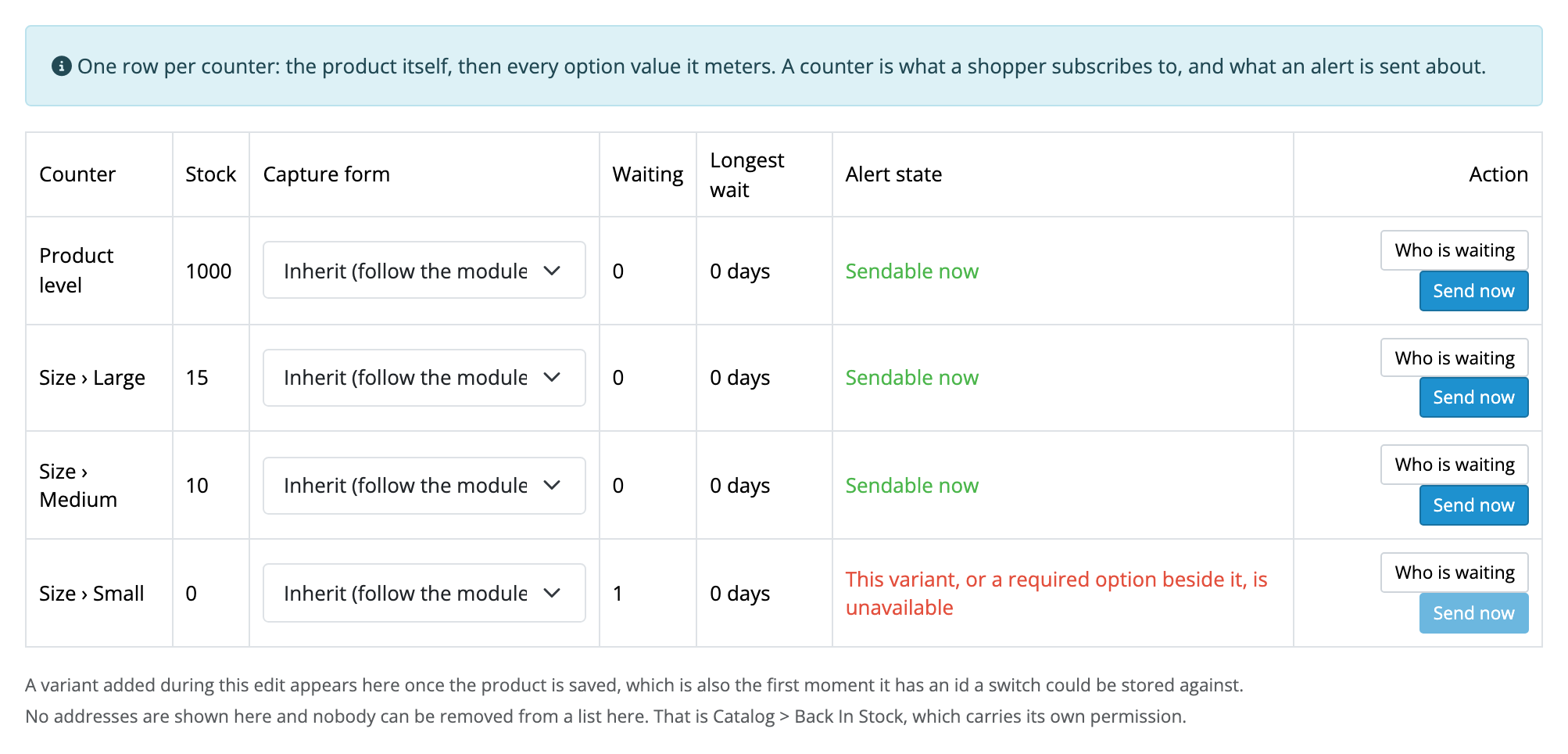
The same tab shows, per counter, how many people are waiting and the alert state the sweep would report. It shows no addresses and removes nobody; that is Catalog → Back In Stock, which carries its own permission.
A variant added during the current edit appears once the product has been saved, because that is the first moment it has an id anything could be stored against.
Send the alerts that are due, now
Send any alerts that are due now appears at the top of the settings screen, and a Send now button on each row of the product tab, for anybody with modify permission on Catalog → Back In Stock. It runs one sweep immediately and skips the wait between batches for that run. On the product tab the button is greyed out, with the reason, wherever nothing could be sent.
If the store's mail server refuses any of them, the product tab's Send now says how many, and the extension's log names the reason. Those people stay on the waiting list for the next sweep, and a request the mail server refuses three times is parked; Retry on Catalog → Back In Stock puts it back.
It does not skip the check that the thing is buyable again. Nothing is ever claimed to be back that is not.
Repair a half-finished install
If the settings screen opens with Back In Stock did not finish installing, something interrupted the install, such as a PHP error, a timeout or a permission on the database. The repair is to remove the extension and add it again in Extensions → Extensions → Modules.
Nothing is lost by doing that. Removing the extension drops no table and deletes no row: your subscriptions, consent records, suppression list and settings all survive, and adding it again picks them back up, sweep secret included.