Guides
Each guide is written for something you are trying to get done. What each setting does on its own is on settings, and where each promise stops is on limits and guarantees.
Cost the whole catalogue at once
A figure can only be worked out for a product with a cost, so this is the first job and the one that moves the most.
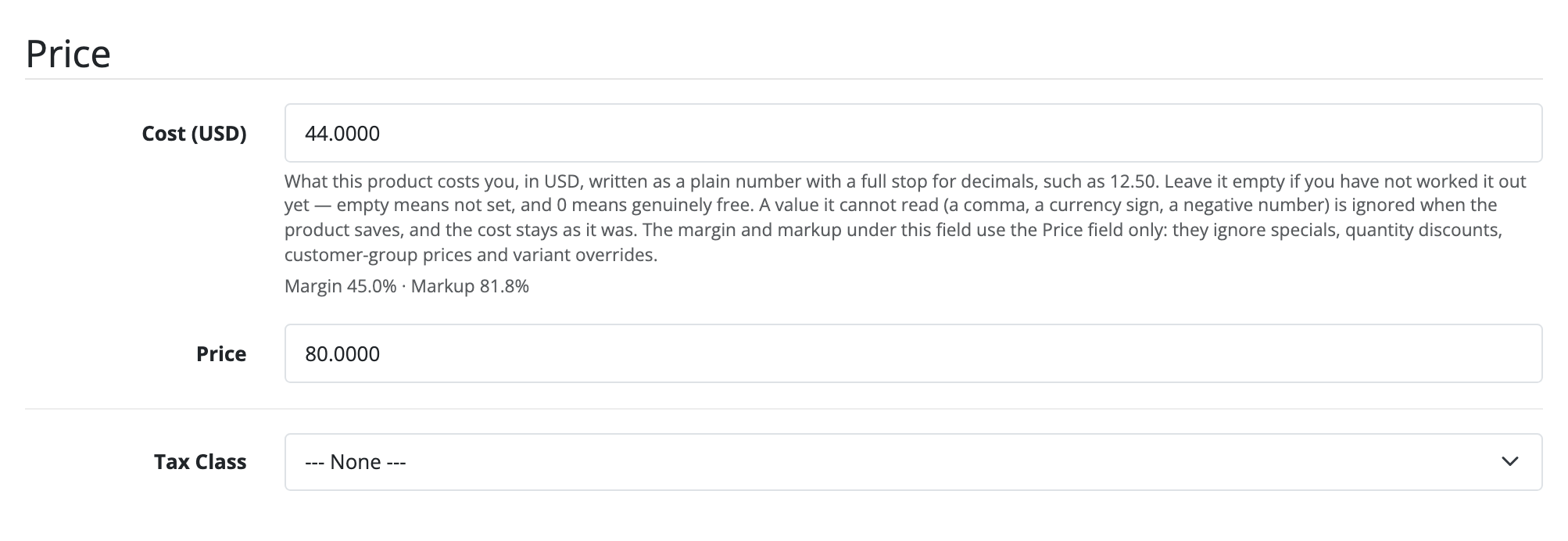
One product at a time, the field is on the product form, above Price. Under it, the margin and markup that price makes over that cost change as you type either figure, and the line turns red when the price is at or below the cost. It reads the Price field only, not specials or discounts, and it never stops a save; see what it does not touch. For the whole catalogue:
- Open Profitability → Cost book and click Download the cost book. You
get one line per product, costed or not, with the columns
product_id,modelandcost. - Fill in the
costcolumn in a spreadsheet, in your store's default currency. Leave a cell empty for a product you have not worked out yet. - Save it as CSV and click Upload a cost book.
The screen reports how many products it costed, how many it emptied, and every
line it skipped, by line number. A product your file does not mention keeps its
cost, so a file of forty corrections touches forty products. An empty cost
cell empties that product's cost back to not costed, so do not blank a column
you meant to leave alone. The matching rules are under the cost book
file.
A new cost applies to orders from then on. Lines already recorded without one stay out of the figures until you reach back over them.
If you cannot cost everything yet, set Default COGS margin on the
Costs tab of Settings. At 40, a product sold for 100.00 with no cost of
its own is recorded as having cost 60.00, and labelled estimated. Leave it
empty and such lines are left out instead.
Price your payment and shipping methods
Until you do, fees and fulfilment read zero, and the dashboard's Not configured yet panel names every method used in the period that has no rule.
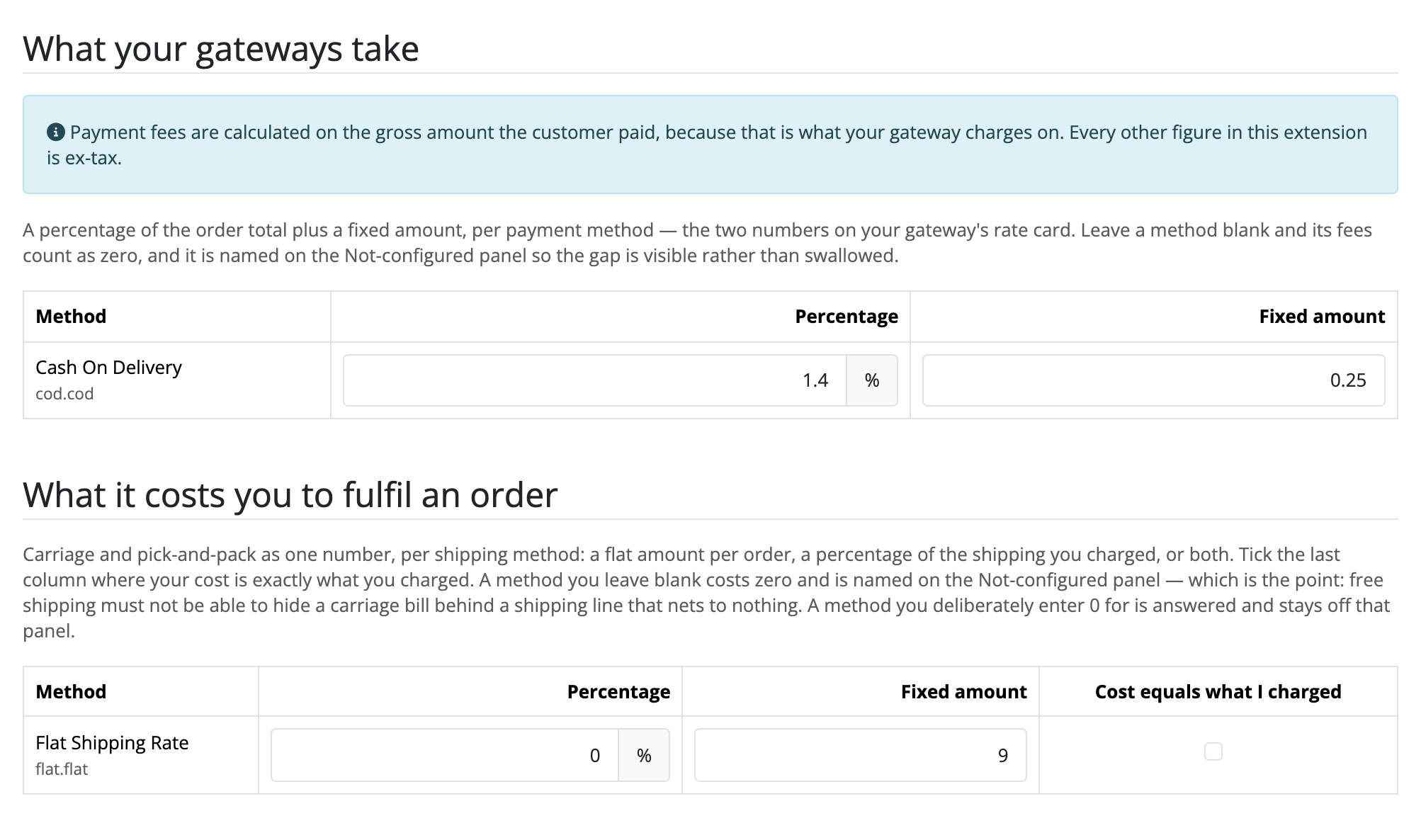
Open Profitability → Settings and the Fees tab.
- What your gateways take: for each payment method, the percentage and the fixed amount from your provider's rate card. The fee is worked out on the gross the customer paid, tax and shipping included.
- What it costs you to fulfil an order: for each shipping method, a flat amount per order, a percentage of the shipping you charged, or both. Tick Cost equals what I charged where your carrier bills exactly what the customer paid. One figure covers carriage and packing.
A method is listed only after an order has used it, because OpenCart keeps no
list of the codes a shipping extension can produce. A method you enter 0 for
is answered, and leaves the panel.
The rules apply to orders recorded from then on. An older order picks them up the next time it is recorded again, for instance when its status changes; see the one exception to frozen.
Decide which orders and returns count
On the Orders tab, tick the order statuses that mean the money is real. On the Returns tab, tick the return statuses that mean the goods came back (Complete alone by default), and for each return reason, whether the goods come back saleable. A saleable return takes its cost off as well as its revenue; one that is not keeps the cost against you, as a write-off.
All three are read live. Changing them changes every period on the next page load, including months you have already closed, with nothing to re-run.
Record what the shop costs to run
Without expenses the dashboard shows contribution margin, and net profit reads as a dash.
Open Profitability → Expenses, click Add an expense for each cost, and Save. Each row takes a name, an amount, how often it is spent (One-off, Weekly or Monthly), a start date, an optional end date, a store or All stores, and whether it is Advertising.
- A monthly row is spread over the days of each month, so a 28-day February carries a larger daily share than January. A one-off lands on its start date.
- Leave the end date empty for something still running. It counts up to today and no further.
- Tick Advertising on ad spend, one row per channel if you like, and the dashboard shows blended ROAS: revenue over everything you spent advertising.
- If any row is refused, for a missing name or an end date before its start, nothing is saved until you correct it.
Expenses never reach a product's profit. See operating expenses are store-wide.
Reach back over orders you already had
Two buttons on the Maintenance tab of Settings write figures for a stretch of orders in the past:
- Back-fill the last 12 months, for a store that has just installed the extension and wants a picture straight away.
- Recalculate from a date, for when you mistyped a cost, or costed products after they sold. It records again every order placed from that date, including ones already held.
Both price old orders at today's costs and rules, and label every line they
write backfilled permanently. Read the trade on the screen before you press
either. The run happens in your browser tab, 25 orders at a time; if you close
the tab, open the Maintenance tab again and press Resume the unfinished
run. See
figures start the day you switch it
on.
Both buttons need modify on
extension/profitability_copilot/report/recompute. To redo one order rather
than a stretch of dates, see correct one order after fixing a
cost.
Find the orders that lost money
A product can earn well and still sit on an order that lost money, because the payment fee and the fulfilment cost belong to the whole order. This list is where such an order is named.
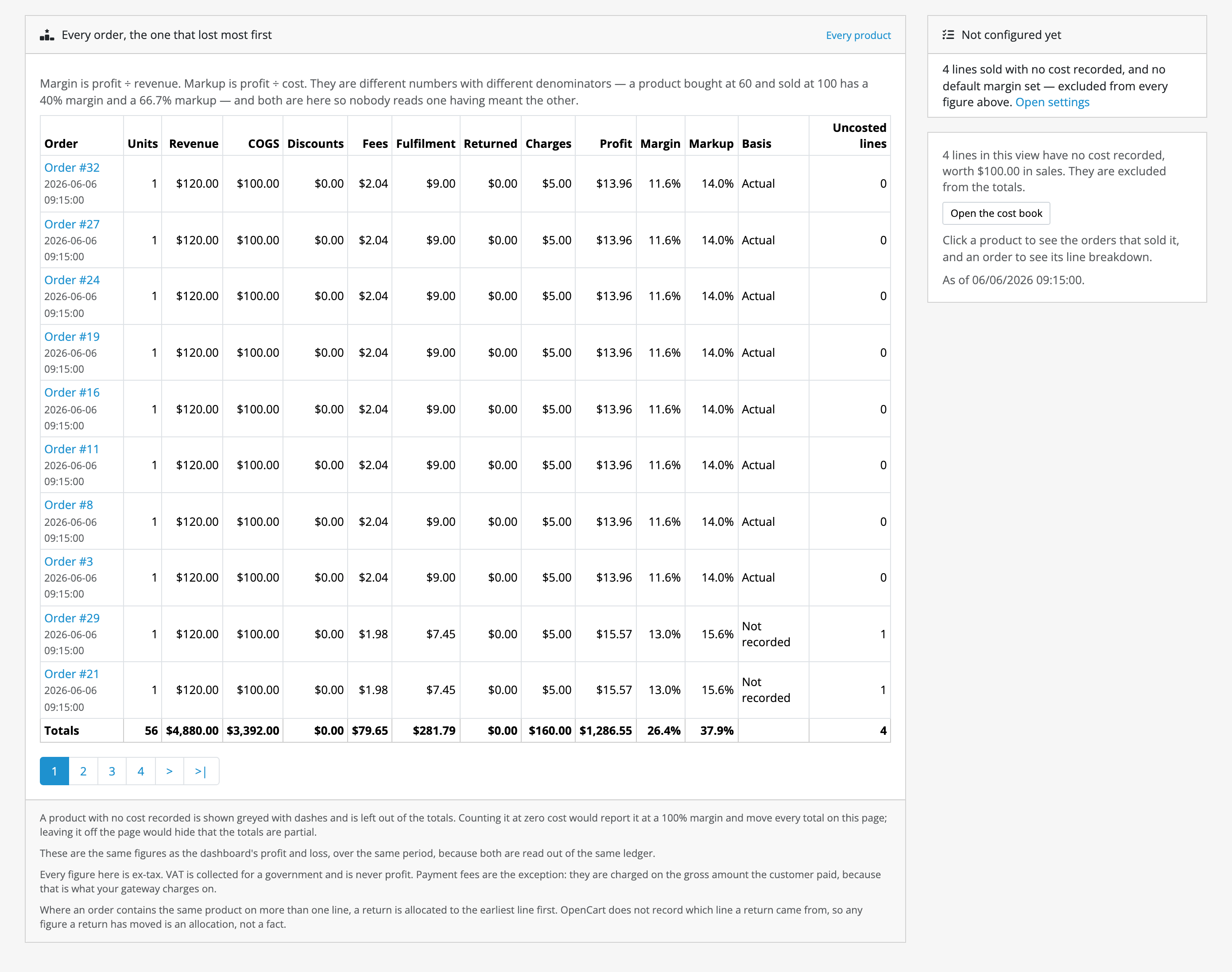
- Open the dashboard and click Open every order, the one that lost most first in the toolbar, or click All orders above the table on Product profit. The period and store you were looking at come with you.
- Read from the top. Orders are sorted by profit, lowest first, so the ones that lost money lead. An order's profit is its lines' profit plus the shipping and order charges the customer paid, which is why this list has a Charges column the product views do not.
- Click an order to see the lines it was made of, and which line or which fee took the money.
An order with no costed line is greyed, with dashes for profit, margin and markup, and sorted after the rest; the Uncosted lines column says how many of each order's lines are left out. The list is split into pages, but the Totals row and Export this view (CSV) cover every order in the period, not only the page you are on. The list shows the order number and date only, never the customer.
Correct one order after fixing a cost
When one order's figures are wrong because a cost was missing or mistyped when it was recorded, fix the cost first, then redo that order alone:
- Correct the cost on the product form or in the cost book.
- Open the order's line breakdown: on Product profit, click the product and then the order, or click the order on the list of every order.
- Click Recalculate this order, the button at the top of the page, and confirm.
The order is recorded again at today's costs and fee and fulfilment rules,
and every line of it is labelled backfilled permanently, as Recalculate from
a date would label it. No other order changes. The button shows only to a user
whose group has modify on extension/profitability_copilot/report/recompute.
See figures start the day you switch it
on.
Let someone read the reports without seeing what you pay
Under System → Users → User Groups, give the group access to
extension/profitability_copilot/report/dashboard and leave
extension/profitability_copilot/catalog/cost and
extension/profitability_copilot/report/expense unticked. They then get the
dashboard, but no cost field, no cost book and no expenses screen.
This does not hide cost of goods: the dashboard prints it, and so does Product profit. A group that must not be able to work out your purchase prices should have neither report. See who can see what you pay.
Feed the figures to a reporting tool
For a one-off, both reports export the period you are looking at to CSV: Export the figures behind this (CSV) on the dashboard, Export this view (CSV) on Product profit.
For a tool that fetches on its own, switch the API on in the API section of the General tab, and give the tool an OpenCart API user under System → Users → API. Read the API before you do. Its first point is the important one: that credential sees every purchase price, and cannot be limited to this extension or to reading.
If you also own Import/Export
The cost book is one table with one key column, so Import/Export can write it directly as an extra table on a product mapping, with no screen of ours involved.
| field | value |
|---|---|
| Table | profitability_copilot_cost |
| Key column | product_id |
The cost column then appears in that mapping's field list beside name,
price and the rest, and is written, journalled and rolled back exactly like
them.
Neither extension has any code for the other, and neither needs installing for the other to work.