Guides
Each of these is written for something you are trying to do, rather than for a screen you are looking at. They assume Delivery Date is installed and enabled; see the quick start if it is not.
Cap how many orders a day can take
There are three caps, and they are checked together. Use the fewest of them that say what you mean.
A cap on the window: Orders this slot takes, beside its name. Four morning deliveries a day, whichever day it is.
A cap on one weekday's window: the small box beside the tick in Which slots run on which day. Six on Saturday morning, four on every other morning. It overrides the window's own cap for that day alone, and blank falls back to it.
A cap on the whole weekday: the Orders a day row at the bottom of the grid. Twelve orders on a Tuesday whatever the window, for a store that thinks in vans rather than in windows.
Blank is no limit, everywhere. A window with no cap shows a count on the day sheet and the words no limit, never a fraction.
Before you type a number:
- The count that decides whether a window can still be offered includes shoppers who are in checkout with it right now, so it is deliberately cautious. Their hold expires by itself after Hold a slot for, on the settings screen.
- Lowering a cap below what is already booked un-books nobody. The day reads
6/4with a 2 over badge until those orders ship.
Close the store for a holiday
On the store calendar, under Closed dates, fill in a From date, a To date (leave it blank for a single day) and a Why, which is yours to read and appears in the preview beside the closed day.
A closed date beats everything. No shipping method's calendar can open it, and the preview shows the whole range greyed out with your note against it.
Closing a date does not move orders already booked on it. Open Sales → Delivery Days for that day and ring them.
Give Pickup, or a Saturday courier, its own days
Some methods run on days the rest of the store does not. Pickup on a Saturday morning is the common one.
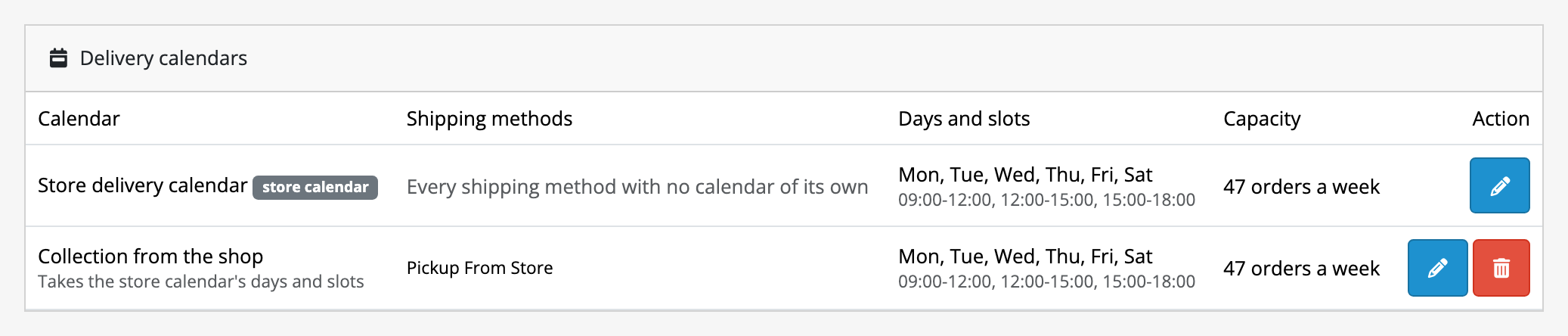
- From the settings screen press Delivery calendars, then add a calendar.
- Name it for yourself, for example Pickup or Saturday courier. Customers never see this name; they see the window names.
- Under Shipping methods this calendar speaks for, tick the method or methods it covers. A method already on another calendar is greyed out with that calendar named. Take it off there first, because a method belongs to one calendar.
- Turn off Use the store calendar's days and slots. The grid unlocks, already filled in with the store's week so you have something to edit rather than a blank one. Now make it the method's own: Saturday only, one Morning window, cap 12.
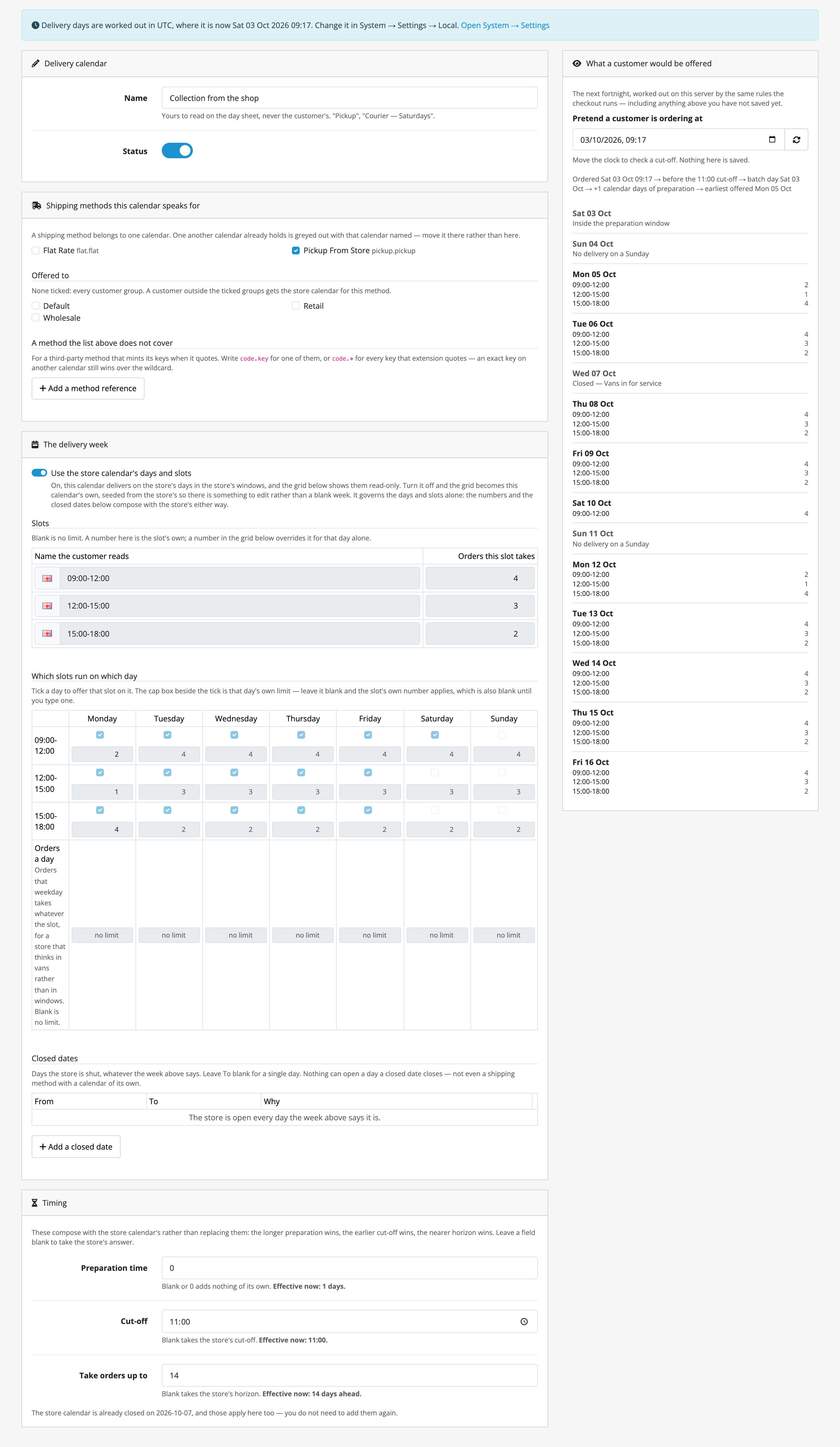
The numbers below the grid combine with the store's rather than replacing them: the longer preparation wins, the earlier cut-off wins, the nearer horizon wins. Leave one blank to take the store's answer, and read the Effective now line under each field for the number in force.
A method calendar can open a weekday the store calendar closes. That is the purpose of this guide. It cannot open a closed date. The calendar list warns you where a method opens a day the store closes, so a mistake shows up instead of passing silently.
Give trade customers a Saturday
The store delivers Monday to Friday, and your wholesale customers get a Saturday run as well. A calendar can be limited to some customer groups, and a shopper outside them is offered the store calendar for that method instead.
- Give the method its own calendar with the Saturday in it, as in the guide above: tick the method, turn off Use the store calendar's days and slots and add Saturday to the week.
- Under Offered to, tick Wholesale, or whichever groups get the Saturday. The groups are OpenCart's own, from Customers → Customer Groups.
- Save. The calendar list names the ticked groups under the method.
A wholesale customer choosing that method is now offered Monday to Saturday, and a retail customer choosing the same method is offered the store's Monday to Friday. Nothing ticked means every group, which is how every calendar behaved before the box existed.
- The group decides which calendar speaks, never which method is quoted. Whether the method appears at checkout at all is still core's shipping settings.
- The store calendar cannot be limited, so it has no Offered to box. It is what everybody else falls to.
- A booking keeps the group it was ordered under. The day is confirmed against the group recorded on the order, so moving a customer to another group later changes what they are offered next time, not an order already placed.
See what composes with what for how a limited calendar combines with the store's.
Say that a product takes a week to make
On core's own product form there is a Delivery Date tab. Preparation time (days) is the only field on it: how long this product takes to get ready.
The rule is a maximum, never a sum:
- Your calendar needs 1 day, the product needs 3 → the order takes 3 days.
- Two products in one basket, 3 days and 5 days → the order takes 5, not 8.
Leave it at 0 for anything ready to leave, which is what every product says until you change it. A product that does not ship, such as a download, contributes nothing whatever the number.
At checkout the customer is told which product is holding the order up, by name, so they can decide to buy the other one instead.
Check a cut-off before you promise it
You cannot tell whether a cut-off works without asking what if they order on Friday at 16:10. Pretend a customer is ordering at on the preview answers that. Move the clock, press Refresh the preview, and read the explanation line: it names the cut-off, the batch day the order landed in, the preparation added, and the earliest day that comes out.
Nothing on that panel is saved, and it works on the numbers currently in the form, including ones you have typed and not saved yet. It is the same code the checkout runs, so what it shows is what a customer would be offered.
Plan a day's deliveries
Sales → Delivery Days opens on today. The week ‹ › arrows, the day field
and This week all move the same thing: the day the sheet is for.
The top half is occupancy: each window against its capacity for each day of the
week, so you can see which day is full before you open anything. Grey +2
holding beside a count is shoppers still in checkout. It is never folded into
the number, because a sheet that counted them would have the packer preparing
work that may never arrive.
The bottom half is the day itself, grouped by window. Shipping method at the top is a filter only. A store running two calendars still has one van bay and one morning, so the unfiltered day is the real day.
Then:
-
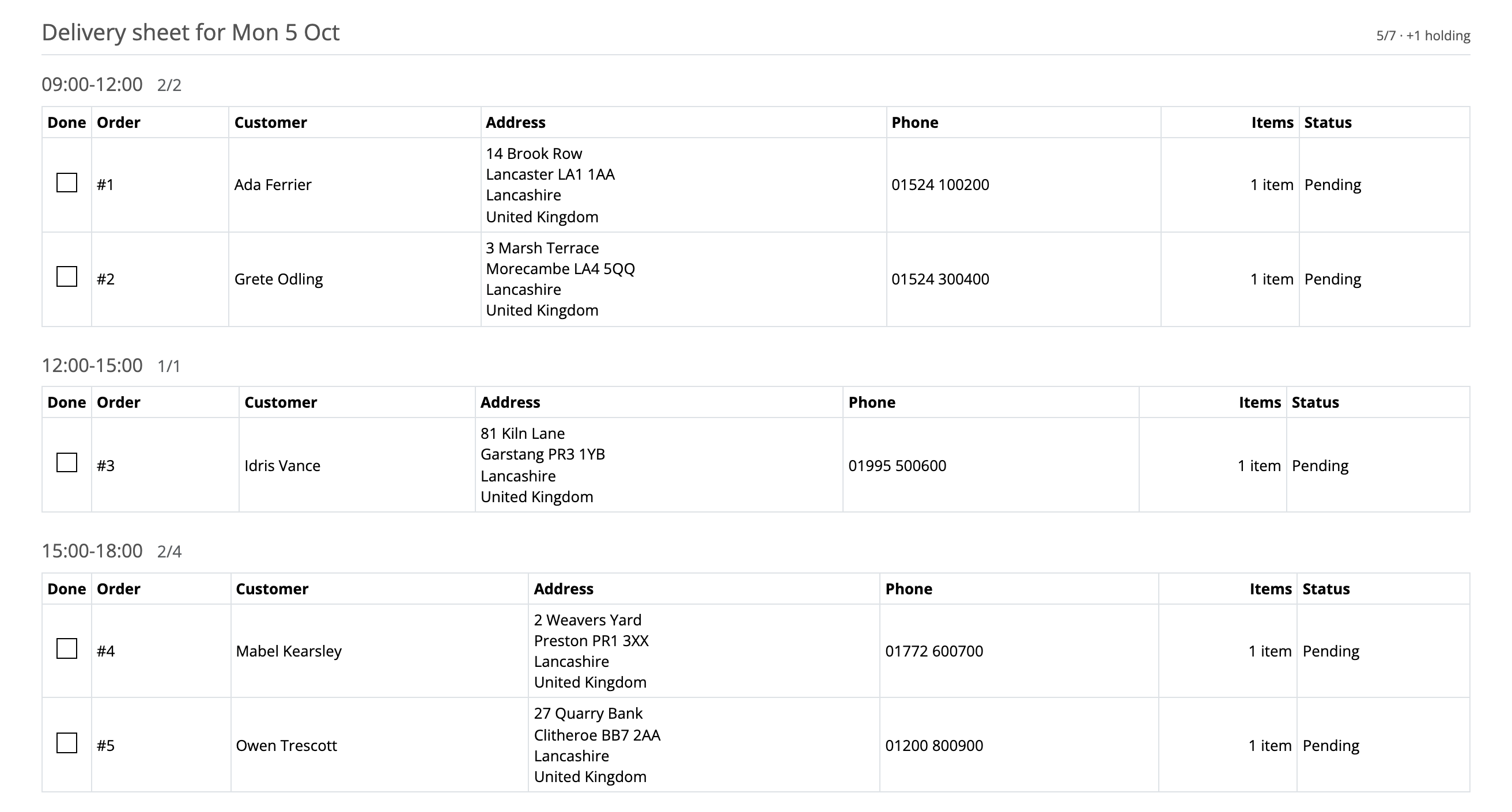
Print the sheet: one document per day, with the full street address and a tick column, which the screen does not show. Windows with nothing on them are not printed.
 - Export the day (CSV): the same day as a file, one row per order.
- Picking lists: core's own, if you have permission for the order screen.
- Export the day (CSV): the same day as a file, one row per order.
- Picking lists: core's own, if you have permission for the order screen.
The screen is read-only. Nothing on it moves an order to another day or another window; that is done on the order's own page, as in Give an unscheduled order a day.
Find the orders that have no delivery day
While any exist, every day of the planner carries a red banner: n paid orders have no delivery day at all. Behind it is the list.
These are orders the calendar could offer nothing to at the moment they were paid for, because the horizon was full, closed, or both. Nothing else in the store mentions them, which is why the banner is on every day rather than one of them. They also carry the Awaiting Delivery Date status, so you can filter the order list by it.
Ring the customer, agree a day, and give the order that day on its own page; see the next guide.
Give an unscheduled order a day
An order in the planner's red banner, or a firm booking the customer has since
asked to change, is given its new day on core's order page. Your user group
needs modify on extension/delivery_date/sale/planner. The group that installed
Delivery Date has it; tick it for any other group at System → Users → User
Groups, then log out and back in.
- Open the order from the red banner or the day sheet. The order id links to core's order page.
- In the Delivery Day block, press Change.
- Pick the Day and the Window, and press Save. The block shows the new day straight away.
- Add an order history line with Notify ticked to tell the customer, and set the status your team works from if the order still reads Awaiting Delivery Date. Delivery Date sends nothing and writes no history of its own.
When the save is refused, the message says why:
- The store is closed on that day: a closed date cannot be overridden. Reopen it on the calendar first if the store is in fact open.
- That window is not offered on that day: the order's calendar does not run that window on that weekday.
- Saturday Morning is full, 4 of 4: tick Book it even if the window is full if the van can take one more. The planner will show the window over its cap.
- That day is full, 12 of 12 orders: the weekday's Orders a day limit is reached, whichever window you picked. The same tick books it anyway.
- That day has already passed.
Preparation time, the cut-off and the horizon are not applied here; you know whether the order is ready. See the planner's limits for the rest of what a reassignment does and does not do.
Route moved deliveries into a queue of your own
By default an order whose day moved is flagged Awaiting Delivery Date. If you already have a status your team works from, point Flag a moved delivery as at it on the settings screen.
Before you do, read what the customer sees: the status appears in the customer's own order history, so its name is copy they will read.