Guides
Five jobs, one per area, each written for the thing you are trying to do rather than for the screen you are looking at. They are independent: do one, none or all five, in any order.
Each of them assumes the suite itself is switched on. See the quick start if it is not.
Generate URL keywords across a catalogue
Area: URLs & meta. Writes into your catalogue.
You have a few thousand products reachable only at
index.php?route=product/product&product_id=42, and you want them at
/blue-widget instead.
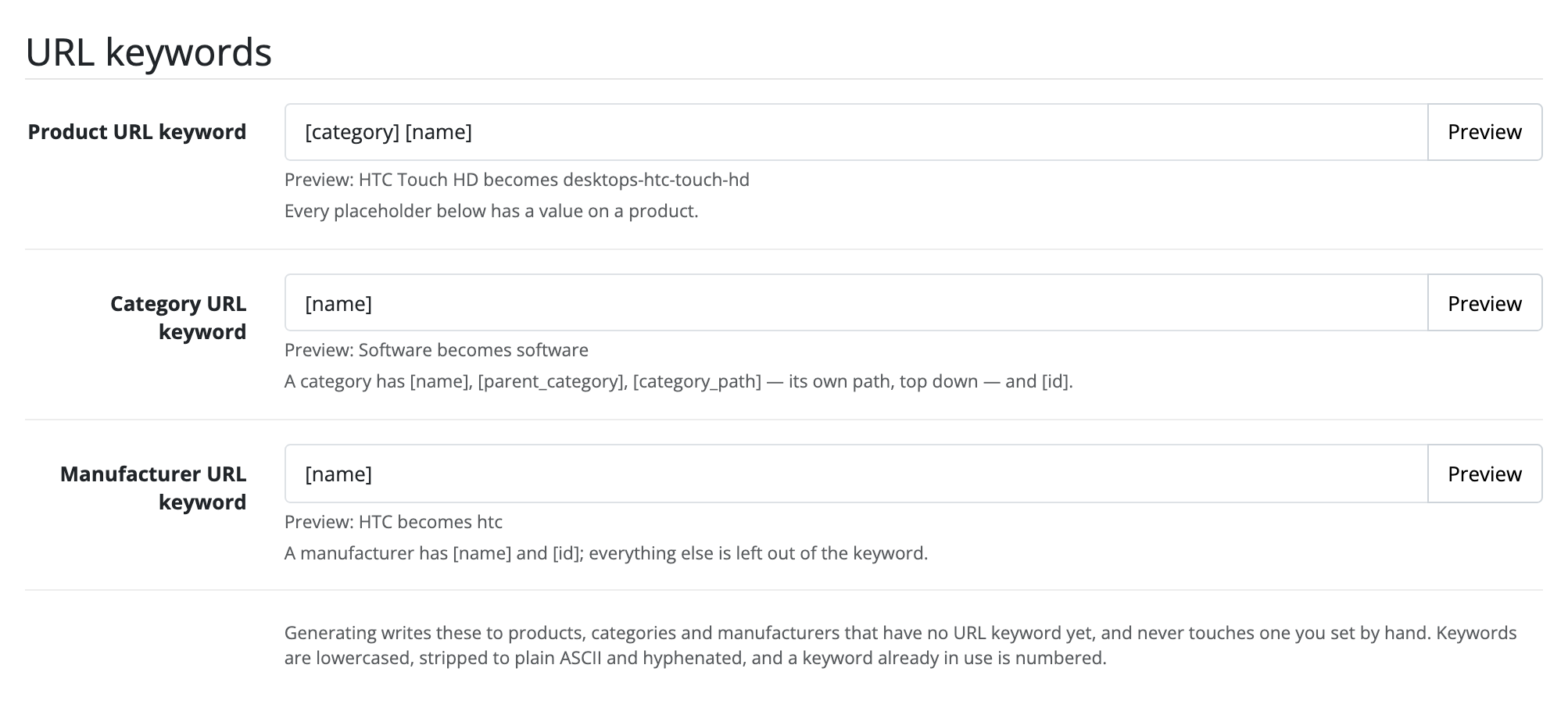
Write the templates
On the URLs & meta screen, each entity type has a template per output. The placeholders go in square brackets, and the screen lists the ones it renders:
| Placeholder | Is | Available on |
|---|---|---|
[name] |
the entity's own name | products, categories, manufacturers |
[model] |
the product's model | products |
[price] |
the product's price | products |
[id] |
the entity's identifier | products, categories, manufacturers |
[category] |
the category the product sits in | products |
[category_path] |
the whole path, joined | categories, products |
[parent_category] |
the step above | categories, products |
A placeholder a type does not have renders as nothing, so [name]-[model] on a
product without a model gives you blue-widget rather than blue-widget-.
A keyword template may not be left empty. A page with no meta description is
a choice; a page reachable only through index.php?route= is not. The meta
templates may be empty, and empty generates nothing.
Preview before you generate
Press Preview. Each template is rendered against a real entity of that type from your own catalogue, so you see the actual string that would be written, including the slugging: lowercased, transliterated to ASCII, hyphenated.
This is the step to spend time on. Everything after it is bulk.
Tick the scope, then generate
Generate for decides whether products, categories and manufacturers are included. Stores and Languages decide which pairs the run walks: one pass per pair, each summarised on its own.
Press Generate. The screen posts repeatedly and reports as it goes; a catalogue of any size finishes because the run is a series of batches, and an interrupted run picks up where it stopped when you press again.
Generate writes only where there is nothing. Anything that already has a value is counted as left alone. That is what makes it safe to run twice.
The one button to be careful with
Regenerate everything overwrites every URL keyword, meta title and meta description in the ticked shops and languages, including ones you typed by hand and URLs a search engine has already indexed. The confirmation says so. There is no undo, so take a database backup first.
The summary tells you what happened per output: a run that wrote 1,200 keywords and no descriptions at all says exactly that, which is usually a template that rendered to nothing rather than a run that failed.
Meta stops at products and categories
OpenCart holds no meta title and no meta description for a manufacturer, in any 4.x release. The screen offers no field for it and a run drops one rather than counting work nobody could do. See limits.
Keep listing pages canonical
Area: URLs & meta. Writes nothing.
Your category pages are reachable at as many URLs as they have pages, sort orders, page sizes and filters, and a search engine is treating them as that many pages.
Switch Canonical link tags on. Every one of those URLs then carries a canonical pointing at the listing's own: the parameter that names the listing, and nothing else.
This replaces the canonical OpenCart emits, which points at the page you are on. That is the correction the setting exists to make, and it is why there is never a second canonical claiming a different URL.
It is off on a fresh install on purpose: it is a search-visibility decision, and not one an extension should make on a live shop the moment it is installed.
Make a shared link unfurl properly
Area: Markup. Writes nothing.
Somebody pastes a product link into Slack or Facebook and gets the shop's name and no picture.
- Switch Markup on.
- Leave Open Graph tags and Twitter Card tags on. They ship on.
- Set Social handle if you have one, and Fallback image for the pages that have no picture of their own. Left empty, those pages share as text, with no picture.
- Paste a product URL into the network you care about, or into any link preview debugger.
The tags are composed as the page renders, from the values that page's own controller already computed, so the price in the tag is the string the page prints. Nothing is stored and nothing is written to your catalogue.
Five page types can describe themselves: products, categories, brand pages, information pages and the home page. A brand page can say its name and its address and nothing else, because that is all OpenCart holds about one.
Structured data is the same switch, three blocks
Product structured data puts the price, currency and availability into a search result. Breadcrumb structured data puts the trail there instead of the raw URL. Organization structured data describes the shop on the home page, using the profile URLs you list under Social profiles.
All three ship on, and each can be turned off on its own. A theme already
emitting a Product block wants the trail and not a second one.
A star rating is claimed only where your store actually has approved reviews for that product. A rating with nothing behind it is a structured-data violation rather than an inaccuracy, and a search engine can drop the whole page's markup for it. This never invents one.
Product codes, every photograph and a return policy
Product codes and photographs ships off. Switched on, a product's
Product block also carries its GTIN (read from the EAN, then the UPC, then the
JAN), its ISBN and its MPN, and every photograph the page shows rather than only
the first. Fill the codes in on the product form; one whose check
digit does not add up is left out rather than emitted. It needs Product
structured data on.
The Return policy fieldset states one policy for the whole shop, on the home
page's Organization block:
- Choose Returns: within a number of days, at any time, or none accepted.
- Give the Return window for the first, from 1 to 365 days.
- List the Countries it applies in as two-letter codes, such as
NL,BE. - Say who pays for Return shipping and what the Return method is.
Until all three conditions hold (Organization structured data on, a kind of policy chosen, at least one country), the fieldset says which one is missing. Nothing checks the policy against what your shop actually does, so keep it true. An upgrade keeps it, apart from the one update out of 1.3.0 or earlier, after which you retype it.
If you sell ahead of stock
Stock status reported as lists each of your stock statuses, all left on
Worked out from the page. That means the status you nominated as your
in-stock one is reported InStock and every other wording OutOfStock, which
is what OpenCart itself reaches for when there is none to sell.
If a status of yours reads 2-3 Days or Pre-Order, that default is a claim
about your catalogue that is false. Pick what it means instead: PreOrder,
BackOrder, LimitedAvailability, SoldOut, Discontinued or
InStoreOnly.
Overriding one page
Under This page only, pick the shop, the language and the kind of page, and
give ID or path: a product, brand or information page identifier, a
category path such as 20_27, or nothing at all for the home page. A canonical
typed here has to be a full address starting http:// or https://, and it
replaces whatever the page carries, including one URLs & meta computed.
The directives are noindex, nofollow, noarchive and nosnippet. Ticking
noindex takes the page out of search results and takes the structured data
with it. The Open Graph tags stay, so a link shared in a chat still unfurls.
Export CSV and Import CSV carry every override, one row per page, and an imported row goes through the same checks the form makes.
Overrides are rows, not settings: they survive an upgrade and an uninstall.
Describe every product image at once
Area: Alt text. Writes into your catalogue.
Every image on your storefront is announced to a screen reader as the product's name, over and over, because that is what core's template hardcodes.
Write one pattern
On the Alt text screen, Pattern takes a sentence per language. It can use
{product}, {model}, {manufacturer}, {position} and {count}. The
shipped one is:
{product}, image {position} of {count}
Your pattern needs {position}. It is the only value that differs between
two images of one product; {count} is the same on all of them. A pattern
without it writes the same words onto every image, which is core's behaviour
with extra steps. The screen warns you before the run rather than after it.
Tick the scope and generate
Shops decides which catalogue the run walks. Languages decides what gets written: nothing is written in a language you did not tick.
Press Generate. The run goes in batches of 25 products (Products per request), resumes where it stopped, and reports per language: written, kept because somebody had already described them, and left undescribed.
Words somebody typed are never overwritten, and there is no overwrite mode here. An image nobody has described keeps core's fallback of the product name, so describing one photograph of five costs the other four nothing.
Then write the good ones by hand
The point of the pattern is to get the catalogue off a repeated product name. The photographs that sell things deserve a sentence, and you write those where the images are managed: under each photograph on OpenCart's own product form, one field per language, saved by core's own Save button. The Alt Text card on the Alt text screen describes a product's main image too.
Bulk editing outside the admin
Export gives you a CSV of product_id, image, language_id, alt.
Import takes the same shape back, through exactly the rules the form writes
through. A row whose alt is empty clears that description; a row naming no
product, image or language is counted and skipped rather than failing the file.
If nothing changes on the storefront
Your theme's image markup may be one this area cannot match, in which case it rewrites nothing at all and the screen says so. See troubleshooting.
Find out which URLs are 404ing
Area: Redirects. Writes nothing you did not ask for.
You have inbound links you cannot see, from adverts, printed catalogues and other people's sites, and you do not know which of them are broken.
- Switch Redirects on.
- Leave it for a week.
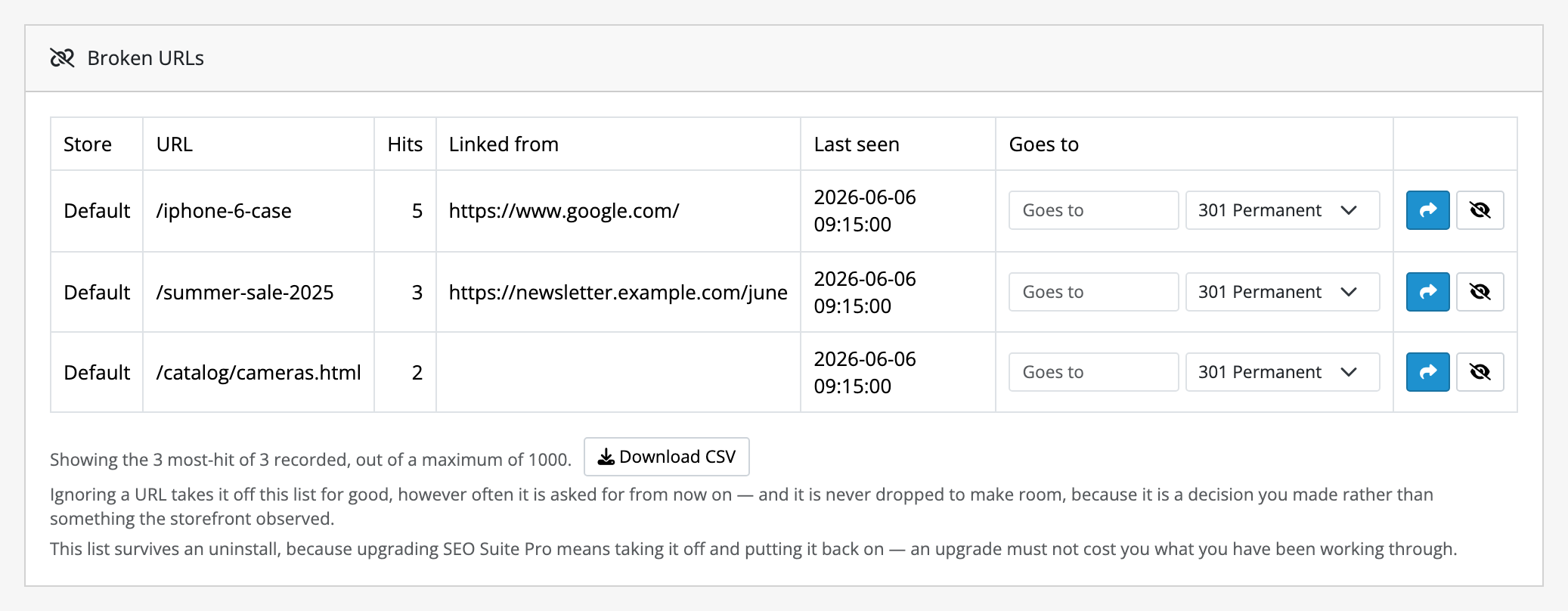
Every request for a URL your store cannot resolve is recorded with a hit count, a last-seen time and a sample referrer (the Linked from column), which is usually what tells you whether a broken URL is worth fixing. Nothing about what your shop serves has changed.
This needs OpenCart's own SEO URLs to be on. With them off, core looks no keyword up, and re-resolving anyway would log every URL in your store as broken.
The list is sorted by Hits, so the rows at the top are the ones costing you something.
Give them somewhere to go
For each row, either:
- Redirect: fill in Goes to and pick the answer. 301 permanent is the default and the one a search engine acts on; 302 temporary is there because a browser caches a 301 and will not ask again for months; 410 gone takes no target and is for a page with no successor.
- Ignore: the URL comes off the list for good, however often it is asked for afterwards, and is never dropped to make room.
A rule you have made is listed under Redirects on the same screen, where Remove deletes it and the URL goes back to answering the way it did before.
A redirect keeps the hit count that made the URL worth fixing, because a logged miss and a redirect are the same row in two states.
Chains are flattened when you save. Point a at b and then b at c, and
a is re-pointed at c for you, so a shopper never makes two hops. A loop is
refused while you are still looking at the form.
Bring links over from an old platform
You can type a rule for a URL this store has never served, which is how a
migration is done. Import CSV takes store_id,path,target,response so you can
prepare four thousand of them in a spreadsheet; one file carries up to 5,000
rows. Every imported row goes through exactly the rules a typed one does; a
refused row is reported and the rest still land.
Fix every broken URL in a spreadsheet
The screen lists the 20 most-hit URLs. To work through all of them:
- Press Download CSV under the Broken URLs list. You get every URL still on the list, for every store, most-hit first.
- For each row you want to fix, fill in
targetandresponse(301,302, or410with no target). - Delete the rows you did not fill in. The import refuses an incomplete row and names only the first five it refused, so leftovers bury the ones that matter.
- Press Import CSV and choose the file.
The extra columns, hits, first and last seen and the referrer, are there to help you decide, and the import ignores them.
Stop renames from breaking links
Switch Capture renamed slugs on and the suite notices when you rename a slug in the admin: the old URL gets a 301 to the new one, and a deleted page's URL joins the list of broken ones at no hits.
It is off by default, and that is the right default if you reorganise your catalogue in bursts, because a weekend of renaming would otherwise collect a redirect for every slug you touched. Turn it on when the catalogue is settled and the renames are occasional.
Captured rules are badged as such, so you can tell a guess made on your behalf from a decision you defended. A path you already ignored or redirected by hand is never overwritten by one.
Publish a sitemap and manage crawl rules
Area: XML sitemap. Writes files into your web root.
The generate-and-fetch loop is the quick start. What follows is the rest of the screen.
Choose what the sitemap carries
This shop's sitemap carries ticks products, categories, manufacturers and information pages independently, per shop. Anything your store does not display is left out whatever you tick, and so is anything with no URL keyword. Each product's photographs adds every image of each product under its URL, for image search; it is off until you tick it, and greyed while products are left out.
Edit robots.txt from the admin
Crawl rules is a text box, and what you type goes into your robots.txt
between the suite's two markers, with a Sitemap: line per shop. Since Google
switched its ping endpoint off in 2023 that line is the only remaining automatic
way a sitemap is found.
Everything else in that file is left exactly as it is: core's shipped rules, and anything you or another extension added, kept identically and in place. Clearing the box removes the block rather than writing an empty one, and so does switching the area off.
If the screen tells you it cannot write to your web root, it names which of three problems it is, with the path. That is a hosting fix, not a settings one.
Several shops, one web root
A multi-store install publishes one set of files per shop and language, plus an
index per shop. The default shop's index is sitemap.xml, which is where a
crawler looks without being told and where you have probably already submitted.
Every other name carries the shop, and every sitemap file the language too, so
two shops cannot overwrite each other's catalogue.
File names begin with and Index file name change what those files are
called. Changing either republishes under the new names and removes the old
ones, so a search-console submission naming an old file has to be made again.
Both take letters, numbers, dots, dashes and underscores only, and the index
name must end in .xml; a name outside that is not saved, and the shipped
sitemap or sitemap.xml is used instead.
When a run ends it sweeps the web root of anything of ours it did not publish: files a shrunken catalogue left behind, a language you switched off, a shop you deleted.
Keep it current
See keeping the sitemap current on its own for the schedule, what it needs from your host, and the command line door for the release where OpenCart's own scheduler is broken.