Quick start
The whole loop, on one product, in about ten minutes: a shopper asks to be told, confirms, the thing comes back, the email arrives. Do it on a product nobody is buying today. A test product is ideal, because step 4 sends a real email.
You need the extension installed and enabled, and your user group given the three permissions. Requirements and install covers both.
1. Check the store can send email at all
System → Settings → edit your store → Mail must have a mail engine set, and System → Settings → edit your store → Store must have a postal address. Back In Stock's own settings screen says so in red if either is missing. Every alert has to carry a postal address, and a store with no mail engine cannot send anything.
2. Take a product out of stock
Pick a product, set Data → Quantity to 0 and save. If the product has
sizes or colours with their own quantities, set one of those to 0 instead.
That is the case this extension exists for.
3. Sign up as a shopper would
Open that product's page on the storefront, not in the admin. Below the Add to Cart button there is now a block reading Email me when this is back, naming the exact variant, with the consent notice underneath it and one field.

Type an address you can read and press Notify me. The block is replaced by Check your email.
Open the confirmation email and click the link. Nothing can be sent to that address until you do. This is not a setting and cannot be turned off.
4. Put the stock back and send
Set the quantity back to 5 and save.
Saving is enough: a product save sends the first batch for that product in the same request. If nothing arrives, press Send any alerts that are due now at the top of Extensions → Extensions → Modules → Back In Stock, which also tells you how many it sent and how many it skipped. The alert arrives, naming the product and the variant, with a link to the product and a one-click unsubscribe link.
Press the unsubscribe link too. The subscription is gone before the page renders, and the page offers two more things: stop every alert for that address, and delete everything the store holds about it.
5. Look at what you now have
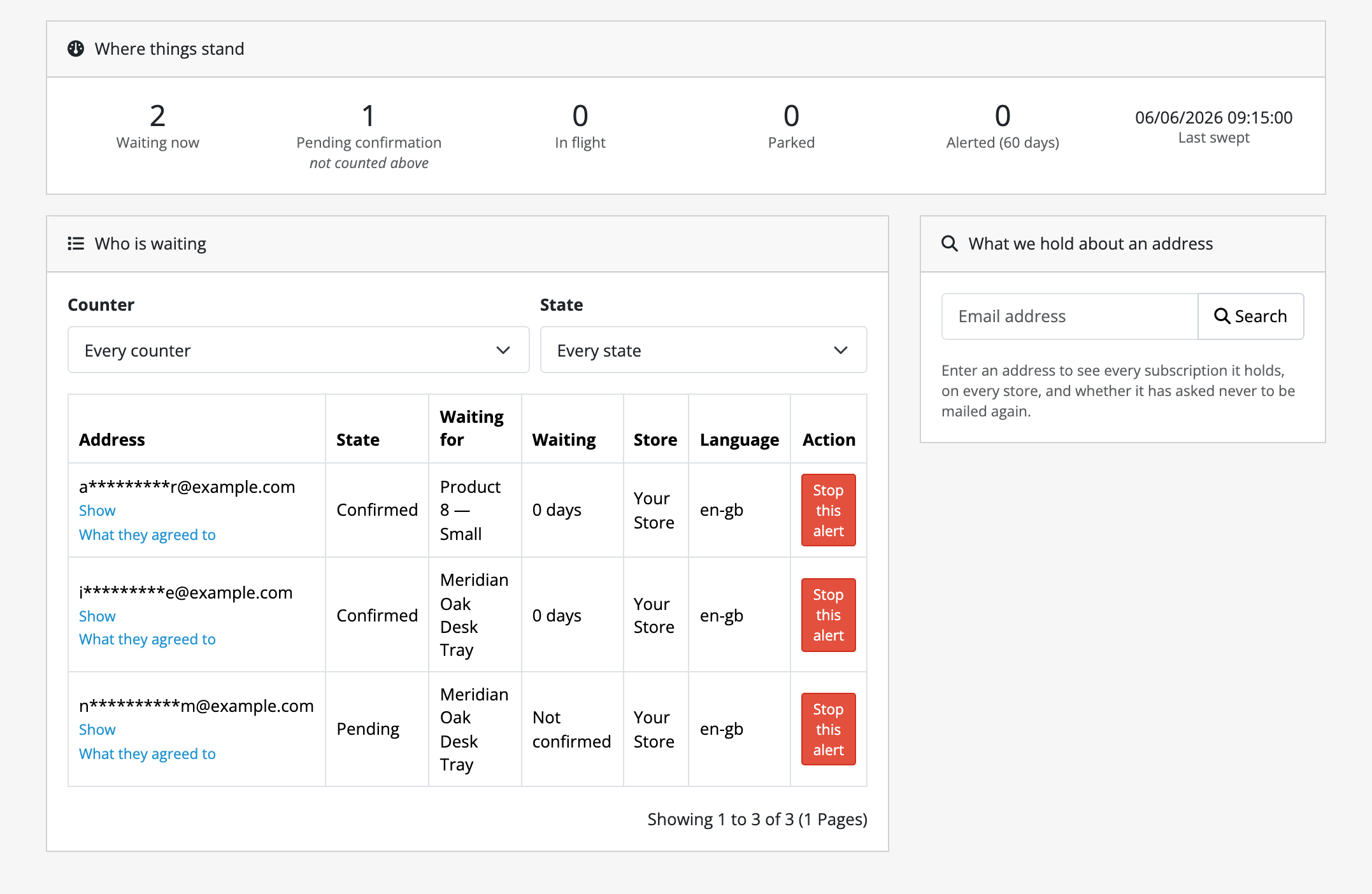
- Catalog → Back In Stock: how many people are waiting, how many have not confirmed, when the last sweep ran, and an address lookup that answers "what do you hold about me?" in one search.
- Reports → Reports → Back In Stock Demand: one row per variant, with how long people have been waiting and whether an alert could be sent right now.
- The Back In Stock tab on that product's own form: the same figures for that product, and a switch per variant.
Before you leave it running
Make sure something calls the sweep. The product save above sent only the first batch. Everything after it, and every restock made by an import or a direct database edit, waits for the sweep. The settings screen lists the three ways, with your own store's paths filled in. See keeping the sweep running. Until one of them is in place, those alerts pile up and go nowhere, and the screen starts saying so.
Then read limits and guarantees. It is short, and it lists the boundaries you should know before a customer finds them.