Guides
Each of these is a job rather than a screen. They assume Product Configurator is installed, switched on, and that you have been through the quick start once.
Offer an option only in one configuration
The most common case: an option that should not be on the page at all most of the time.
Use show, not hide. Naming a target in a show rule is what makes it
hidden by default, so one rule does both halves of the job:
WHEN  Finish  is  Engraved
THEN  show  the option  Engraving text
Engraving text is now absent until the customer picks Engraved, and appears the moment they do.
Two rules where the option should appear for either of two answers: show for
Engraved and show for Etched. Two rules with the same target are an OR;
the conditions inside one rule are always an AND.
Do not reach for a hide rule per unwanted answer. It works until somebody adds
a third finish, at which point the option starts appearing for it.
Hide one incompatible value, not the whole option
This rule shape is what makes a configurator rather than a conditional form. The customer picks a component, and the choices that do not fit it disappear from the list they are in, while the list itself stays.
WHEN  Motherboard  is  A320
THEN  hide  the value  Memory → 64GB
Choose the value as the target, then the option, then the value inside it. Write one rule per incompatible pairing; there is no rule that names several values at once.
Two things to know before you build a large compatibility matrix with this:
requirehas no value form. You can take a value away, and you can require the option it lives in, but you cannot require one specific value.- You can hide every value of an option. Nothing stops you, and nothing warns you: the customer meets a control with nothing selectable in it. If the option is required as well, that product cannot be bought in that configuration. The tab's warnings see sold-out values, not values your rules hide, so whenever you write value rules, buy the product yourself in the configuration the rules produce.
Make an answer compulsory only when it matters
An option that is optional in general but necessary in one configuration:
WHEN  Frame material  is  Wood
THEN  require  the option  Wood stain
Leave the option itself not required on OpenCart's Option tab. The rule adds the requirement while it holds, and nothing enforces it otherwise.
Where a customer leaves it empty, the refusal is OpenCart's own (its wording, its message, against the right control) because Product Configurator flips OpenCart's own required flag rather than validating anything itself.
A rule that hides an option beats a rule that requires it. If you write both and both fire, the customer is not asked. That direction is deliberate: the other one would let you build a product nobody can buy.
Narrow when a rule fires
Add conditions with the + at the end of a rule's condition rows. Every condition has to hold:
WHEN  Frame material  is  Wood
AND   Size            is  Large
THEN  require  the option  Bracing
A condition on a checkbox option means is among the values ticked, so a rule fires when the customer has ticked that value, whatever else they ticked.
There is no OR inside a rule, no nesting and no brackets. Every condition you can state is still expressible: write one rule per alternative, all with the same target.
Draw option values as swatches
Set an image on a value under Catalog → Options (on the option's own value rows) and the storefront draws it as a selectable swatch rather than a thumbnail glued to a label. There is no image field here and no image stored here; it is OpenCart's own image, presented properly.
- Radio and checkbox options: values with an image become swatches, values without keep OpenCart's row. A mixed option is fine.
- A dropdown gets a swatch grid only when every one of its values has an image. One blank tile and the grid is not offered, because a grid half made of blank tiles is worse than the dropdown it replaced.
A value OpenCart has hidden because it is sold out is not drawn either. The swatches are the values your customer could have picked anyway.
Swatches are drawn on a product that has rules. They are part of the same rewrite of the product page that does the hiding, so a product with no rules on it keeps OpenCart's own rendering of its values. If you want swatches on a product that needs no conditional logic, give it a rule that does something you want anyway, or leave it as it is: nothing here draws swatches on their own.
Let a customer change a configuration already in the cart
Nothing to switch on: a cart line whose product has rules carries a Change options link. It reopens the product page with the answers filled in, so a customer who mistyped one field of a twenty-field configuration fixes that one field.
Four behaviours to know, because customers will ask about all four:
- The edited line moves to the end of the cart.
- If the new configuration matches a line already in the cart, the two merge and their quantities add up.
- An answer that is no longer available (a value sold out or deleted since) is not filled in, and the page says so once, in general terms, rather than naming each one.
- The old line goes only once the re-add succeeds. A customer who wanders off mid-edit still has their cart.
Give ten products the same configurator
There is no reusable template: rules belong to one product. There are two ways to put the same rules on another product, and which one you want depends on whether that product exists yet.
For a new product, use OpenCart's own Copy. Configure one product completely, options and rules, then select it on Catalog → Products and press Copy. The copy carries the options and the rules. Change what differs and enable it. The copy lands disabled, the way every OpenCart copy does, so nothing is visible to a customer until you say so.
For a product you already have, use Copy rules from. Attach the options on its Option tab first, then open its Configurator tab:
- In Copy rules from, under the rules, start typing the name of the product whose rules you want and pick it from the list.
- Press Replace with that product's rules. If this product already has rules, you are asked first, because they are replaced rather than added to.
- Check the rules the tab now shows, and press OpenCart's own Save.
Nothing is stored until that Save, so leaving the form without saving leaves the product as it was. If you pick a variant, you get its master's rules, and the message says so.
A copied rule can name an option or value this product does not have. The message says how many do, and each is listed under No longer on this product:. It does nothing until you attach what it names or delete the rule, and it is kept rather than dropped in case you are about to attach it.
Either way, the result is a copy, not a link: change the rules on one product later and the other keeps what it had.
The row is shown only to a user group that has access to
extension/product_configurator/module/product_configurator and may modify
products. See install.
Deleting a product deletes its rules. Deleting a master product promotes its variants to standalone products, and a promoted variant has no rules of its own, because it was inheriting its master's. Open each promoted product and use Copy rules from to take the rules from a product that still has them, or write them again.
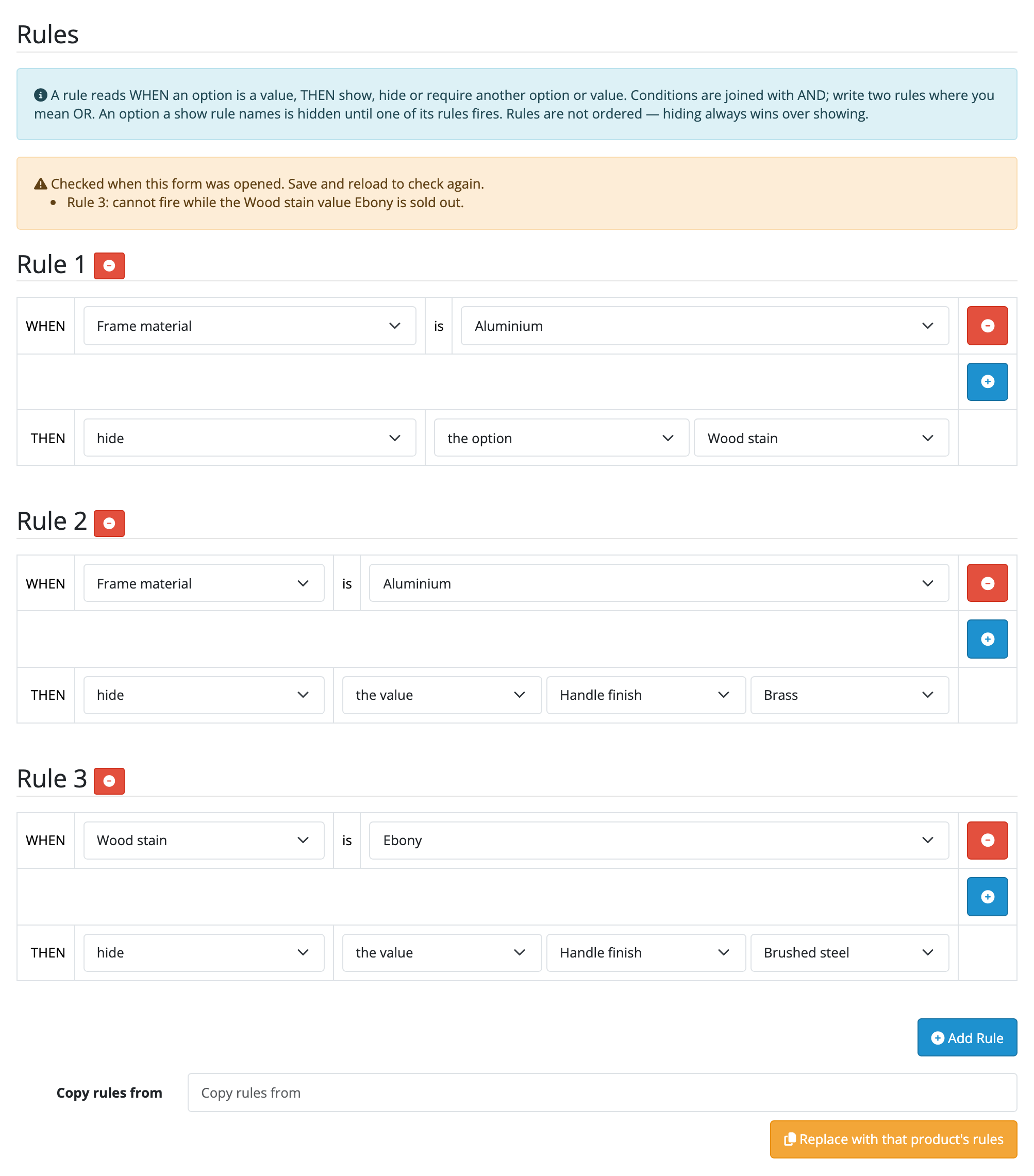
Check a ruleset before customers do
Open the product and go to its Configurator tab. If the tab can see a problem with the rules, a yellow warning above them lists each one, starting with the number of the rule it concerns. No warning means none of the three checks below found anything.
- A required option with nothing to pick. A
requirerule targets an option, or ashowrule targets one OpenCart marks Required, and every value of it on this product is sold out. A customer who meets it cannot add the product to the cart. Restock a value on the Option tab, stop it subtracting stock, or change the rule. - A rule that can never fire. A condition names an option or value that is no
longer on this product, or two conditions name different values of one
dropdown or radio option, which a customer can never pick at once. Split a rule
like that into two rules with the same target. If a condition names a sold-out
value, the rule is listed as unable to fire while it is sold out, and fires
again once the value is back in stock. For a
showrule, the line also says whether its target can still appear through anothershowrule, or is never shown. - A
requirethat never applies. Ahiderule on the same option fires whenever therequiredoes, because its conditions are all among therequirerule's, and a hidden option is never asked for. Delete one of the two rules, or give thehidea condition therequiredoes not have.
The check is made when the form opens, against the product as last saved, which is what the storefront was serving then. After changing rules or stock, save the product and open it again to check again.
The warnings never block a save and never change a rule. They see what the stock and the rules say, not what a customer will actually meet, so the most reliable test is still buying the product yourself in the configuration you care about.
Find and remove a rule that has gone stale
Detach an option from a product and any rule that named it stops doing anything. It is not an error and it does not block a save, but it is still listed.
Open the Configurator tab and look for No longer on this product: on a rule row. Press the rule's own remove button and save the product.
The same thing happens the other way: a rule you write against an option you then remove from the form in the same session saves, and is inert. Nothing chases it for you.
Turn everything off without losing the rules
Set Status to Disabled on Extensions → Extensions → Modules → Product Configurator. The Configurator tab, the swatches, the hiding and the enforcement all stop; every rule you have written stays exactly where it is, and switching the module back on brings all of it back.
Uninstalling from the extension list keeps them too. See what a removal leaves.