Quick start
This walks one small import from one end to the other: make a file, plan it, read what it would change, apply it, and undo it. It takes about ten minutes and touches one field on one product, which is what makes it safe to do on a store you care about.
The trick is to import a file your store wrote itself. An export of your own catalogue, imported straight back, plans no changes at all, so the only change in the preview is the one you made in the spreadsheet, and there is nothing else to read past.
Open Extensions → Extensions → Modules, find Import/export and press Edit. Everything below happens on that one screen.
1. Export three fields
Scroll to Export the catalog.
- Kind of record: Products.
- Format: CSV.
- Fields to export:
modelandskuare ticked already, because those are what a product is usually matched on. Tickpriceas well, and leave everything else alone. - Under Narrow it down, put a fragment of one real product's model into Model contains, so the file holds a handful of rows rather than your whole catalogue.
- Press Export.
The job runs in slices and moves itself along; you can leave the page and come
back. When it finishes, press Download. You get a file called something
like preflight-product-8.csv, with three columns headed model, sku and
price.
2. Change one cell
Open it in a spreadsheet and change one price by a little. Save it as CSV.
A big change is not dangerous, but it is a longer detour: moving a price by more than 30% raises an anomaly, and Import/export will not let you apply the plan until you have acknowledged it. That check is intended, and you can tune it, but for a first run a few pence keeps the loop short.
3. Plan the import
Scroll up to Plan an import.
- File: choose the file you just saved.
- Kind of record: Products.
- Match existing records on:
model. - Leave Format, Separator, Quote and Encoding on their defaults. Import/export works the format out from the file itself.
- Press Upload.
You land on Map the columns. Because the export wrote each column under the
field's own name, all three are bound already: model to model, sku to
sku, price to price. Nothing else on this screen needs touching.
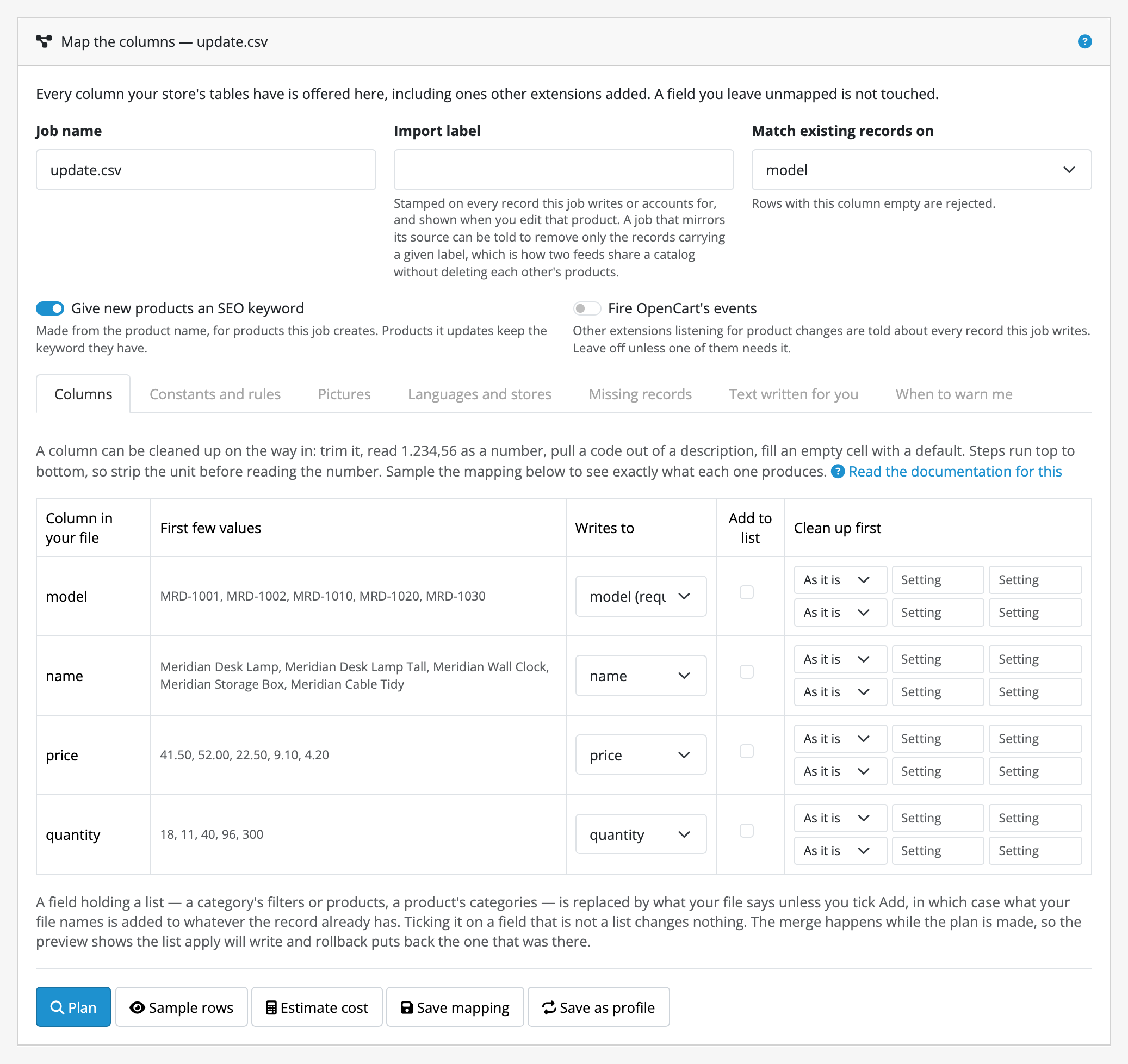
Press Plan.
4. Read the plan
Nothing has been written yet, and the screen says so. What you get is a row of counts, then Fields this plan changes (how many records each field would change on), and then What would change, one row per change, with the value the field holds now and the value that would replace it.
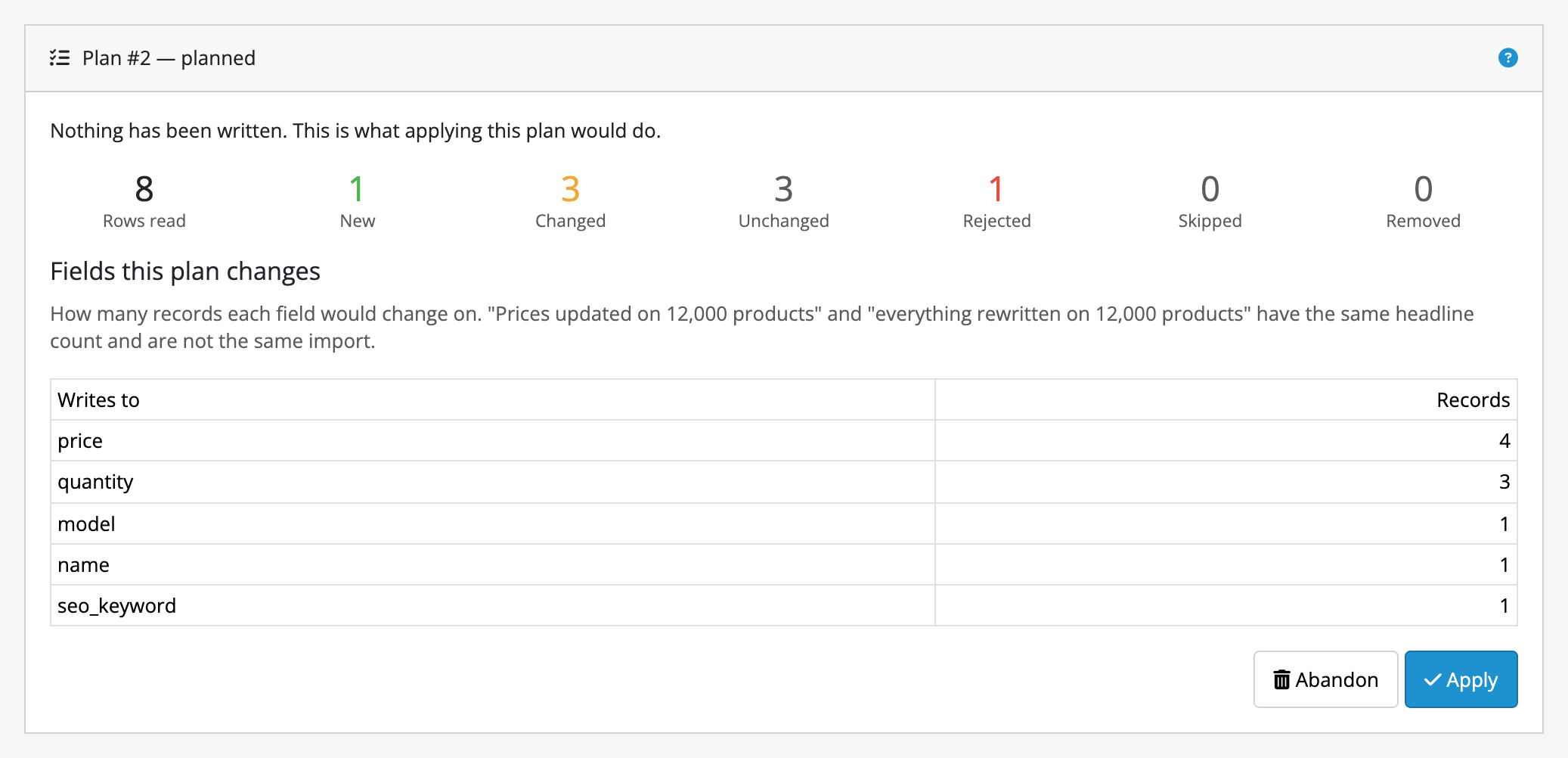
One product should be under Changed, showing its old price struck through and yours beside it. Every other row should be Unchanged. If more than one product is changing, close the plan with Abandon and look at what else the spreadsheet altered. A spreadsheet that reformats numbers on save is the usual culprit.
5. Apply it
Press Apply. Import/export re-reads the records the plan names, checks each
still holds the value the plan recorded, and then writes exactly what the
preview showed. It reports Applied: 0 created, 1 updated. This job can be
rolled back.
Go and look at the product in Catalog → Products. The new price is there.
6. Undo it
Open the Profiles and history card, then the Past jobs tab. Your job is at the top, marked Can be rolled back. Click its name to reopen it, then press Roll back.
You get a preview first, listing every record it would restore with the value going back, and nothing is undone until you press Confirm rollback. Do that, and the product is back to the price it had before you started.
That is the whole loop. Everything else Import/export does is a variation on it: a supplier's file instead of your own, more columns, a transformation on the way in, a saved profile that runs it again next week.
Where to go next
- Guides: mapping a supplier's file, transformations, images, profiles, schedules and mirroring, each written for the thing you are trying to do.
- Limits and guarantees: read this before your first import of somebody else's file. It states exactly what rollback restores and what it does not.
- Supported fields: what you can map, per kind of record.