Quick start
The shortest whole loop: one bundle, built and bought. Do it on a test store, or on two products it would not matter to sell.
You need Product Bundles installed, enabled and permitted (all three steps of Requirements & install) and at least two products in stock.
1. Make the bundle
Go to Catalog → Bundles and press Add Bundle (the + button).
On General, give it a Bundle Name. That is the name a shopper sees and the name the order line will carry. Meta Tag Title is required too; the bundle name will do.
On Data, give it a Model. It is required, as it is for a product, because the order line, the invoice and the wishlist all print it.
2. Put something in the box
On the Components tab, start typing a product name and pick it from the list. Set its Quantity: how many of it one bundle holds. A kit with three straps says 3 here, not 3 × however many kits somebody buys.
Add a second component the same way. Bundles are not offered in this list: a bundle cannot contain another bundle.
3. Price it
Still on Components, choose a Pricing Mode:
- Discount off the component prices tracks your component prices as they change. Set a percentage and the bundle stays that much cheaper than its parts for ever.
- Fixed price stays put whatever the components cost.
The form shows what the components add up to, so you can see the saving as you set it.
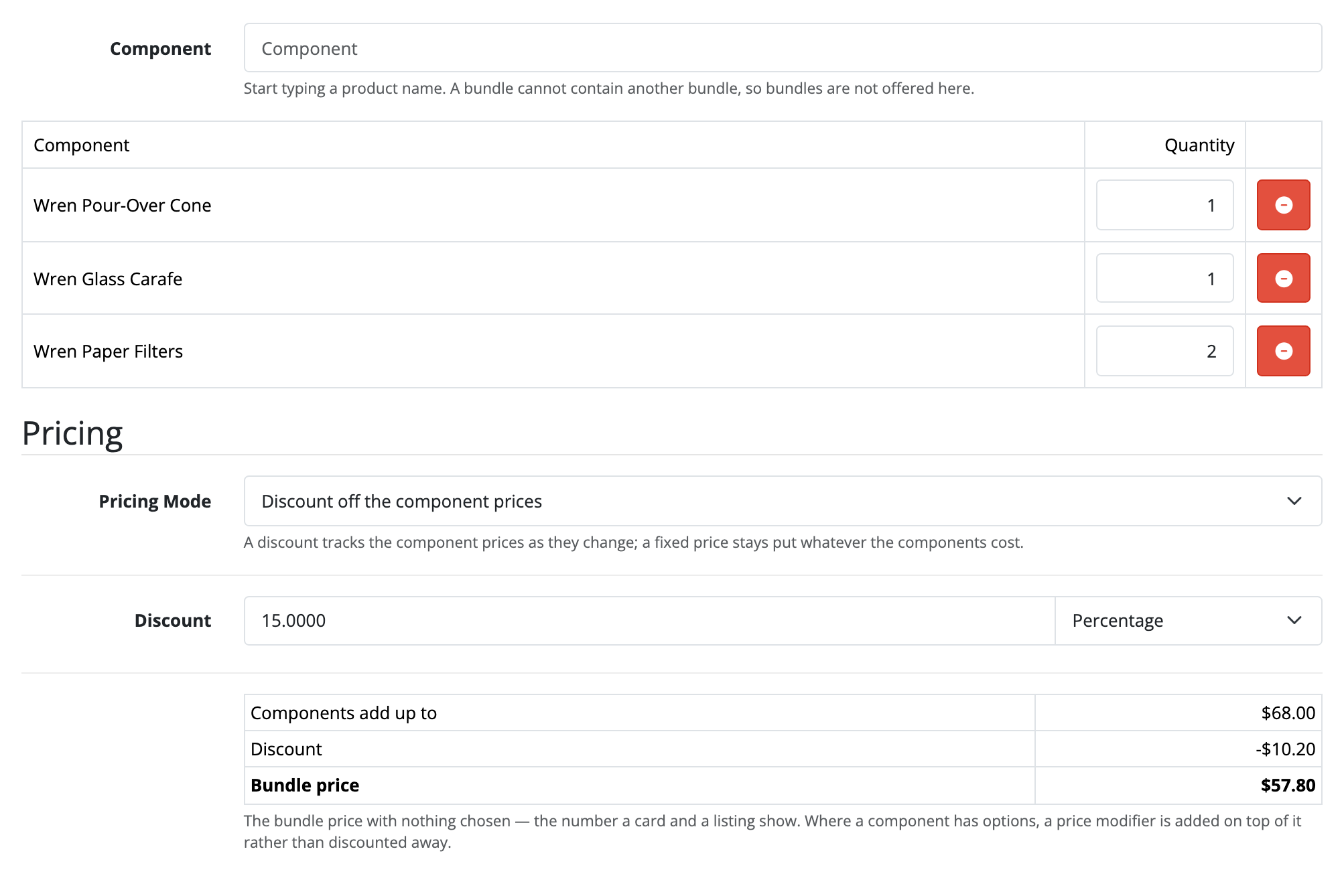
That panel is worked out as you type, in the same two modes the save runs, so the number on it is the number the bundle will sell for.
4. Give it a URL and put it in a shop
On SEO, type a SEO Keyword: starter-kit makes the page
/bundle/starter-kit. You need one per shop and language, and it may use only
letters, numbers, dashes and underscores.
On Links, tick the shops that should sell it. A new bundle starts in your default shop. Add a Category here too if you want it to show up in one.
Check that Status on the Data tab reads Enabled, which a new bundle does, and Save.
5. Buy it
Open the bundle's page in your storefront, at /bundle/ followed by the keyword
you gave it, or find it on the storefront's /bundles page. Both addresses need
Use SEO URLs switched on in your store's settings, as a product's keyword
does. You should see its name, its price, what the shopper saves, what is in the
box, and whether it can be made right now.
Add it to the cart and check the line: one line, the bundle's name, the bundle's price.
6. Watch it break, on purpose
Try this before you trust the extension with a real catalogue.
Go to Catalog → Products, find one of your two components and set its Status to Disabled. Then go back to the cart.
The line is still there, and nothing the shopper configured was thrown away, but it now says the bundle is no longer available, and checkout will not take it. Back in Catalog → Bundles, the bundle is badged Broken, and its form says which component is the problem.
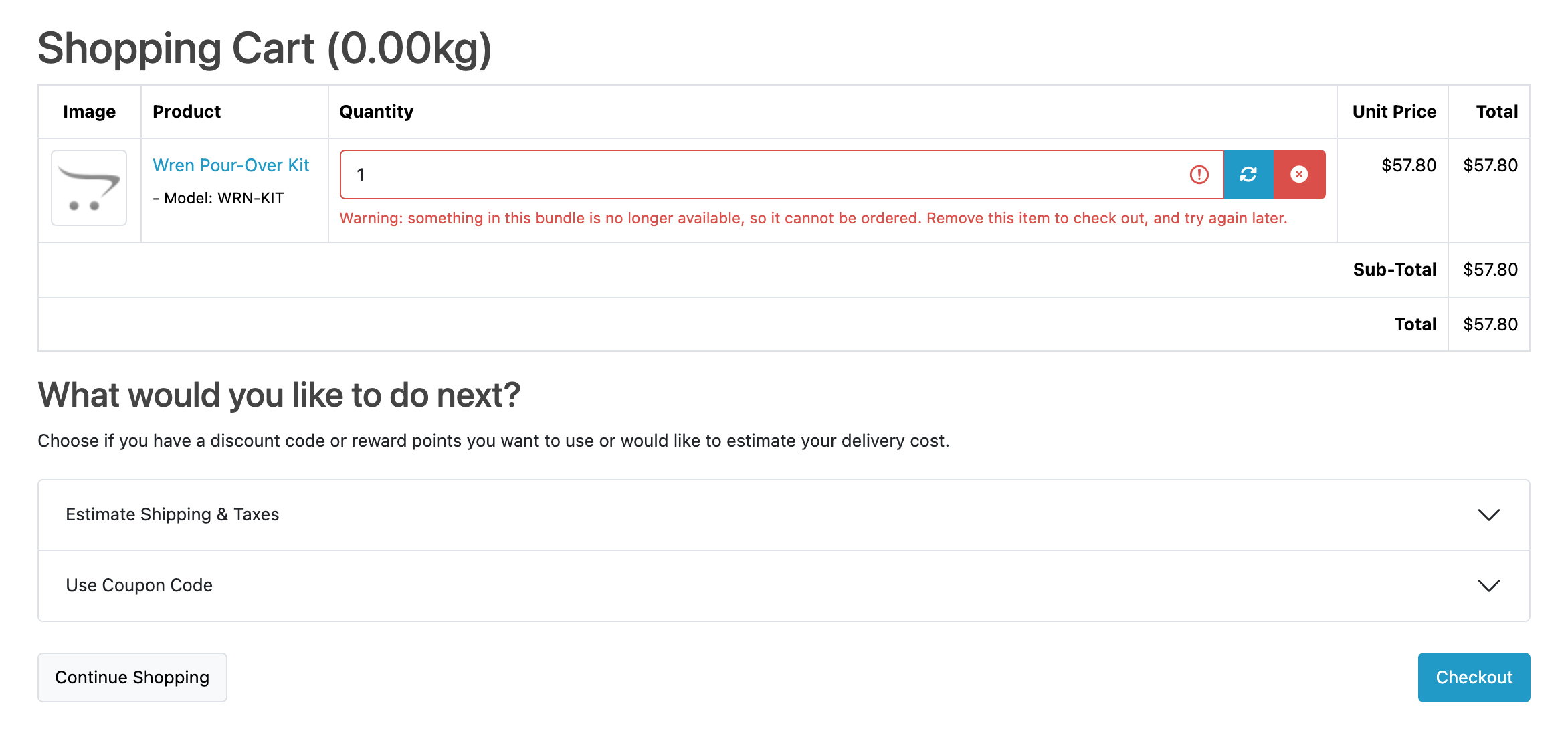
Enable the component again and both go back to normal.
Next
- Guides for the jobs beyond this loop.
- Limits and guarantees for exactly what is promised, and where it stops.