Guides
Seven jobs, each written for the thing you are trying to do. All of them start at Extensions → Extensions → Modules → Product Search → Edit.
Make a synonym group
Your shop says jumper; half your customers type sweater. A synonym group makes the two words mean each other, in one language, for every search.
- Open the Synonyms tab and press the + at the foot of the list. A blank row appears; nothing is written yet.
- Pick the Language the words belong to. A group applies to one language and to every store.
-
In Terms, type one term per line:
jumper
sweater
pullover
Between 2 and 20 lines. A term may be a phrase:
vacuum cleaneron a line of its own is one term, not two. Very short terms match very widely: a group containingafinds every product with anain its name. 4. Leave the Status box ticked and press Save at the top of the screen. That one button stores the synonym rows and the settings together.
Every term in a group stands in for every other, in both directions. A shopper
searching sweater now matches products whose name, tags, brand or category
says jumper, and a shopper searching jumper matches ones that say sweater.
It applies to one word of a longer search too: wool sweater still requires
something to match wool.
Two things to know. Case and spacing do not matter, because terms are stored trimmed
and lower-cased. And a group is not a substitute for stock: making sweater
mean jumper finds the jumpers you have and cannot create one.
Pin a product to a keyword
You want the search gift to lead with the three products you are pushing this
month, whatever else it finds.
- Open the Merchandising tab and press Add.
- Pick the Language, and type the Search Term exactly as a shopper
types it: the whole search, not one word of it. Capitals and extra spaces do
not matter; word order and spelling do. A rule on
gift setdoes not fire ongift sets. - Add up to ten products with the Product picker (the ceiling is Most products one rule may pin on the Settings tab). Each lands on a row with a Sort Order box: the numbers decide which leads, lowest first.
- Press Save.
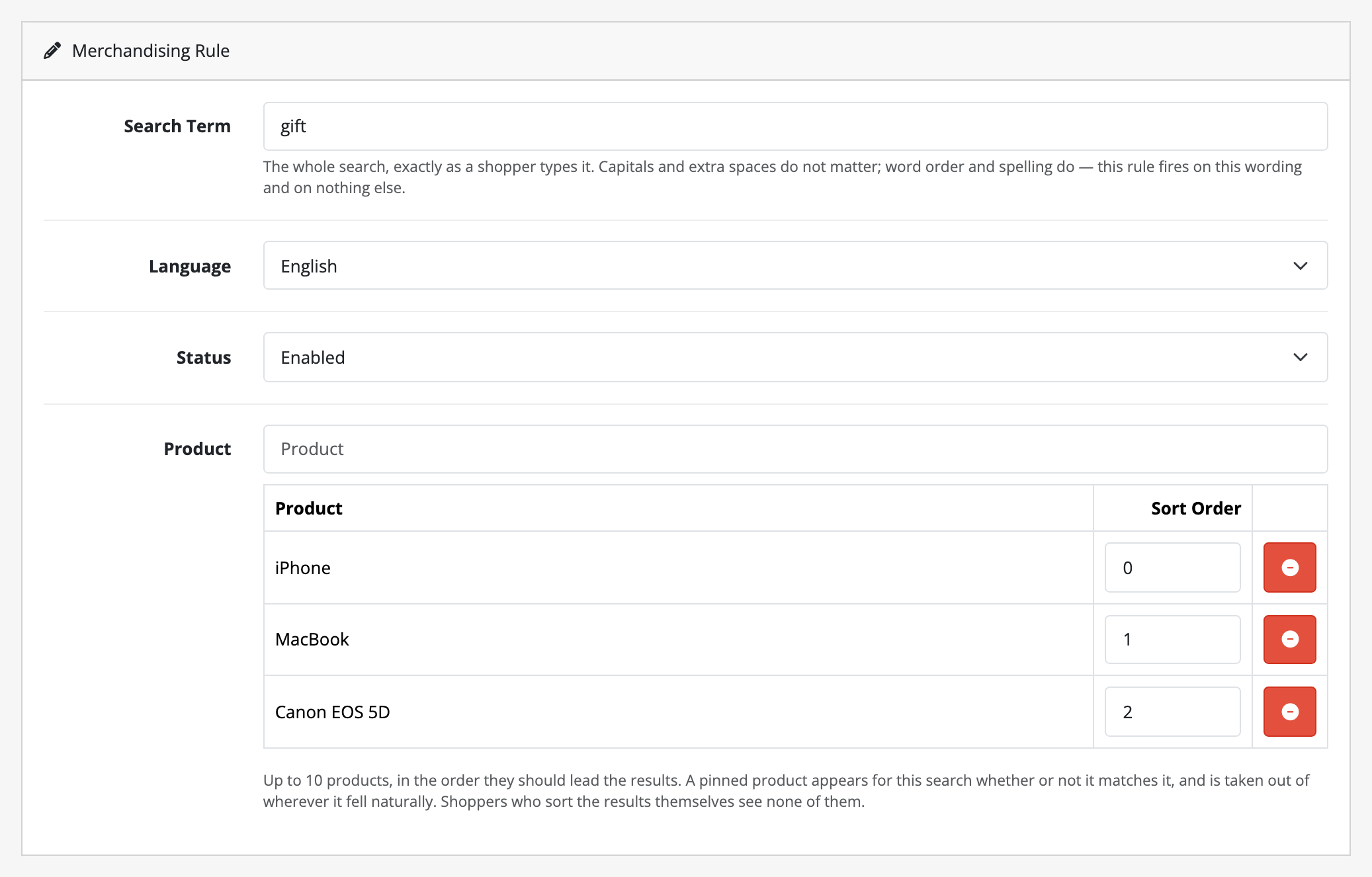
The Sort Order boxes decide which pinned product leads, which is why this is a table rather than a list of ticks.
Search your storefront for that term and the pinned products lead the results, in your order, followed by everything the search found on its own. A pinned product appears whether or not it matches the search, and is taken out of wherever it would otherwise have fallen, so nobody sees it twice.
Pins deliberately stand down in two cases. A shopper who picks their own sort order gets the results they asked for and none of your pins. And a shopper does not see a pinned product they could not otherwise see: one that is disabled, not yet available, in another store, or outside the category they narrowed the search to. Stock is not one of those tests; a pinned product with none left is still shown.
To retire a rule, either set its Status to Disabled, which keeps it for next time, or press the delete button on its row in the list, which asks first and does not come back.
Read the search report
The Reports tab is the only screen in this extension that tells you something you did not already know.
- Pick a Store and a Language. The counters are kept per store and per language, so the two selectors decide which rows you are looking at.
- Set From and To if you want a window other than the last 30 days (or whatever Report opens on says on the Settings tab).
- Read the table. Searches is how many times the term was typed, Returned Nothing how many of those came back empty, and Zero Rate the proportion. Zero Rate is the column to sort your attention by. A term searched 400 times with a 4% zero rate is healthy; one searched 40 times with a 100% zero rate is 40 shoppers who left.
- Tick Only searches that returned nothing to see the queue on its own.
A search is counted once, on the first page of its results; paging is not
searching again. It is filed under its
normalised spelling, so Pants and pants are one row. And the count is of
what Product Search answered: a search that typo tolerance rescued, or
that your pins filled, is not a zero-result search, because this is a queue of
terms nothing handled rather than a log of what the database did. The one
exception is the When a search finds nothing rule: a search it answers is
still counted as returning nothing, so the queue keeps showing you the gap.
Clear now throws away the counters for the store and language on screen, every day of them rather than only the dates you filtered to, and tells you how many days it removed. It touches nothing else: your groups and rules are authored work and are deleted one at a time on their own tabs.
Fix a search that returns nothing
This is the loop the three guides above exist to serve, and it is why the report and the two authoring screens are on one screen.
- Open Reports and tick Only searches that returned nothing. Sort your attention by how many people typed it.
-
Take the top row and ask which of two things it is:
- A word your shop does not use. Shoppers type
sweater, your catalogue says jumper. It is a vocabulary gap. - A word your shop uses and cannot answer well. Shoppers type
gift, you sell plenty of them, but nothing is named that.
- A word your shop does not use. Shoppers type
-
For the first, press the two-arrow button on the row (its tooltip reads Add a synonym group for this search). It opens the Synonyms tab with a new row already carrying that term, in the language the report was showing. Add the words your catalogue uses beneath it and press Save. Nothing was written until you did.
- For the second, press the pin button on the row (Pin products to this search). It opens a new merchandising rule with that term already in the keyword box. Add the products that ought to answer it and press Save.
- Search your own storefront for the term and see that it now answers.
Come back in a week. The term you fixed stops appearing in the zero-result list, because it is no longer returning nothing. That is the report working as intended, not lost data.
Two rows you will meet that are not worth fixing: a competitor's brand name, and a shopper's typo that typo tolerance has since started rescuing. Both drop off the list on their own.
Download the search report
You want the report in a spreadsheet, to sort it your own way or keep a copy before you clear it.
- Open Reports and set the Store, Language, From, To and, if you want only the queue, Only searches that returned nothing. Press Filter.
- Press Download CSV above the table.
The file holds every keyword the filter matches, not only the page on screen,
in the same order, with the columns keyword, searches, zero_results and
last_searched. The store, language, dates and the zero-only box are in the
file's name. A keyword a shopper typed starting with =, +, - or @ arrives
with an apostrophe in front of it, so your spreadsheet shows it as text rather
than running it as a formula.
Move a synonym list in
You have a list of synonyms already, from another store or from a spreadsheet, and do not want to type it in one row at a time.
- Save first if you have changed anything on the Synonyms tab. An import reloads the screen and discards rows that are not saved.
- On the Synonyms tab, pick the Language above the list and press
Download CSV. Even on an empty language this gives you a file in the
right shape: a header row reading
status,terms. - Add one group per row beneath the header:
1(or0for a group switched off) in the first cell, then one term per cell, 2 to 20 of them. A term may be a phrase, and may contain a comma, because each term has a cell of its own. - Back on the tab, with the same Language picked, press Import CSV, confirm, and choose the file.
The file replaces every group in that language. The other languages are not touched. If any line breaks a rule the form would refuse (too few terms, too many, a term already in another group of the file), nothing is imported and the message names the line. A file with only its header row empties the language, which the confirmation says before anything happens.
Set what a search that finds nothing shows
Some searches will find nothing whatever you do. You can choose what those shoppers see instead of an empty page.
- Open the Merchandising tab. The first row of the list, When a search finds nothing, reads not set. Press its edit button.
- The Search Term box is empty and cannot be typed in: this rule has no keyword. Pick the products with the Product picker and order them with Sort Order, as for any rule.
- Press Save.
Pick products that make sense on a page that matched nothing: best sellers, a gift card, a broad category's leaders. Nothing on the page tells the shopper these are not matches, because Product Search adds no text to your storefront.
The rule answers only a search that finds no product at all, after typo tolerance and after any keyword rule with a product to show. A shopper who sorts the results, or who ticks a filter that empties the page, sees none of it. And the search still counts as returning nothing in the report, so the term stays on your list to fix properly. The rule is per language: set it once for each.